Model 670C Berkeley Nucleonics Corp. 18 of 96
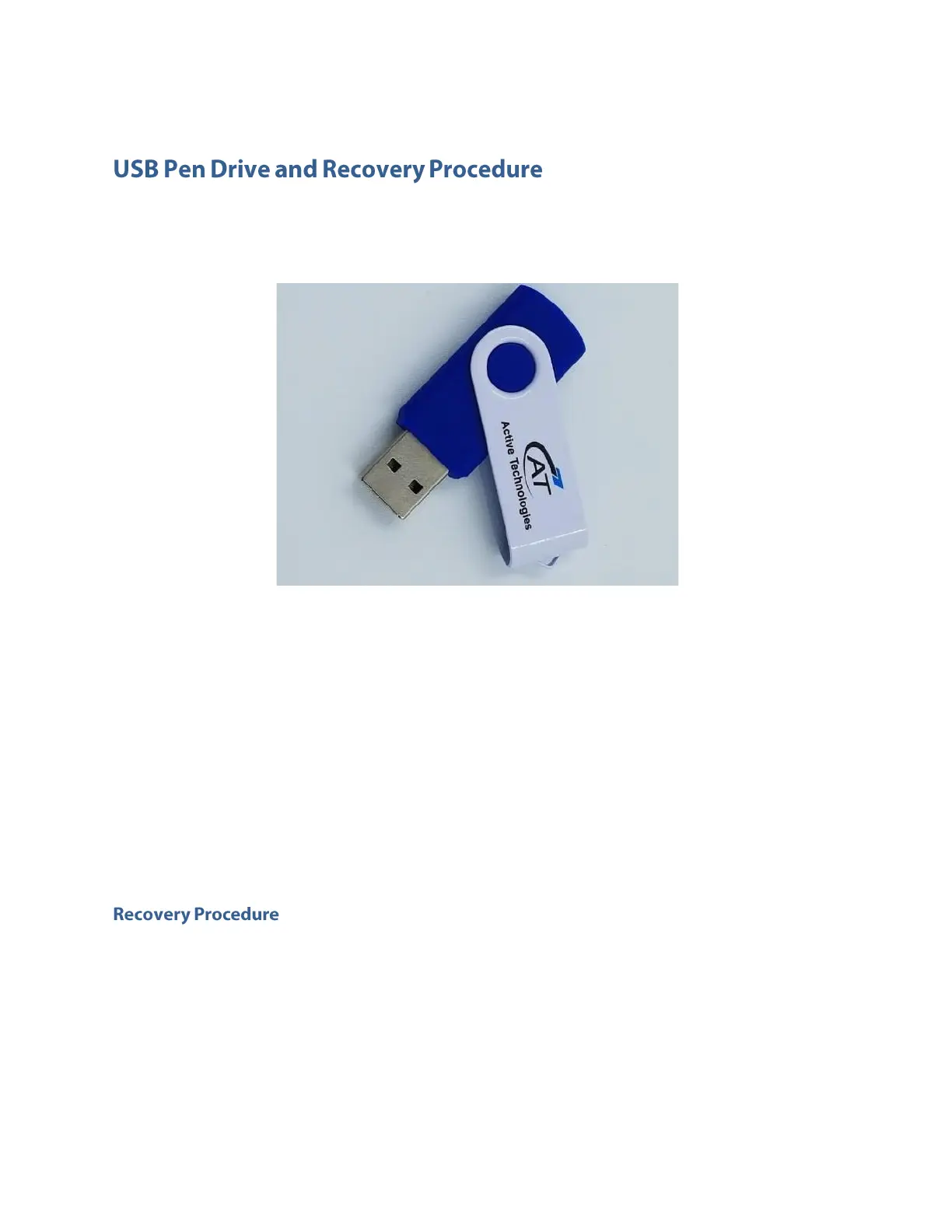
In case of software failure or corrupted applications, it’s possible reinstall the full factory image of the
software using the 32 GB Usb Pen Drive included in the package.
Note: In the Recovery USB Pen Drive you’ll find the same version of applications, drivers and updates
that were installed on the instrument at the time of purchase. To get the latest application release
follow the instructions in the paragraph “Obtaining the Latest Version Releases”.
Note: The procedure completely formats the SSD of the instrument so remember to save all important
data (Configuration files, Arbitrary User Waveform files…) in an external device because all the current
settings will be lost when the Recovery Procedure is launched.
Note: If two SSD are mounted on the instrument remember to leave only the one with the label “System
Disk” printed on it while the other one must be removed.
Note: A keyboard is required for the recovery procedure from USB Pen Drive.
1) Insert the Recovery USB Pen Drive into a USB port of the instrument. If the instrument is OFF
press the power-ON button, otherwise restart the instrument. Check that a keyboard is correctly
connected to the instrument.
2) Once the instrument is started press repeatedly F11 button on the keyboard during the Boot
process and access the Boot menu (see the image below).


 To Next Page
 Loading...