Need help?
Do you have a question about the BNC 670C and is the answer not in the manual?
Explains symbols used for safety precautions and warnings.
Guidelines for recycling instruments and components.
Encourages recycling to reduce environmental impact and resource use.
Lists items included in the standard Model 670C Series package.
Details the different models in the 670C Series with their specifications.
Instructions for unpacking and setting up the instrument.
Guidelines for proper instrument placement and cooling.
Specifies voltage, frequency, and power consumption requirements.
Information on recommended calibration interval and procedure.
Notes on operating the instrument safely under unusual circumstances.
Guidance on correctly connecting input/output connectors to prevent damage.
Step-by-step guide for installing the TrueArb software application.
Steps to reinstall the factory image using a USB pen drive.
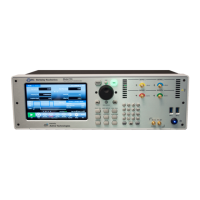
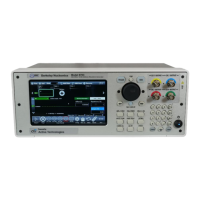
Description of the instrument's front panel controls and indicators.
Details the functions of the physical keypad and rotary knob.
Explains the use of the physical numeric keypad for input.
Identifies connectors and ports on the instrument's rear panel.
Details the Marker Out digital output channel and its specifications.
Explains the Trigger In connector for external signal control.
Overview of the touch-based user interface and gestures.
Describes the toolbar for navigating and managing sequencer entries.
Explains the area for creating and managing waveform sequences.
Covers the graph and parameters for viewing waveforms.
Details the bar for controlling instrument operations and settings.
Provides status indicators for memory usage and trigger events.
Describes the function of each button in the command bar.
Settings common to the instrument, grouped into General, Timing, Trigger.
General device settings including resampling strategy and run mode.
Parameters for analog channels like amplitude, skew, and polarity.
Configuration for enabling and managing up to 8 digital lines.
Defines how entry length relates to analog waveform length.
Strategy for applying length to imported waveforms.
Enables/disables warnings for waveform length mismatches.
Access to options for managing the waveform list.
Displays graphical rendition of the selected waveform.
Area to scroll through all stored waveforms.
Steps to promote a waveform to the Predefined list.
Guide to creating new analog or digital waveforms.
Introduces customizable parametric waveforms.
Details Sweep type waveforms and their parameters like Sweep Mode.
Sine wave generation with Auto Calc and phase customization.
Sinc wave generation without Auto Calc, customizable length and rate.
Creating custom sums of sinusoidal tones.
Steps to extract array points from a parametric waveform.
How to save the current instrument configuration.
How to export the current configuration to a file.
Credentials for remote desktop connection to the instrument.
Setup instructions for remote communication via GPIB.
Setup instructions for remote communication via USBTMC.
Diagram and pin assignment for the Mini-SAS HD connector.
Details the AT-LVDS-SMA8 cable adapter specifications.
Details the AT-DTLL8 probe for LVDS to LVTTL conversion.
Details compliance with Electromagnetic Compatibility standards.
Details compliance with Low Voltage Product Safety standards.
Information on WEEE, Batteries, and RoHS compliance.
 General
| Brand | BNC |
|---|---|
| Model | 670C |
| Category | Portable Generator |
| Language | English |

 To Next Page