Model 670C Berkeley Nucleonics Corp. 81 of 96
• The first one, simply entails you to tap onto the button, part of each Tone card in the Tone
queue.
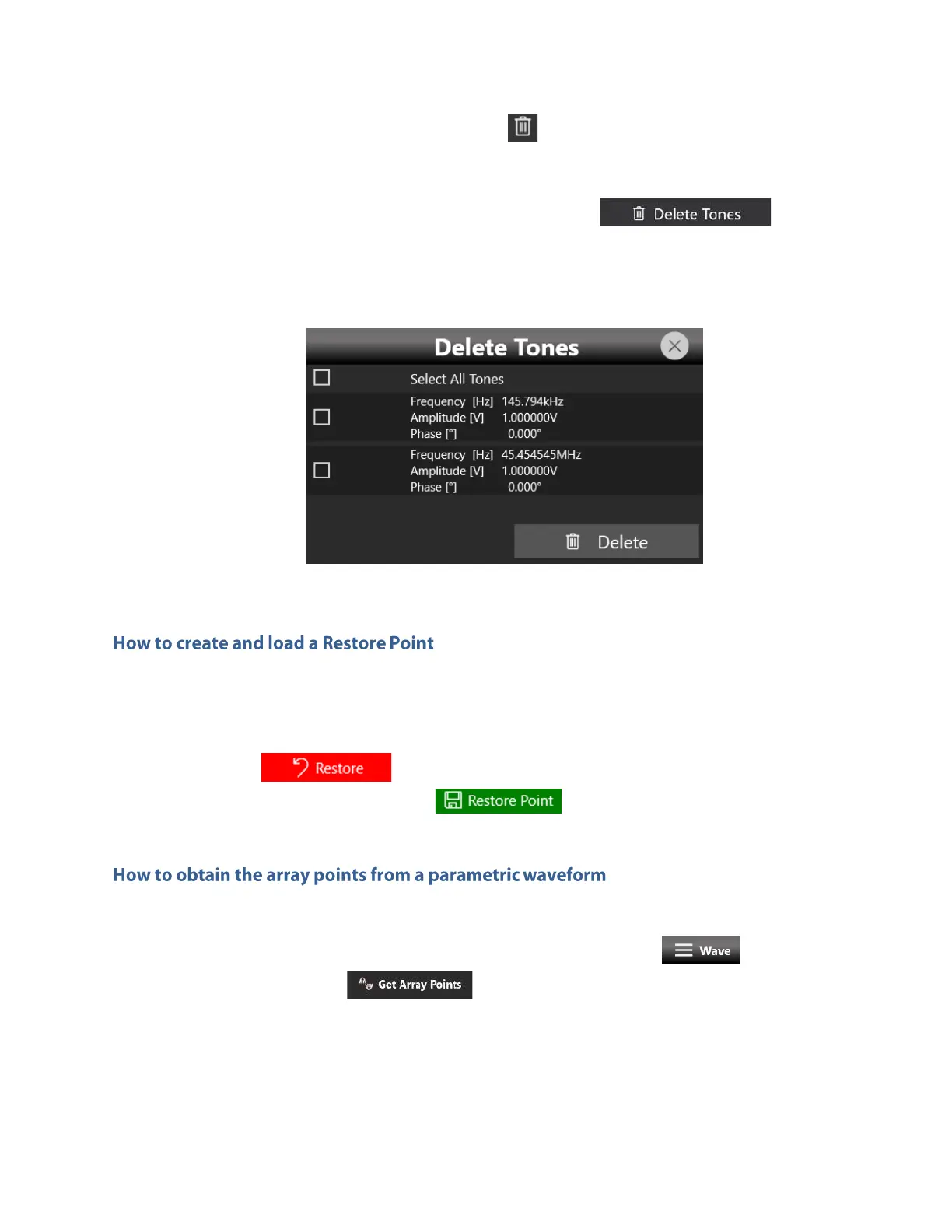
• The second one instead, while fundamentally working as the first, is more tailored towards
deletion of multiple tones at once. To do that, tap onto the button; a
submenu will open, showing a brief summary of the currently queued tones. Each entry has a
small checkbox that you can mark if you want that tone to be delete once you tap onto the delete
button, as shown in the image below.
Once you finish setting up a parametric waveform as you see fit you can create a Restore Point. What a
restore point does is fairly simple: it takes a snapshot of the current parametric waveform configuration,
so that if you modify it, perhaps unknowingly, or you aren’t satisfied with result of your changes you only
need to tap onto the button to go back.
To create a Restore Point simply tap onto the button.
Once you have finished customizing a parametric waveform as you see fit you can obtain its array
points. To do so, after selecting the chosen parametric waveform, tap onto the button in the
shortcuts area and then onto the button.
A new non parametric waveform containing the array points will be created and added to the waveform
list, which you can later export and modify as you see fit.


 To Next Page