Model 670C Berkeley Nucleonics Corp. 68 of 96
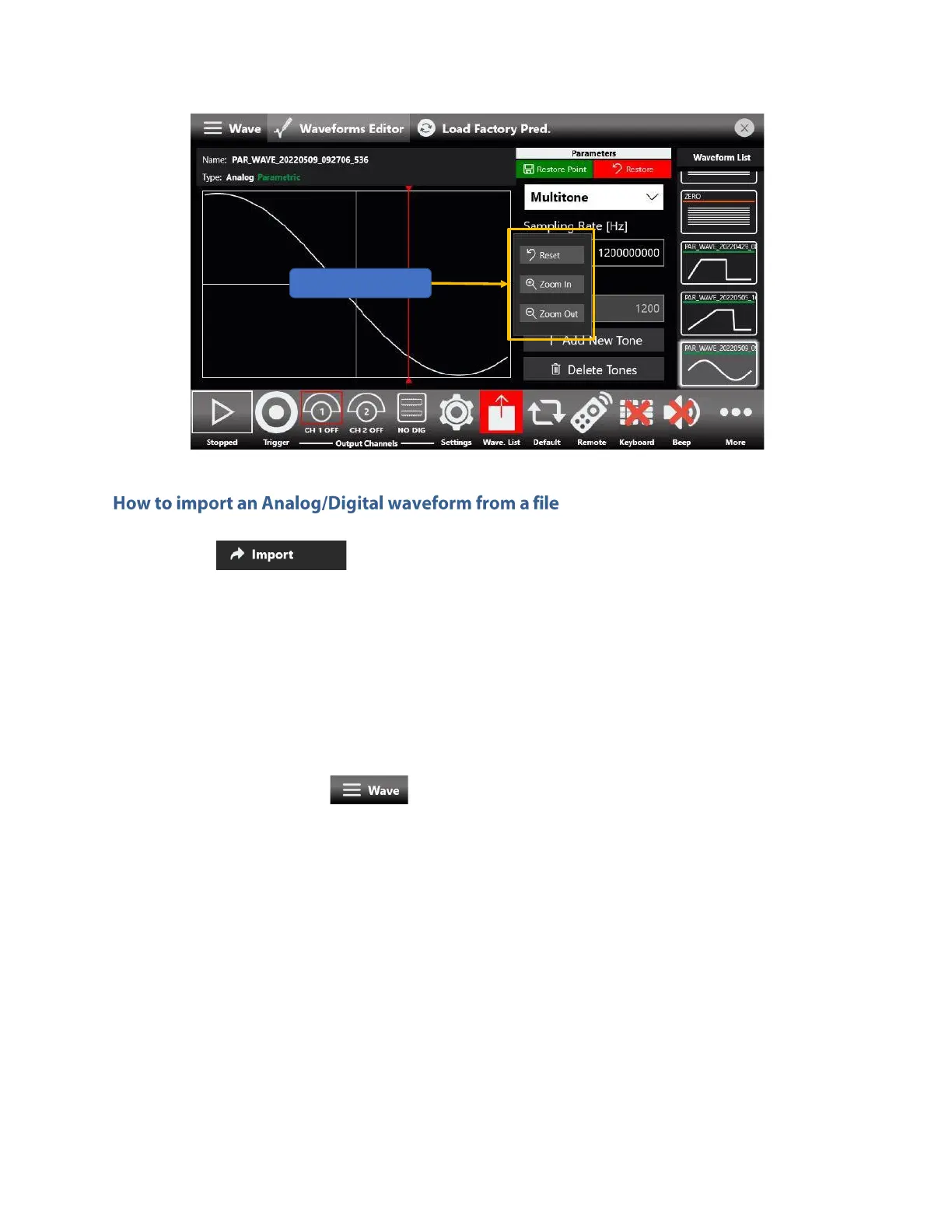
Please note that the drawn waveform is an ideal waveform depicting the value of each sample.
Import button allows you to import data from a file to create a new waveform
The supported file formats are:
• .txt – New line (\n) separated text file (one column only with no header)
• .zip – Compressed file in binary proprietary format
• .trc – LeCroy oscilloscope binary file format
• .bin – Binary file. If the file will be loaded as an analog waveform, the software will
use two bytes for each sample (little endian format) otherwise if the file will be
loaded as a digital waveform, the software will use four bytes for each sample (little
endian format).
1. Press the wave button located at the left end of the shortcuts area, then press the
import button and a Windows File Browser will open. Select the txt or zip file you would like to
import, then the Import page will open.
2. In the Import dialog, the Name and Description fields will be automatically filled with default
values.
3. Select the Waveform Type you would like to import (“Analog” or “Digital”).
If “Analog” is selected the waveform data will be interpreted as a single column of values (the
header is not allowed). The imported waveform is normalized so that the user can easily adjust
its amplitude/offset using the Waveform parameters in the Graph area of the sequencer.
If “Digital” is selected each data point is represented by a 32-bit unsigned integer (but only the
first 8 bit are significant) where the value of each bit is transferred to the corresponding digital
line (Bit 0 -> Digital Line 0, Bit 1 -> Digital Line 1, …).


 To Next Page
 Loading...