EasyManua.ls Logo

Boavision W54F5MP-WP - User Manual

Boavision W54F5MP-WP
36 pages
Print Icon
To Next Page IconTo Next Page
Loading...
User Guide
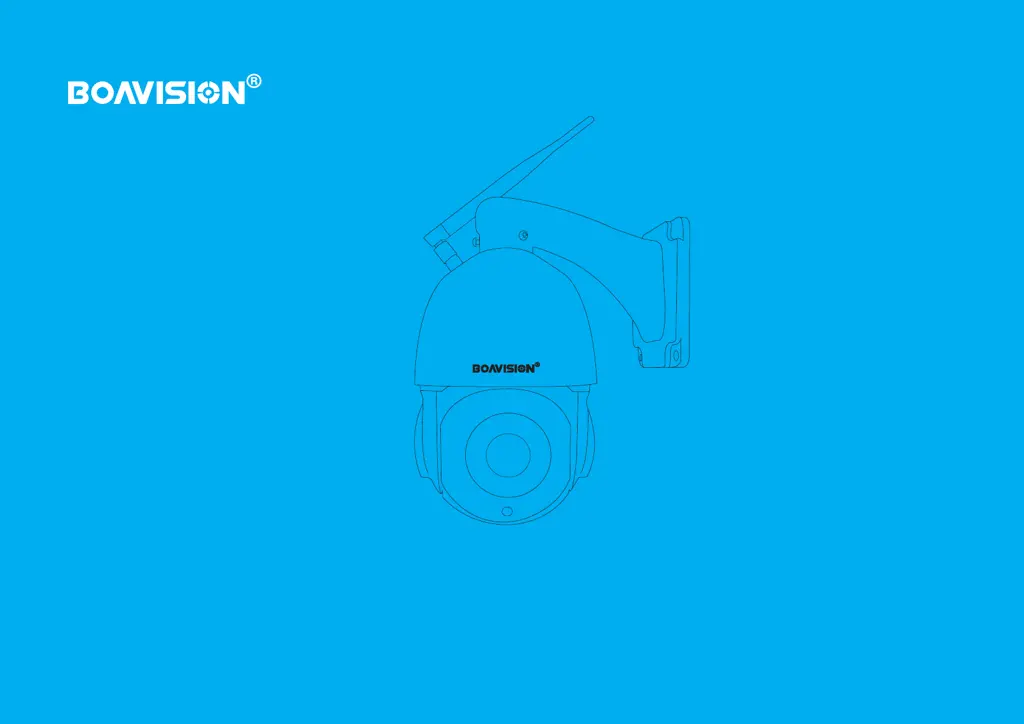
Wireless Pan/Tilt/Zoom Security Camera
W54F5MP-WP

Other manuals for Boavision W54F5MP-WP

Questions and Answers

  • M
    Mary CooperAug 15, 2025
    Why is my Boavision W54F5MP-WP Security Camera connection not established?
    • B
      belinda30Aug 16, 2025
      If you're having trouble establishing a connection with your Boavision Security Camera, first verify your Wi-Fi name and password, paying attention to any special characters. Ensure that your Wi-Fi network operates on a 2.4G frequency, as 5G is not supported. Also, position your camera and mobile phone closer to the router to ensure a strong signal.
  • T
    Tina EwingAug 18, 2025
    What to do if my Boavision W54F5MP-WP Security Camera shows as offline?
    • A
      andrewrichardsonAug 19, 2025
      If your Boavision Security Camera keeps going offline, check your network connection to ensure it's working correctly. The camera might be too far from the router, so try moving it closer to improve the signal.
  • D
    Derrick AndrewsAug 21, 2025
    How to stop frequent alarms on Boavision W54F5MP-WP?
    • S
      Shelly HallAug 22, 2025
      If your Boavision Security Camera's alarm is triggering too often, try reducing the motion sensitivity and adjusting the monitored area. You can also set up a schedule for the alarm time in the advanced settings.
  • L
    Lindsey GrahamAug 25, 2025
    Why is my Boavision W54F5MP-WP not recording alarm videos?
    • M
      Mark DixonAug 26, 2025
      If your Boavision Security Camera isn't recording alarm videos, insert a micro SD card into the device. Then, go to the SD card settings page to confirm that the card is readable and that the memory size is displayed.
  • A
    allison53Aug 27, 2025
    Why does my Boavision W54F5MP-WP Security Camera capture alarms without a person?
    • M
      Michael MatthewsAug 27, 2025
      If your Boavision Security Camera captures alarms when no person is present, try adjusting the camera's position or direction to increase the distance between the camera and the monitored area. Some objects like flies, leaves, or dust might trigger the motion sensor. Reduce the motion sensitivity and adjust the monitored area to avoid these false alarms.
  • J
    John FryAug 30, 2025
    How to enable alarm push notifications for Boavision Security Camera?
    • D
      David ToddAug 30, 2025
      If you are not receiving alarm notifications from your Boavision Security Camera, ensure that notifications for the Camhipro app are enabled in your mobile device's settings.
  • L
    Lisa HahnSep 2, 2025
    Why is there a video delay on my Boavision W54F5MP-WP Security Camera?
    • J
      johnsonmackenzieSep 3, 2025
      If you're experiencing video delays with your Boavision Security Camera, examine your WIFI network. Ensure that the distance between the camera and the router isn't too great.
  • R
    Rebecca ReedSep 6, 2025
    What to do if Boavision W54F5MP-WP keeps rebooting or crashing?
    • C
      curtischavezSep 6, 2025
      If your Boavision Security Camera keeps rebooting or crashing, check if your SD card is correctly installed. If problems persist, replace it with a new Class 10 memory card and go through the setup process again.
  • K
    Kayla AndersonSep 8, 2025
    How to find Boavision Security Camera WiFi signal?
    • C
      Christina Snyder MDSep 8, 2025
      If you cannot see the Boavision Security Camera's WiFi signal in your phone's WLAN settings, ensure the camera is not connected via Ethernet cable. Press and hold the reset button on the cable for 20 seconds, wait 30 seconds, and check your phone's WLAN settings for a WiFi signal named IPCAM-xxxxx. If it's still not visible, quickly press the reset button and wait 20 seconds; the WiFi signal should then appear as IPCAM-XXXXX.
  • J
    Jeffery WilliamsSep 12, 2025
    Why can't I find recorded video on my Boavision W54F5MP-WP playback?
    • M
      Mark BrightSep 12, 2025
      If you cannot find recorded video when playing back from your Boavision Security Camera, set up the correct time zone for your device. Select your Time Zone, enable Daylight Saving Time, and then save the Time Zone for the device.

Summary

Declaration

Conventions

Explains the conventions used in the guide, such as color coding and underlines for information.

Introduction

Product Detail

Insert Micro SD Card

Multiple Connection

WiFi Wireless Connection

Describes how to connect the camera wirelessly via a WiFi router.

POE Wired Connection

Describes how to connect the camera using a POE wired connection.

Set Up Your Camera

Add Camera

Setup Via AP Mode

Details the steps for setting up the camera using its Access Point (AP) mode.

Setup With Network Cable (Optional)

Format Micro SD Card

Wall Mount

Mark Position

Instructions on marking the drilling points on the wall for mounting.

Mount Camera

Instructions on physically attaching the camera base to the wall.

Tracking Setting

Auto Tracking Setting

Details the configuration for the camera's automatic tracking functionality.

Motion Detection and Push Alert Message

Actions When Detect a Motion

Save Motion Videos to micro SD Card

How to configure the camera to save motion detection videos to an SD card.

Sound Warning

How to enable the camera to issue a sound alert when motion is detected.

Email Alert (Gmail setting reference)

Playback and Download Videos From Micro SD Card

Upload Pictures and Videos to FTP Server

Download Video

Device Information

How to Use Two-way Talk Function

IR LED Night Vision and Floodlight

Share The Camera With Your Family

Camera Works On Other Devices

ONVIF & RTSP

How to Reset The Camera

Connect to Blue Iris

Connect to Synology

Connect to QNAP

Connect to iSpy

Warranty & Support

Trouble Shooting

Boavision W54F5MP-WP Specifications

General IconGeneral
Resolution5MP
ConnectivityWi-Fi
Lens3.6mm
WeatherproofIP66
StorageMicro SD card (up to 128GB)
TypeBullet Camera
Night VisionYes
Power SupplyDC 12V

Related product manuals