EasyManua.ls Logo

bon BXM-183L3G - User Manual

bon BXM-183L3G
38 pages
Print Icon
To Next Page IconTo Next Page
Loading...
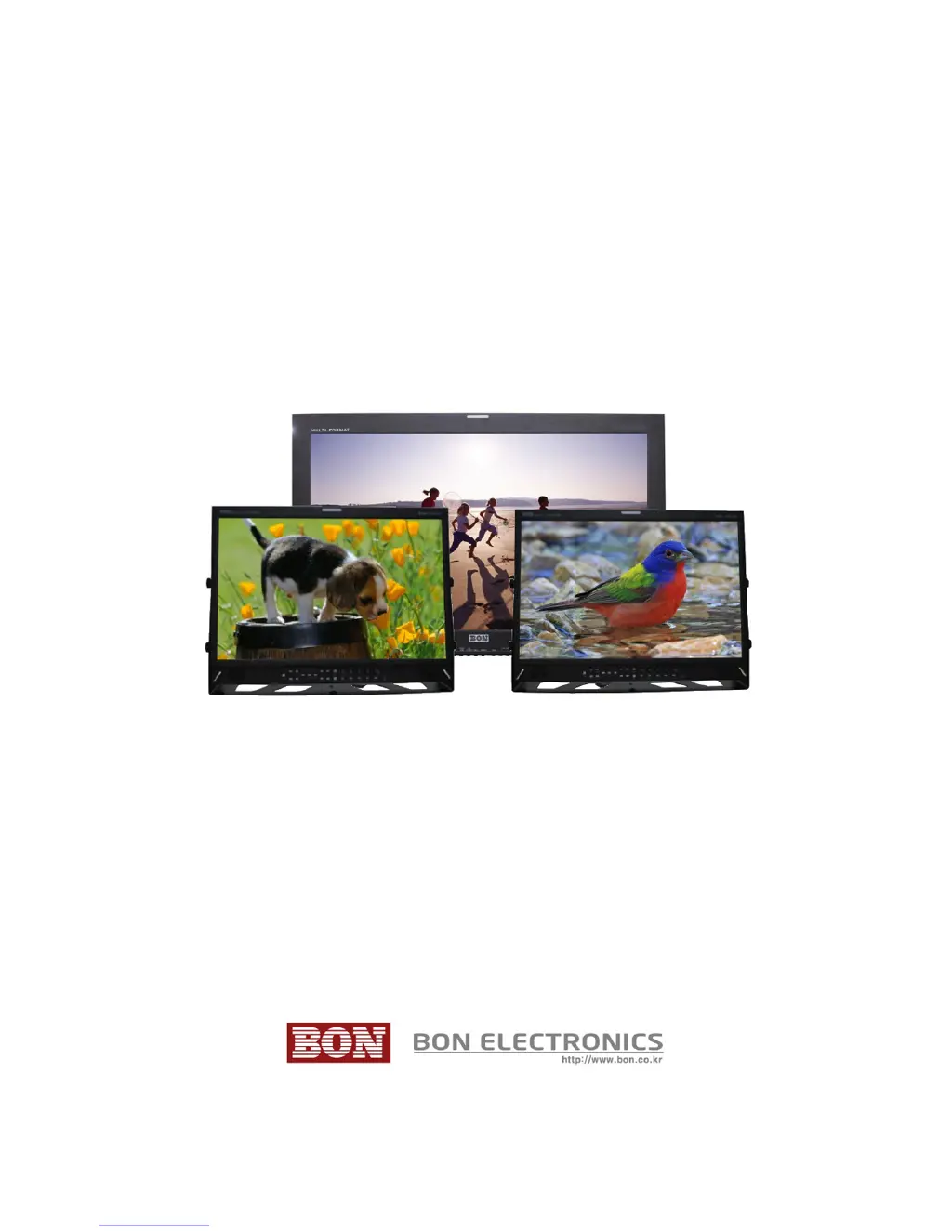
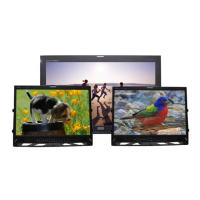
Multi-Format Broadcast Monitor
BXM-183L3G, BXM-243L3G,
BXM-243T3G, BXM-323L3G
Users Guide

Questions and Answers

  • J
    Jason MackAug 17, 2025
    What to do if the bon BXM-183L3G Monitor shows 'No Signal'?
    • J
      jessicavazquezAug 17, 2025
      If the BON monitor displays 'No Signal,' first, check the input selection. If that doesn't work, restore the monitor to its factory default settings and try again. Also, try a different input cable and ensure the cable is properly connected. Verify that the input format and frequency are supported. As a final step, try a different input device. If the issue resolves, the original device may be generating a non-standard signal; in such case, please inform the manufacturer of its model name.
  • L
    Lisa FarmerAug 19, 2025
    What to do if BON Monitor logo appears but there's no screen output with input signal?
    • M
      Marvin JohnsonAug 19, 2025
      If the BON logo appears on startup, but there is no screen output when an input signal is connected, remove the input cable and check if 'No Signal' appears on the screen. If 'No Signal' does not appear, restart the monitor. If the problem persists, restore the monitor to its factory default settings. Check the cable connectivity and try a different cable. Ensure that the input format and frequency are correct. Finally, try a different input device. If successful, the failed input device may generate a non-standard signal; please inform the manufacturer of its model name.
  • G
    Gary GreenAug 22, 2025
    Why does my bon BXM-183L3G Monitor have strange colors on the active screen?
    • A
      Andrea WilliamsAug 22, 2025
      If the active screen of your BON monitor shows strange colors but the startup logo color was okay, restore the monitor to its factory default settings and try again. Select the test pattern (internal pattern) in the menu to see if the R, G, B colors are correct. Check the input selection. Try using a different cable. If you are using a component as input, check if each cable is correctly connected.
  • K
    Kristy MillerAug 25, 2025
    How to fix screen position mismatch on bon BXM-183L3G?
    • R
      Robert WilliamsAug 25, 2025
      If the screen position is mismatched on your BON monitor, first, restore the monitor to its factory default settings and try again. If the issue persists, reconnect the power and restart the monitor. You can also try a different input device. If this resolves the problem, the failed input device may be generating a non-standard signal; please inform the manufacturer of its model name.
  • K
    Karen WilcoxAug 27, 2025
    Why is there no audio output from my bon BXM-183L3G?
    • M
      matthew98Aug 27, 2025
      If your BON monitor has no audio output, check if the volume level is set to 0. Display the audio level meters to see its output.
  • C
    Charles HernandezAug 30, 2025
    What to do if the screen is black and all button lights are on during the startup process of bon Monitor?
    • C
      Cheryl GonzalezAug 30, 2025
      If the screen is black and all the button lights are on during the startup process of your BON monitor, reconnect the power and restart the monitor. If the symptom appears more than three times, call for service.
  • A
    Antonio GonzalezSep 2, 2025
    What to do if bon BXM-183L3G screen is black on startup, but buttons are working?
    • E
      emily52Sep 2, 2025
      If the screen of your BON monitor is black on startup, and there's neither a BON logo nor a 'No Signal' display, but the buttons are working, reconnect the power and restart the monitor. If this issue occurs more than three times, call for service.
  • E
    Eric BlakeSep 5, 2025
    How to turn on bon BXM-183L3G Monitor if it's not powering on?
    • S
      Sharon MooreSep 5, 2025
      If the power isn't turned on for your BON monitor, check the connectivity of the power cable between the outlet and the monitor. Press and hold the power button for more than one second. Try using the same power cable with another monitor or electric device.
  • G
    Geoffrey DavisSep 7, 2025
    Why do colors look different between different bon BXM-183L3G models?
    • C
      Catherine GuerraSep 7, 2025
      If the colors look different between different models of BON monitors, allow your monitor a one-hour warmup time. Because different panels have different characteristics, colors might look different.
  • C
    Cassie RodgersSep 12, 2025
    Why is there a strange color on the bon BXM-183L3G logo on startup?
    • K
      Kelly MayoSep 12, 2025
      If you see a strange color on the BON logo during startup, reconnect the power and restart the monitor. If the issue persists after three attempts, call for service.

Summary

Safety Instructions

Safety Precautions

Essential safety guidelines for operating and handling the monitor to prevent damage or injury.

Front Panel Overview

Power Button and LED Indicator

Details on the power button function and its associated LED status indicator.

HDMI;DVI Input Port

Information regarding the HDMI and DVI input connections for video signals.

Analog Input Selection

How to switch between analog input types like CVBS, S-VIDEO, RGB, YpbPr, VGA.

Waveform;Vector Scope (WF;VS)

Functionality for displaying waveform or vector scope with size adjustment options.

Audio Level Meters Display

Feature for displaying audio level meters to monitor sound output.

Marker Functionality

Options for displaying and customizing various marker types on the screen.

Function Keys Assignment

Allows users to assign specific functions to programmable function keys.

Enter and Scan Controls

Functionality of the Enter button for selection and Scan modes for picture adjustment.

H;V Delay and R;G;B Gray Display

Displays auxiliary data via H/V delay and R, G, B or Gray color channels.

Focus Assist and Video Attribute Controls

Tools for focus assistance and adjusting video attributes like brightness and contrast.

False Color and Audio Out

False Color mode for exposure inspection and audio output connections.

Remote Sensor

Location and function of the infrared remote control sensor.

Rear Panel Connections

AC Power Input

Connection point for the AC power supply to the monitor.

SDI Input and Output Ports

Details on SDI input and loop-through output connections for video signals.

Component;CVBS Input;Output

Ports for Component (YPbPr/RGB) or CVBS signals and their loop-through outputs.

External Sync and DVI;HDMI Ports

Connections for external sync signals, DVI, and HDMI inputs.

Ethernet Port for Remote Control

Ethernet connection for PC-based remote control using the Wall Control Program.

Menu Operation

OSD Menu Display Cautions

Notes on menu display behavior, especially regarding signal status and saving selections.

Update and Remote Ports

Description of Update Port, Remote Ethernet Port, and USB Update Port functions.

Audio In;Out Port

Details on the audio input and output connections available on the monitor.

Video Settings

Video Attribute Adjustments

Adjustments for brightness, contrast, chroma, phase, and sharpness for color representation.

NTSC Setup and SDI Switching

Configuration for NTSC standards and switching between normal and fast SDI modes.

Dithering Mode

Enables smoother motion viewing for low-quality sources by reducing banding.

Display 1 Settings

Aspect Ratio Control

Settings to adjust the screen's aspect ratio, such as 16:9, 4:3, or Native.

Pixel Mapping and AFD

Options for 1:1 pixel mapping and Automatic Format Detection (AFD) for aspect ratio.

SDI Mode and 3 G SDI Support

Configures SDI input modes (Single/Dual) and enables 3G SDI functionality.

Dual Link and Fast Mode

Settings for dual link waveform display and fast mode for interlaced input motion.

Display 2 Settings

Picture-in-Picture (P&P) Menu

Allows displaying two pictures via Picture-in-Picture, Picture-by-Picture, or Blending modes.

Waveform Display Options

Controls for waveform display mode, line selection, size, and color.

Waveform and Vector Scope Adjustments

Adjustments for waveform intensity, size, and transparency of the scope.

Display 3 Settings

Exposure Range Check

Checks and displays over/under-exposed areas using Y, Cb, or Cr levels.

Range Check Parameters

Sets Y and C range values for exposure checks, including blink color and time.

False Color and Focus Assist

Utilizes False Color for exposure levels and accesses Focus Assist sub-menus.

Focus Assist Display and Level

Turns on Focus Assist mode and adjusts its sensitivity level from 0 to 48.

Focus Assist Color Selection

Allows selection of brush color for focus assist mode among Blue, Green, and Red.

Color Settings

Color Temperature Adjustment

Selects color temperature from 3200K, 5400K, 6500K, 9300K, or USER mode.

RGB Gain and Bias Controls

Adjusts Red, Green, and Blue gains and biases, primarily in USER mode.

Additional Color Menu (BXM-243 T3 G)

Gamma Settings

Configures gamma settings such as 2.2, 2.35, 2.6, DICOM, or User adjustment.

Color Space Selection

Chooses color space standards like Auto, NTSC, PAL, SMPTE-C, BT.709, or User.

Marker Settings

Marker Ratio and Safety Areas

Selects marker type and adjusts safety area sizes for 16:9 and 4:3 screens.

Center Marker and Color

Enables center marker display and selects marker color from various options.

Marker Mat and Thickness

Sets display style outside safety area and adjusts marker line thickness.

User Marker Position Setup

Sets custom marker positions (H1/H2 for horizontal, V1/V2 for vertical) and saves them.

OSD Settings

Timecode Display and Position

Controls for enabling timecode display and setting its screen position.

OSD Display Time and Blend

Sets the duration for OSD menu display and its transparency level.

Menu Position and IMD;UMD

Configures menu screen position and IMD/UMD display modes.

Closed Caption Settings

Options for displaying closed captions, including service types and line selection.

V-Chip Information and CC708 Service

Enables V-Chip data display and selects preferred CC708 caption services.

CC608 Start Line Selection

Allows user selection of caption display lines for CC608 service.

Audio Settings

Audio Group and Channel Selection

Assigns audio groups and selects audio channels for left and right outputs.

Audio Level Meter Configuration

Controls for enabling, sizing, positioning, and orienting audio level meters.

Peak Decay Time Adjustment

Adjusts the decay time for the audio level meters.

3 G Level B Audio and Speaker Settings

Selects audio source for 3G SDI and configures speaker output source and volume.

GPI Control

GPI Control Enable

Turns on or off the external monitor control function via GPI.

GPI Port Function Assignment

Assigns specific functions to each of the six GPI ports.

Remote ID and Serial Control

Sets monitor ID for serial control and enables serial remote mode.

Network Connection Setup

Configures network connection using DHCP or Static IP for remote control.

Network Connection Port and MAC Address

Assigns connection ports for multiple monitors and explains MAC address.

System Settings

Function Button Assignment

Assigns functions to the front panel function buttons (1-4).

Backlight and Test Pattern

Adjusts screen backlight intensity and displays test patterns.

Front Button LED and Lock

Controls front LED status and locks front buttons to prevent accidental changes.

Setup Load and Save

Loads predefined settings or saves current configuration for later use.

Firmware Update and Version

Instructions for updating firmware and locating the firmware version number.

Operating Time Monitoring

Indicates the total operating hours of the monitor.

USB Firmware Update Procedure

Firmware Update Prerequisites

Requirements for firmware files, USB memory format (FAT32), and locating files.

Update Mode and Execution

Details on setting update mode via SYSTEM menu and executing the update.

Error Messages and Support

Information on error messages during USB access and seeking help from BON Electronics.

External Remote Control

GPI Port Connection (RJ-45)

Diagram and pin assignment for connecting GPI ports using RJ-45 connectors.

Update Port Connection (RJ-11)

Diagram and terminal assignment for the RJ-11 update port.

Remote Control;GPI Pin Functionality

Details on assigning functions to GPI pins and control logic for pins 1-7 and GND.

Assignable Input Functions

List of input signal switching functions that can be assigned to GPI ports.

Assignable Control Functions

List of control functions like Menu, Aspect, Scan, and H/V Delay assignable to GPI.

Assignable Display and Status Functions

Functions related to display modes, LEDs, and tally signals for GPI assignment.

Compatible Video Formats (VGA;DVI)

Compatible Video Formats (SDI)

Specifications

Dimensions

Troubleshooting

Warranty Information

Free Service Period

Details on free repair service provided within 12 months of purchase.

Service Exceptions

Conditions under which warranty service may not be provided or may be charged.

Service to be Charged

Information regarding repair services required after the 12-month free service period.

Modification of Product

Caution on Menu Operation

Caution for Monitor Placement

Caution for Usage

bon BXM-183L3G Specifications

General IconGeneral
Brandbon
ModelBXM-183L3G
CategoryMonitor
LanguageEnglish

Related product manuals