EasyManua.ls Logo

bon BXM-243L3G - User Manual

bon BXM-243L3G
38 pages
Print Icon
To Next Page IconTo Next Page
Loading...
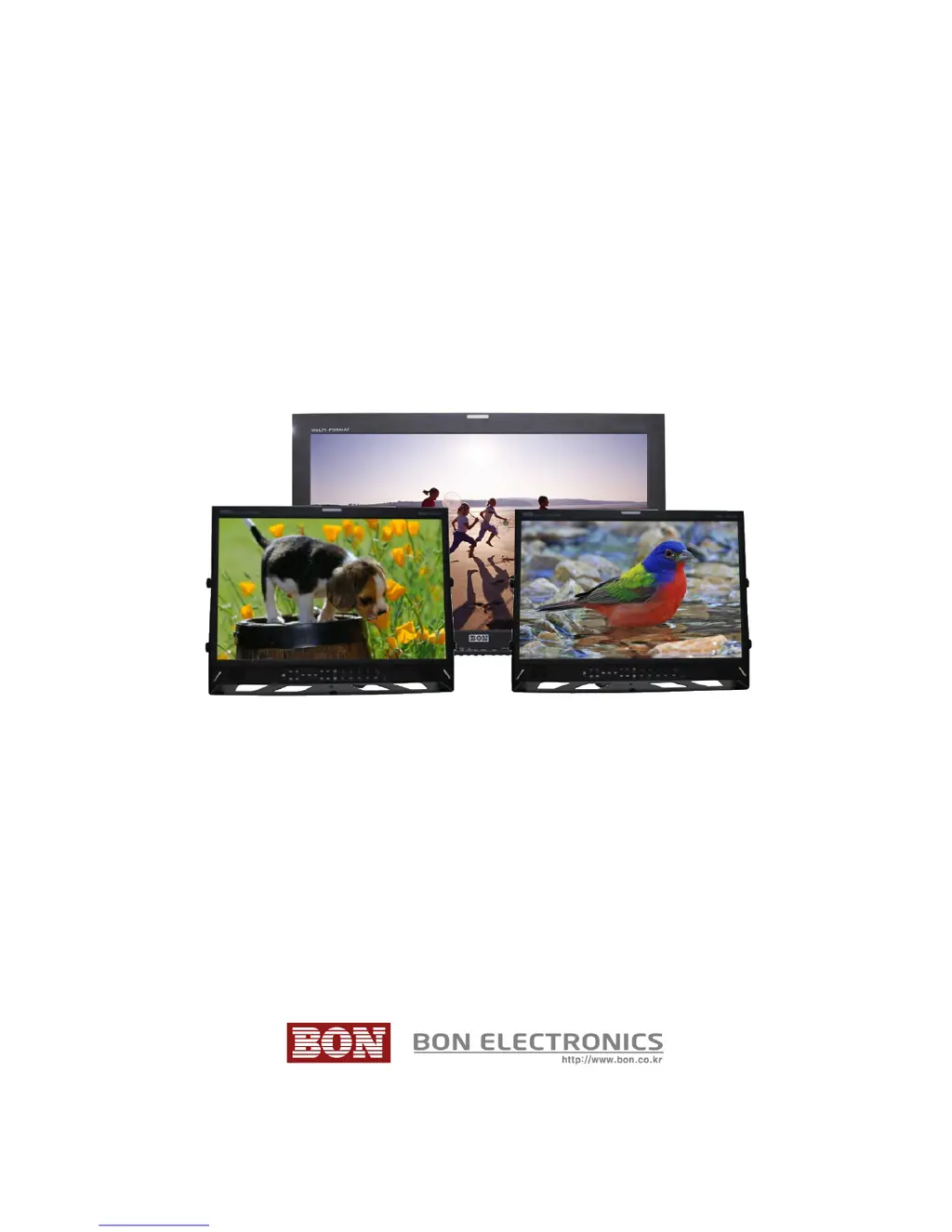
Multi-Format Broadcast Monitor
BXM-183L3G, BXM-243L3G,
BXM-243T3G, BXM-323L3G
Users Guide

Questions and Answers

  • A
    Ashley SimpsonAug 17, 2025
    What to do if the BON Monitor shows 'No Signal'?
    • J
      Joshua ClarkAug 17, 2025
      If the BON monitor displays 'No Signal,' first, check the input selection. If that doesn't work, restore the monitor to its factory default settings and try again. Also, try a different input cable and ensure the cable is properly connected. Verify that the input format and frequency are supported. As a final step, try a different input device. If the issue resolves, the original device may be generating a non-standard signal; in such case, please inform the manufacturer of its model name.
  • C
    Christopher RileyAug 19, 2025
    What to do if BON Monitor logo appears but there's no screen output with input signal?
    • D
      Derrick YoungAug 20, 2025
      If the BON logo appears on startup, but there is no screen output when an input signal is connected, remove the input cable and check if 'No Signal' appears on the screen. If 'No Signal' does not appear, restart the monitor. If the problem persists, restore the monitor to its factory default settings. Check the cable connectivity and try a different cable. Ensure that the input format and frequency are correct. Finally, try a different input device. If successful, the failed input device may generate a non-standard signal; please inform the manufacturer of its model name.
  • J
    Jennifer WoodAug 23, 2025
    Why does my bon BXM-243L3G Monitor have strange colors on the active screen?
    • R
      Rodney PotterAug 23, 2025
      If the active screen of your BON monitor shows strange colors but the startup logo color was okay, restore the monitor to its factory default settings and try again. Select the test pattern (internal pattern) in the menu to see if the R, G, B colors are correct. Check the input selection. Try using a different cable. If you are using a component as input, check if each cable is correctly connected.
  • R
    Russell HallAug 26, 2025
    How to fix screen position mismatch on bon BXM-243L3G Monitor?
    • S
      Stephanie Carlson MDAug 26, 2025
      If the screen position is mismatched on your BON monitor, first, restore the monitor to its factory default settings and try again. If the issue persists, reconnect the power and restart the monitor. You can also try a different input device. If this resolves the problem, the failed input device may be generating a non-standard signal; please inform the manufacturer of its model name.
  • L
    lisa16Aug 28, 2025
    Why is there no audio output from my bon BXM-243L3G?
    • C
      christianamberAug 28, 2025
      If your BON monitor has no audio output, check if the volume level is set to 0. Display the audio level meters to see its output.
  • J
    John ThompsonAug 30, 2025
    What to do if the screen is black and all button lights are on during the startup process of bon BXM-243L3G Monitor?
    • W
      William AguirreAug 31, 2025
      If the screen is black and all the button lights are on during the startup process of your BON monitor, reconnect the power and restart the monitor. If the symptom appears more than three times, call for service.
  • P
    Paul BoyerSep 2, 2025
    What to do if bon BXM-243L3G screen is black on startup, but buttons are working?
    • J
      Jill LozanoSep 3, 2025
      If the screen of your BON monitor is black on startup, and there's neither a BON logo nor a 'No Signal' display, but the buttons are working, reconnect the power and restart the monitor. If this issue occurs more than three times, call for service.
  • A
    Ashley BrownSep 5, 2025
    How to turn on bon BXM-243L3G Monitor if it's not powering on?
    • T
      thomas64Sep 5, 2025
      If the power isn't turned on for your BON monitor, check the connectivity of the power cable between the outlet and the monitor. Press and hold the power button for more than one second. Try using the same power cable with another monitor or electric device.
  • K
    Kathleen HuynhSep 8, 2025
    Why do colors look different between different bon Monitor models?
    • N
      Nancy DavisSep 8, 2025
      If the colors look different between different models of BON monitors, allow your monitor a one-hour warmup time. Because different panels have different characteristics, colors might look different.
  • M
    Matthew GrahamSep 12, 2025
    Why is there a strange color on the bon BXM-243L3G Monitor logo on startup?
    • M
      Martha SmithSep 12, 2025
      If you see a strange color on the BON logo during startup, reconnect the power and restart the monitor. If the issue persists after three attempts, call for service.

Summary

Safety Instructions

Front Panel Overview

Power (Standby)

Monitors the power status and standby mode.

HDMI;DVI Input

Interface for digital video and audio signals.

Analog Input

Connects to analog video sources like CVBS, SVIDEO, RGB.

WF;VS

Waveform and Vector Scope display function.

Rear Panel Overview

AC Power Input

Port for connecting the AC power adapter.

SDI Input;Output

Serial Digital Interface ports for video signals.

Component;CVBS Ports

Analog video input/output ports.

External Sync Ports

For synchronizing with external timing signals.

DVI;HDMI Ports

Digital video input ports.

Ethernet Port

For network connectivity and remote control.

Menu Description

Video Settings

Brightness, Contrast, Chroma, Phase, Sharpness

Adjusts basic video image representation values.

NTSC Setup

Configures NTSC signal parameters like IRE levels.

SDI Switching

Optimizes signal handling for screen changes.

Dithering

Enhances motion picture smoothness for low-quality sources.

Display 1 Settings

Aspect Ratio

Sets the screen aspect ratio (e.g., 16:9, 4:3).

Pixel to Pixel 1:1 Scan

Enables 1:1 pixel mapping for accurate image display.

AFD

Automatic Format Detection for aspect ratio settings.

SDI Mode

Selects between Single or Dual SDI input modes.

SDI 3 G Mode

Enables support for 3G SDI signals.

Dual Link Mode

Configures waveform display for analysis.

Fast Mode

Improves motion smoothness for interlaced inputs.

Display 2 Settings

P&P Menu

Configures Picture-in-Picture or Picture-by-Picture display modes.

Waveform Display Mode

Selects waveform display for the whole picture or a single line.

Waveform Line Select

Chooses the component (Y, Cb, Cr) for waveform display.

Wide;Full WF Select

Switches between wide and full-screen waveform scopes.

Waveform Color Mode

Selects single or mixed color for waveform display.

Display 3 Settings

Exposure Range Check

Identifies over/under-exposed areas using Y, C level.

Y Range Max;Min

Sets Y range values for exposure range checking.

C Range Max;Min

Sets C range values for exposure range checking.

Blink Color

Sets the color for indicating exposure range areas.

Blink Time

Adjusts the blinking speed for range-checked areas.

False Color

Uses false color to check exposure levels.

Focus Assist Menu

Accesses sub-menus for focus assistance.

Color Settings

Color Temperature

Adjusts the display's color temperature.

Red;Green;Blue Gain (USER mode only)

Fine-tunes RGB gains in user-defined mode.

Red;Green;Blue Bias (USER mode only)

Adjusts RGB bias in user-defined mode.

Additional Color Menu (BXM-243 T3 G)

Gamma Select

Selects gamma curves for image processing.

Color Space Select

Chooses the color space standard for accurate color.

Marker Settings

Marker Ratio

Selects preset or user-defined marker types.

Safety Area 16:9

Adjusts safety area size for 16:9 screens.

Safety Area 4:3

Adjusts safety area size for 4:3 screens.

Center Marker

Enables or disables the center marker display.

Marker Color

Sets the color of the displayed markers.

Marker Mat

Defines how areas outside the safety zone are displayed.

Marker Thickness

Sets the thickness of the marker lines.

OSD Settings

Timecode Display

Controls the display of timecode information.

Timecode Position

Sets the on-screen position of the timecode.

OSD Display Time

Configures how long menu elements are shown.

OSD Blend

Adjusts the transparency of on-screen display elements.

MENU Position

Selects the screen location for the main menu.

IMD;UMD Mode

Activates display of IMD/UMD information.

IMD;UMD Name

Sets custom text for IMD/UMD display.

Closed Caption

Manages closed caption display settings.

Audio Settings

Audio Group

Assigns audio channels to groups.

Play Channel L

Selects audio channel for the left output.

Play Channel R

Selects audio channel for the right output.

Level Meter Select

Turns audio level meters on or off.

Level Meter Size

Selects the size of the audio meters.

Level Meter Position

Selects the position of the audio meters.

Level Meter Direction

Selects the orientation of audio meters.

Peak Decay Time

Adjusts the decay time for audio meters.

GPI Settings

GPI Control

Enables or disables external monitor control functions.

GPI Port 1,2,3,4,5,6

Assigns functions to specific GPI ports.

Remote ID Number

Sets a unique ID for serial port control.

Serial Remote

Activates remote control via serial connection.

Network Connection

Configures network settings for remote control.

Connection Port

Assigns a unique port for monitor identification.

MAC Address

Unique network address for the device.

System Settings

Function 1,2,3,4

Assigns functions to front panel buttons.

Backlight

Adjusts screen backlight intensity.

Test Pattern

Shows built-in test patterns for calibration.

Front Button LED

Manages the status LEDs on the front panel.

Font Button Lock

Prevents accidental changes via front buttons.

Setup Load

Loads monitor configuration settings.

Setup Save

Saves current monitor configuration settings.

USB Firmware Update

External Remote Control

Compatible Video Formats (VGA;DVI)

Compatible Video Formats (SDI)

Specifications

Dimensions

Troubleshooting Guide

Warranty Information

Modification of Product

Caution on Menu Operation

Caution for Monitor Placement

Caution for Usage

bon BXM-243L3G Specifications

General IconGeneral
Screen Size24 inches
Resolution1920 x 1080 (Full HD)
Aspect Ratio16:9
Panel TypeIPS
Refresh Rate60 Hz
Response Time5 ms
Brightness250 cd/m²
Contrast Ratio1000:1
Input Ports1 x HDMI, 1 x VGA
Weight3.5 kg
InputHDMI, VGA
Viewing Angle178° (H) / 178° (V)

Related product manuals