EasyManua.ls Logo

Bose LIFESTYLE T10 - User Manual

Bose LIFESTYLE T10
92 pages
Print Icon
To Next Page IconTo Next Page
Loading...
©2010 Bose Corporation, The Mountain,
F
ramingham, MA 01701-9168 USA
AM324446 Rev.00
LIFESTYLE
®
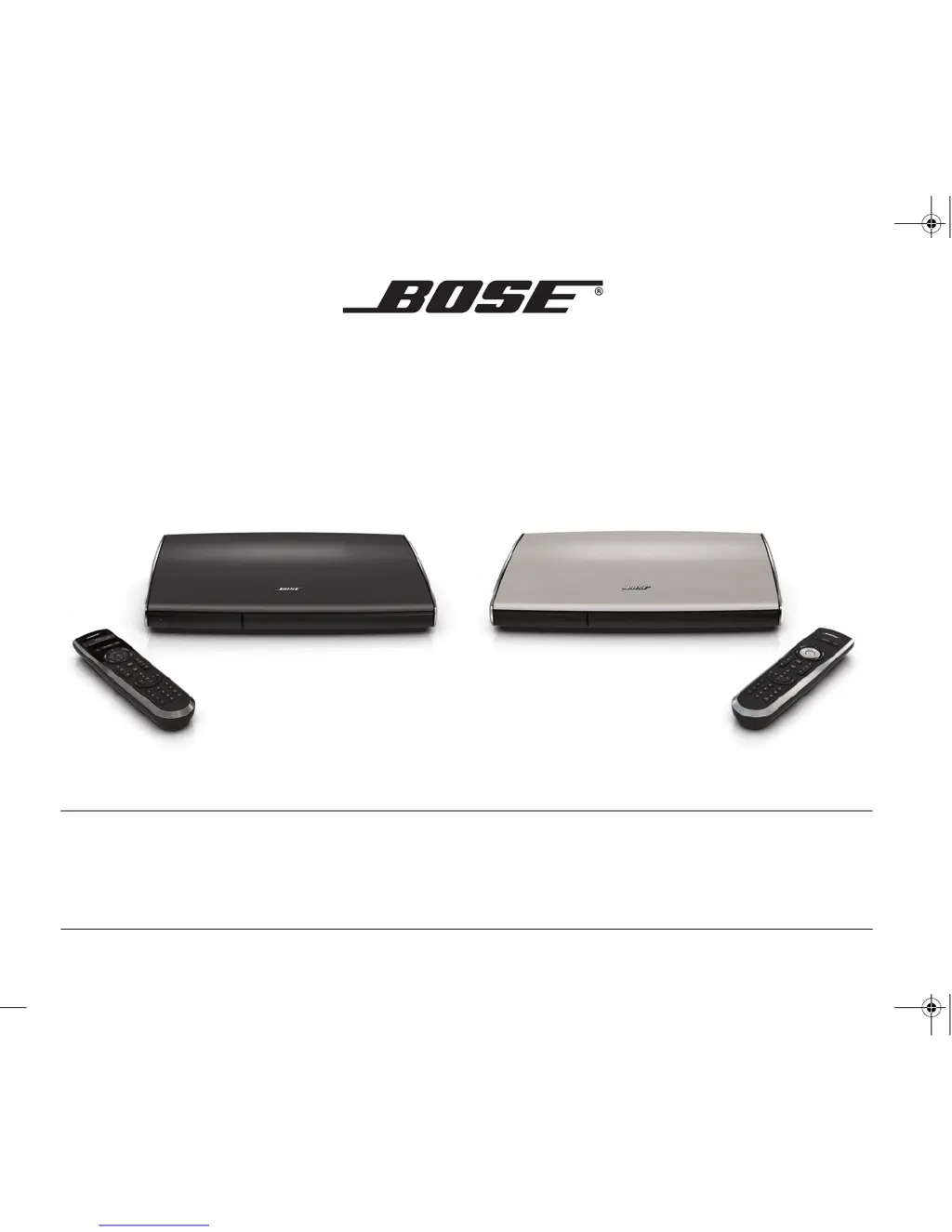
V35/V25 HOME ENTERTAINMENT SYSTEMS
LIFESTYLE
®
T20/ T10 HOME THEATER SYSTEMS
Operating Guide | Guía del usuario | Guide d’utilisation
Cover_8.5x6.5_OP Guide_3L.fm Page 1 Monday, November 9, 2009 4:34 PM

Table of Contents

Questions and Answers

  • W
    William StaffordAug 20, 2025
    Why is there no sound coming from my Bose LIFESTYLE T10 Home Theater System?
    • T
      tammy58Aug 20, 2025
      If your Bose Home Theater System produces no sound, ensure the Acoustimass module is plugged into a working AC outlet. Increase the volume and check that the system isn't muted by pressing the Mute button. Verify the input connections on the control console and select the correct source. Also, check the audio input cable connection to both the control console and the Acoustimass module. Ensure the front and rear speakers are correctly connected to the Acoustimass module. If using radio, connect the FM and AM antennas. As a last resort, reset the system.
  • L
    Lori KlineAug 22, 2025
    How to fix a Bose LIFESTYLE T10 Home Theater System remote that is not responding?
    • D
      David HicksAug 22, 2025
      If your Bose Home Theater System is not responding to the remote, first ensure the control console is on and the remote has batteries. Try resetting the system. If the power light on the control console doesn't blink when you press a remote key, you may need to pair the remote with the console again.
  • B
    Bruce SnyderAug 25, 2025
    Why is the sound distorted on my Bose LIFESTYLE T10?
    • A
      Anthony MclaughlinAug 25, 2025
      If you are getting distorted sound from your Bose Home Theater System, check that the speaker cables are not damaged and are securely connected. Also, try reducing the volume output level from any external devices connected to the control console.
  • B
    Brian BellAug 26, 2025
    Why is there no sound from a connected device on my Bose Home Theater System?
    • G
      gshermanAug 26, 2025
      If you're not getting any sound from a connected device on your Bose Home Theater System, start by checking all the connections. If you're using a coaxial or optical audio connection, ensure you haven't connected both types to the same input on the control console. Verify the device is turned on and consult its owner’s manual for troubleshooting.
  • T
    Teresa HornAug 27, 2025
    How to fix distorted FM sound on Bose LIFESTYLE T10 Home Theater System?
    • D
      Donna HoAug 27, 2025
      If you are experiencing distorted FM sound on your Bose Home Theater System (V25 and V35 systems only), try adjusting the antenna position to reduce interference. Fully extend the FM antenna to improve reception.
  • A
    Arthur ChangAug 29, 2025
    Why is there no sound from the center speaker on my Bose LIFESTYLE T10 Home Theater System?
    • M
      Mr. Anthony LynchAug 30, 2025
      If you're not hearing sound from the center speaker on your Bose Home Theater System, ensure the center speaker cable is connected at both ends. Check that the Speakers option is set to Front(3) or Surround(5) in the OPTIONS menu. Also, make sure the Sound setting is not set to Original in the OPTIONS menu.
  • J
    joseph57Aug 31, 2025
    Why is there no sound from the rear speakers on my Bose LIFESTYLE T10 Home Theater System?
    • M
      Mason FarmerAug 31, 2025
      If you're not getting sound from the rear speakers on your Bose Home Theater System, ensure the Speakers option is set to Surround(5) in the OPTIONS menu. Increase the Rear Speakers setting in the OPTIONS menu for the current source. Make sure the video sound source is stereo-encoded or surround-encoded, and that the device used (DVD, VCR, DVR, etc.) is set to stereo. For stereo inputs, confirm the Sound option is set to Recommended or Alternative.
  • A
    anthonywilliamsSep 2, 2025
    What to do if my Bose LIFESTYLE T10 Home Theater System doesn’t do anything?
    • F
      fitzpatrickmarySep 2, 2025
      If your Bose Home Theater System isn’t doing anything, make sure the AC power cord is securely inserted into the power supply. Also, ensure that both the Acoustimass module and the power supply are fully plugged into a working AC outlet. Select a connected device from the SOURCE menu. If problems persist, try resetting the system.
  • A
    Andrew DavisSep 4, 2025
    Why do I have no TV picture but audio is heard on my Bose Home Theater System?
    • S
      stephaniecastroSep 4, 2025
      If there's no TV picture but you can hear audio with your Bose Home Theater System, check the TV's video input selection to ensure it matches the video source. Also, make sure all video cables are securely connected.
  • S
    Susan WhiteSep 6, 2025
    What to do if Bose remote does not control a device I added during the initial setup?
    • K
      Kelly SmithSep 6, 2025
      If the Bose remote does not control a device added during the initial setup of your Home Theater System, try setting up the device again using the Setup button on the control console and following the on-screen instructions. If that doesn't work, your system might need a software update.

Summary

Safety Information

Introduction

Welcome

Welcome to your new Bose LIFESTYLE system, covering its benefits and initial setup.

System Features

Highlights of the LIFESTYLE system, including Unify, ADAPTIQ, RF remote, and HDMI connectivity.

If You Need Help

Guidance on finding assistance for operating your LIFESTYLE system and troubleshooting tips.

Your Remote Control

Navigation Controls

Explains the function of navigation buttons for controlling the system and menus.

Playback Controls

Details the playback functions available on the remote, such as Play, Pause, Stop, and Seek.

Information Display

Describes the remote's display for V25/V35 systems, showing status and system information.

Remote Glow Button

Instructions for using and adjusting the remote control's illumination feature.

Your Control Console

Power Light Status

Explains the meaning of the power indicator light's colors and patterns for system status.

Front Console Inputs

Details the A/V, USB, and HDMI inputs on the front for temporary device connections.

Control Console Features

Functions of the control buttons and the headphones output on the system's main console.

Power On;Off Controls

Starting Your System

Step-by-step guide on how to power on and start the Bose LIFESTYLE system.

Turning on Your TV

Instructions for powering on your television using the programmed remote control.

Shutting Down Your System

Proper procedures for turning off and shutting down the LIFESTYLE system.

Operating Your Connected Devices

Selecting a Connected Device

Guide to using the SOURCE menu to select and switch between audio and video devices.

Watching TV

How to view TV programs using a set top box or the TV's internal tuner.

Tuning to a TV Station

Methods for selecting TV channels using the remote, including keypad and guide.

Playing Audio;Video Devices

Operating connected sources like CD, DVD, DVR, and Blu-ray players with the remote.

Playing an iPod or iPhone

Instructions for connecting and playing audio/video content from an iPod or iPhone.

Using Front Console Inputs

Connecting and using devices via the front A/V, USB, and HDMI ports.

Changing the Image View

Options for adjusting video formatting and display settings on your TV.

Listening to the Radio (V25 and V35 Systems)

Radio Tuning and Selection

How to select FM/AM radio sources and tune to specific broadcast stations.

Radio Presets Management

Instructions for saving favorite radio stations as presets and recalling them.

Radio Tuner Settings

Configuration options for the radio, including stereo modes and RDS information.

More Buttons and System Options

Using the MORE Button

Explains how to access additional source-specific controls using the MORE button.

MORE Button Function Definitions

Lists and describes the specific functions available via the MORE button interface.

System Options Configuration

Guide to navigating the OPTIONS menu for system configuration and adjustments.

Detailed OPTIONS Menu Settings

Detailed breakdown of available system options and their corresponding settings.

Using the Setup Mode

Understanding Setup Mode

Overview of the system's Setup mode for initial configuration and adjustments.

Setup Menu Configuration

Description of the various configuration options available within the Setup menu.

Adding Sound to Another Room (V25 and V35 Systems)*

Multi-Room System Expansion

Information on extending Bose quality sound to up to 14 additional rooms in your home.

Multi-Room Setup Guidelines

Key considerations, including connections and room codes, for multi-room setup.

Care and Maintenance

Remote Battery Replacement

Instructions for replacing the four AA batteries in the remote control.

Cleaning the System

Guidance on how to safely clean the control console and speaker grilles.

Viewing System Information

How to access and display system serial numbers, software versions, and connection status.

Troubleshooting Common Issues

Solutions for problems like unresponsive remote, no sound, or poor video quality.

System Reset and Remote Pairing

Procedures for resetting the system and pairing the remote control with the console.

Software Updates and Support

Information on performing system software updates and contacting Bose Customer Service.

Limited Warranty

Warranty Service Procedures

Steps required to register your product and obtain service under the limited warranty.

Product Technical Specifications

Details on remote frequency/range, power supply, and Acoustimass module ratings.

Software Licensing Details

Details regarding software licenses and procedures for obtaining source code.

Bose LIFESTYLE T10 Specifications

General IconGeneral
RMS rated power- W
Audio output channels5.1 channels
Disc types supportedCD, DVD
Optical disc player typeDVD player
Weight500 g
Dimensions (WxDxH)425.4 x 72.8 x 77.2 mm
Surround speaker weight1100 g
Surround speaker dimensions (WxHxD)78 x 78 x 102 mm
Audio (L/R) in3
Composite video in1
HDMI ports quantity4
Product colorBlack
Weight and Dimensions IconWeight and Dimensions
Subwoofer weight11900 g
Center speaker weight1070 g
Subwoofer dimensions (WxDxH)203 x 330 x 549 mm
Center speaker dimensions (WxDxH)159 x 105 x 79 mm

Related product manuals