EasyManua.ls Logo

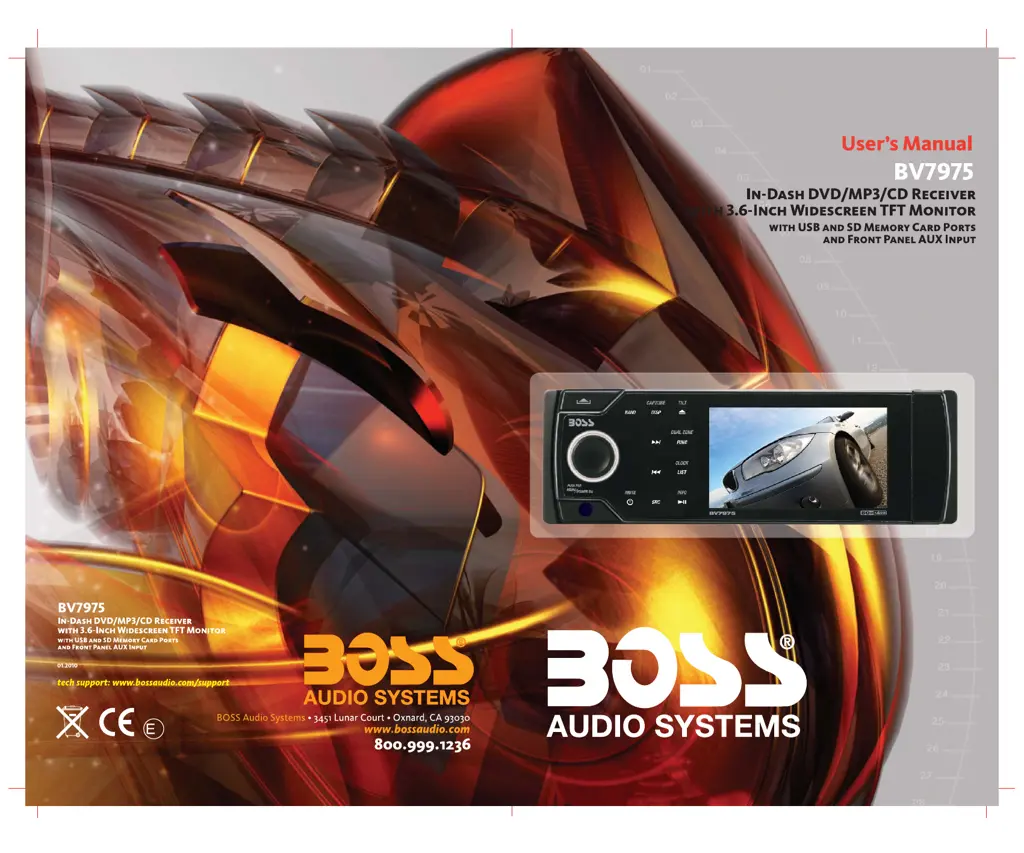
Boss Audio Systems BV7975 - User Manual

Boss Audio Systems BV7975
24 pages
Print Icon
To Next Page IconTo Next Page
Loading...
4
10 R - 02 1011

Questions and Answers

  • S
    steve08Jul 30, 2025
    Why is the radio not working on my Boss Audio Systems BV7975?
    • A
      Andrew FosterJul 30, 2025
      If your Boss Audio Systems Car Receiver's radio isn't working or the automatic station selection isn't functioning, make sure the antenna cable is firmly connected. If the signals are too weak, try selecting a station manually.
  • S
    Stephanie DixonAug 3, 2025
    Why is there no sound coming from my Boss Audio Systems Car Receiver?
    • B
      Benjamin RodriguezAug 3, 2025
      If your Boss Audio Systems Car Receiver is not producing any sound, first, make sure that the volume isn't set to the minimum level and adjust it to a comfortable listening level. If the volume is properly adjusted, check the wiring connections to ensure they are correctly and securely connected.
  • M
    Morgan ChaneyAug 7, 2025
    How to fix a Boss Audio Systems BV7975 Car Receiver that has no power?
    • D
      Donald MccallAug 7, 2025
      If your Boss Audio Systems Car Receiver is not turning on, ensure that the car ignition is switched to 'ACC' if the power supply is correctly connected to the car accessory terminal. Also, check the fuse and replace it if it's blown.
  • H
    Haley SimmonsAug 11, 2025
    What to do if the operation keys on my Boss Audio Systems BV7975 Car Receiver don't work?
    • L
      Lisa YoungAug 11, 2025
      If the operation keys on your Boss Audio Systems Car Receiver are not working, the built-in microcomputer may not be operating correctly due to noise. Press the RESET button to resolve this issue.
  • A
    Angela PhamAug 16, 2025
    Why does my Boss Audio Systems BV7975 sound skip?
    • C
      Christopher KaiserAug 16, 2025
      If your Boss Audio Systems Car Receiver is skipping, it could be due to the installation angle being more than 30 degrees; adjust it to be less than 30 degrees. Alternatively, the disc may be dirty or defective; try cleaning the disc or using a new one.
  • J
    Jerry JohnsonAug 20, 2025
    What to do if my Boss Audio Systems BV7975 cannot load or eject discs?
    • Y
      ytaylorAug 20, 2025
      If your Boss Audio Systems Car Receiver is having trouble loading or ejecting a disc, first, remove any disc currently in the player before inserting a new one. Ensure the disc is inserted with the label facing upward. Clean the disc if it's dirty, or try a new one. If the car's internal temperature is too high, allow the car to cool down. If condensation is the issue, turn off the player for about an hour before trying again.
  • S
    smithbrandiAug 25, 2025
    What does 'Disc Error' mean on my Boss Audio Systems Car Receiver and how to fix it?
    • R
      Robin BeltranAug 25, 2025
      If your Boss Audio Systems Car Receiver displays a 'Disc Error', the disc might be dirty, scratched, or inserted upside down. Try replacing the disc.

Summary

BV7975 In-Dash Receiver Overview

User Manual Title

Identifies the document as the User's Manual for the BV7975 unit.

Buttonless Touch Pad Operation

Touch Sense Panel Functionality

Explains the operation of the touch-sensitive panel for user interaction.

Tips for Touch Panel Use

Provides guidance on how to effectively use the touch panel features.

Safety and Warning Information

Driving Safety Precautions

Advises on safe operation while driving, including video display rules.

Product Care and Electrical Safety

Covers warnings for car washing, power supply, and disc mechanism protection.

Laser Product Safety Advisory

Highlights hazards associated with the unit's Class I laser product.

Unit Installation Procedure

Installation Precautions

General cautions and important steps before proceeding with installation.

Removing and Detaching Components

Instructions for removing the main unit and detaching the front panel.

Fitting Mechanical Parts

Steps for installing the outer sleeve, support strap, and front panel.

System Wiring Diagrams

Audio and Video Connections

Illustrates the wiring for audio and video input/output connections.

Power and Speaker Wiring

Power Harness and ISO Connections

Details power supply and speaker connections via harness and ISO connectors.

Pin Assignment Charts

Lists pin functions for 20-pin and 4+8-pin ISO connectors.

Panel Operation and Tilt Adjustment

Motorized Panel Controls

Guides on operating the motorized panel for disc loading/ejecting.

Display Angle Adjustment

Instructions for adjusting the screen's viewing angle.

Panel Operation Safety Warnings

Critical warnings to prevent damage during panel operation.

Source Unit Button Functions

Button Identification and Overview

Identifies key buttons on the source unit and their primary functions.

Core Button Operations

Details functions like MUTE, POWER, PLAY/PAUSE, INFO, and SYSTEM MENU.

Additional Unit Controls

Eject, Panel Tilt, and Seek Functions

Explains EJECT, PANEL TILT, FAST FORWARD/BACKWARD, and SEEK buttons.

Source Selection and USB;AV Input

Details SOURCE selection and USB/AV-IN jack functionality.

Remote Control Button Functions

Remote Control Layout

Overview of buttons on the remote control.

Basic Remote Operations

Explains POWER, EJECT, MENU, SOURCE, VOLUME, and ZONE controls.

Advanced Remote Control Features

Navigation and Media Playback Control

Details UP/DOWN, LEFT/RIGHT, SEEK, PLAY/PAUSE, and BAND buttons.

Media List and Setup Functions

Explains LIST, CAPTURE, FUNCTION, and MultiMedia Setup buttons.

Media Playback Options

Covers ZOOM, ANGLE, DIMMER, INFO, AUDIO, SUBTITLE, and TITLE functions.

System Menu Operations

Main System Menu Navigation

How to access and navigate the main system menu using the control knob.

System Setting Configuration

Settings for Date, Clock, and Time Format adjustments.

Audio Setting Adjustments

Controls for Sub-W, Bass, Treble, Middle, Balance, and Fader.

System Configuration Options

Preset Equalizer Selection

Options for choosing from nine different preset equalizer modes.

Tuner and Display Settings

Configuration for tuner features (AF, TA, Region) and display settings.

Information and Other Settings

Viewing system software version and display dimmer control.

Image Setting and Wallpaper

Selecting Wallpaper from My Gallery

How to choose from 10 pre-loaded default images for wallpaper.

Capturing and Managing My Images

Instructions for capturing images and setting them as wallpaper.

Tuner Operation Guide

Source, Band, and Function Controls

How to select source, change bands, and access tuner functions.

Tuning Modes and Information

Details on manual/auto seek tuning and accessing RDS station information.

Media Player Compatibility

Supported Disc and Media Formats

Lists compatible disc, audio, and video formats for playback.

Disc Handling and Region Code Notes

Information on unsupported discs, region codes, and disc maintenance.

Media Player Controls and Media Insertion

General Playback Operations

Functions for SOURCE, PLAY/PAUSE, LIST, and TRACK SELECT.

USB and Memory Card Handling

Instructions for inserting USB sticks and memory cards.

Memory Card Mode Selection

How to switch modes when using an SD memory card.

MultiMedia Playback Features

MultiMedia Playback Functions

Details on PLAY/PAUSE, TRACK SELECT, LIST, and INFO buttons.

MultiMedia Setup and Settings

Options for Repeat, Disc Audio, Video Setting, and MultiMedia Setup.

Dual Zone Operation Guide

Activating and Configuring Dual Zone

How to turn on, select sources, and operate dual zone audio/video.

Dual Zone Default Settings

Default audio output and display settings for dual zone modes.

Switching Off Dual Zone Mode

Instructions for disabling the dual zone feature.

AV-In Mode and Camera Input

Selecting AV Input Sources

How to select between AV-in-1 (front) and AV-in-2 (rear).

Parking Brake and Reverse Camera

Importance of parking brake connection and reverse camera system setup.

Wallpaper Customization Options

Selecting Images for Wallpaper

How to choose images from My Gallery or My Image for wallpaper.

Capturing and Setting Wallpaper

Steps to capture images during playback and set them as wallpaper.

Highlighted Unit Features

Motion Picture Display Modes

Describes the three different motion picture display modes.

Display Settings and Controls

Options for Clock/Date display, TFT backlight, and standby modes.

Panel Tilt Adjustment Guide

How to adjust the display viewing angle for optimal visibility.

Technical Specifications

Screen and Multimedia Specifications

Technical details for the TFT screen, multimedia, and video sections.

Audio, Radio, and Input Specifications

Specifications for audio output, radio tuner, and auxiliary inputs.

General Unit Operating Parameters

Details on operating voltage, fuse, temperature, and mounting angle.

Troubleshooting Common Issues

Identifying Common Problems

Lists common symptoms like no power, disc loading errors, and no sound.

Solutions for Operational Errors

Provides solutions for sound skips, radio reception issues, and error codes.

Boss Audio Systems BV7975 Specifications

General IconGeneral
BrandBoss Audio Systems
ModelBV7975
CategoryCar Receiver
LanguageEnglish

Related product manuals