How to use:
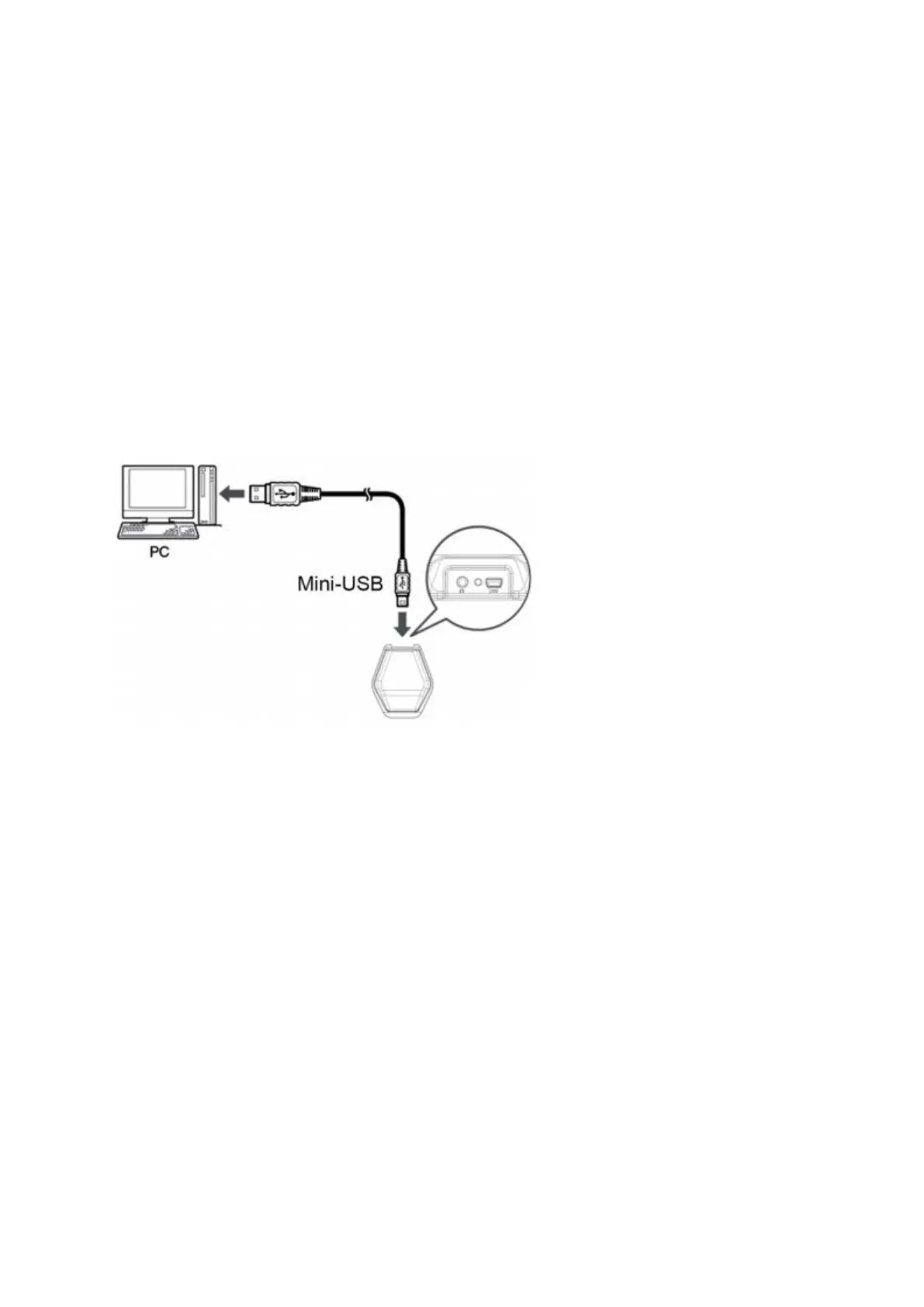
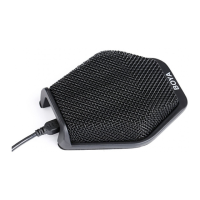
1. Connect USB with computer, the other side (Mini-USB) to microphone port.
2. Select the microphone as the default audio device, go to:
Start menu → Control Panel → Sounds and Audio devices.
3. When the BOYA BY-MC21 is connected to a computer via USB cable for the first time,
the computer will show “Found new hardware wizard”, follow the instructions
onscreen to complete installing drivers for the BOYA BY-MC2.
4. The above may need to be repeated when connecting to a new computer or another
port on the same computer.
5. When BOYA BY-MC2 is connected to a computer for the first time, the default digital
system volume is set on medium, this may be changed through the computer.
To change the volume of the sound playback from the BOYA BY-MC2, click on the
volume button in the Sound playback section.
The headphone playback volume can be changed by moving the speaker fader up or
down.
Note: If your screen does not display a microphone volume control, please follow the
steps below:
1. Go to “Control Panel” → “Hardware and Sound “
2. Select “Sound”
3. Select “USB audio CODEC” and click “OK”
4. Select the microphone and click „OK “
5. Under “Microphone Properties Settings”


 To Next Page