15. 0-10+ button
Press this button to choose desired song, section, preset stations.
Decimal numbers, for example the 19th song, press 10+ and 9
button.
16. AMS/RPT button
In radio mode, press this button to browse stored stations. In audio
mode, press this button to play repeatedly.
17. TITLE button
In DVD mode, press this button to play back to the top menu of
disc.
18. AUDIO button
In DVD mode, press this button to switch language of dialogue.
In VCD mode, press this button to choose left track, right track,
and stereo.
19. GOTO button
In DVD mode, press this button, you can define playing time.
20. SUB-T button
In DVD mode, press this button to switch language of subtitle.
21. PBC button
In VCD mode, press this button to display all song menus, work
with number button to choose songs.
22. UP, DOWN, LEFT, RIGHT, ENTER button
In DVD mode, press this button to move cursor up, down, left,
right to choose item in menu, Press the enter button to confirm
choice.
23. SLOW button
In audio mode, press this button to slow backward and slow
forward.
24. SETUP button
In audio mode, press this button to choose different set items.
25. OSD display
Press this button to display the title chapter and the left time.
26. ZOOM button
In DVD/VCD mode, press this button to ZOOM in.
27. MENU button
Press button to back to the main menu.
BATTERY CHANGE
When control distance of remote control becomes shorter or no
function, please change battery, please confirm polarity before
change.
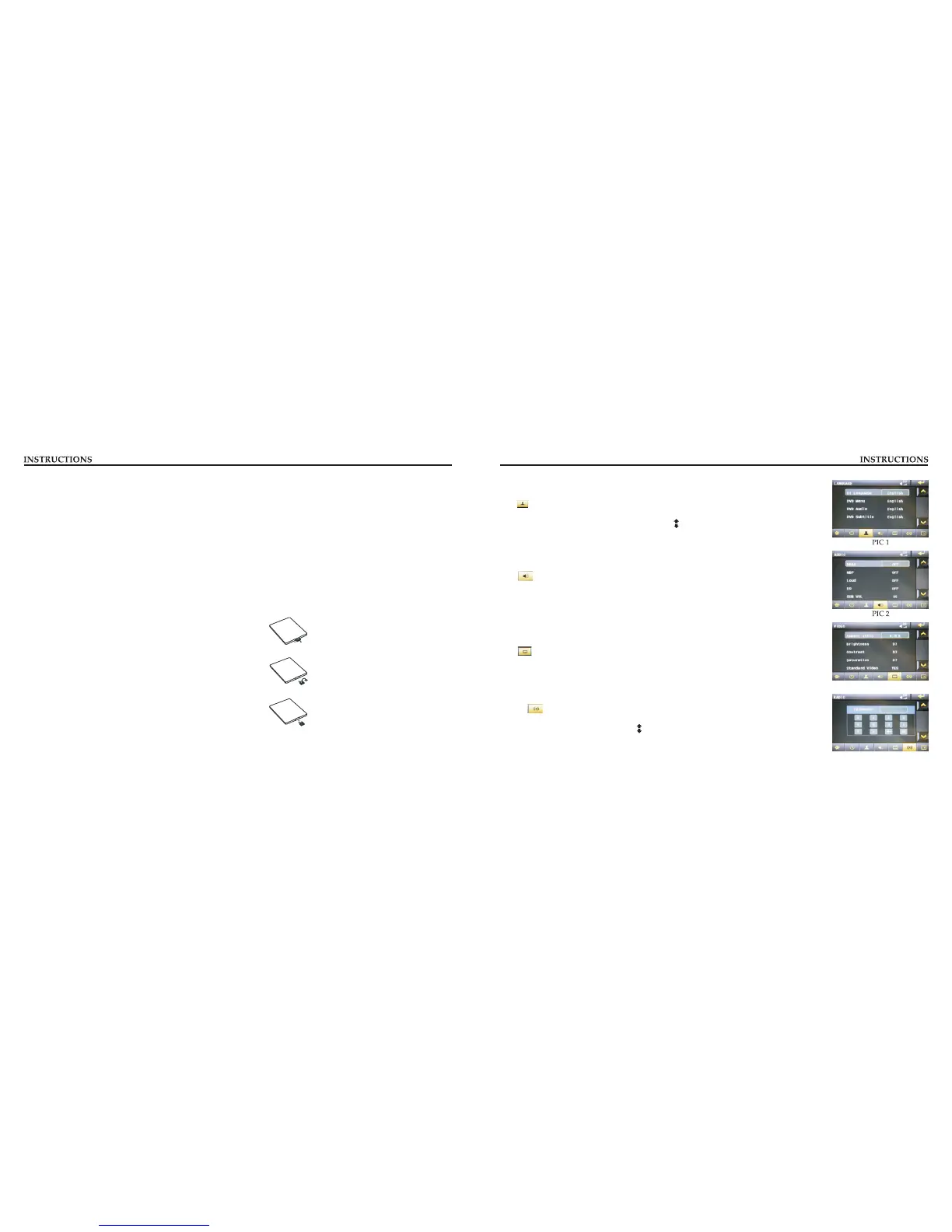
One hand press stopper, then pull out battery.
Put battery into controller.
Insert battery holder into controller.
Language
During use, you can select your familiar language to display menu by language setup.
setting
Click icon on setup interface to access language setting interface, as shown in right (PIC 1) diagram:
Click the corresponding [English] icon on the language bar desired to be set so as to switch the
language type, when there are more than 3 languages, direction icon shall pop up, click it to select
your familiar language.
Video setting
Click icon on setup interface to access video setting interface, as shown in right (PIC 3) diagram:
At video setting interface, you can adjust brightness, contrast, saturation and hue of the video.
Audio setting
You can turn on or turn off the existing functions on audio setting interface and adjust the rearview
volume.
Click icon on setup interface to access audio setting interface, as shown in right (PIC 2) diagram:
PIC 3
PIC 4
Radio setting
Click on in setting interface, input password [123456] to enter
Touch [Europe] icon in the radio interface, icon will popup, click on it to choose radio region
as shown in right (PIC 4)
diagram:


 To Next Page
 Loading...