The Dash Developer Kit
Quick Start Guide
How to connect
The Dash & BT Device
7
How to reset
The Dash
12
How to interact
Basic gestures
13
How to charge
The Dash
8
Please plug the Charger
with the Da sh into a
USB-Port or Wallcharger.
Download the latest Software
from developer.bragi.com
Place the Dash in the Charger
Connec t the Charger to your computer
Copy the sof tware fil e onto
your Dash
Safely eje ct the Da sh mass sto rage
The Dash wi ll start to blink blue a nd
run the update
The update is complete w hen the Das h
LED starts breath ing again
Enjoy the new version!
How to apply the Case - XL
If you need to reset the
Dash Plug it i nto
the charger and press
a paper clip i nto the
hole on the r ight side
of the Charger for
until it blin ks 3 times .
developer.bragi.com
We created a pla tform
for you to ask que stions,
discuss wi th us on
different t opics, share
your exper ience with
other devel opers & get
additional and always
up-to-d ate information
on the Dash.
Bragi Developer App
To get the Develop er
App pleas e visit
developer.bragi.com for
further instructions
Go to your smar tphone setting s to turn on
bluetooth . Insert t he Dash into your ear and ac ti-
vate pairin g mode by touching the touch area with
a finger unt il the pair ing feedback sound is h eard.
Phone & media connection (Bluetooth Classic)
Select “The Das h Audio“ in your list of avail able
bluetooth devices.
Data connection (Bluetooth LE)
Open the B ragi App and select “ The Dash Smart “.
How to charge
The Charger
9
How to insert The Dash into the Case
Take a paper clip
or something
else point y
Tap
Tap
2x Ta p
2x Ta p
Swipe
Hold
5 sec.
copyright 20 15 by BRAGI
Content may change without prior warning
v1. 0 7-25-2 015
Guess what ...
The Charger & Slide
10
How to update
The Software
11
1
2
3
4
5
6
7
8
Right
Listen & Com municate
Left
Trac k
Activity feedback
Start / Stop ac tivity
Select activity
Next ac tivity
Next son g
Play / Pause music
Select playlist
Next playlist
Audio Transparency Up/Down Volume Up/Down
Activity Menu Enter/Exit
–
Playlist Menu Enter/Exit
BT Pairing mo de
More
Treasures
14

 Need help?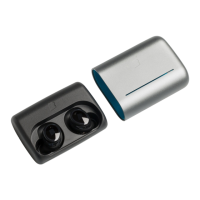

 To Next Page
 General