36
Knifonium
Plugin Manual
MIDI Learn
1
MIDI Learn Mode
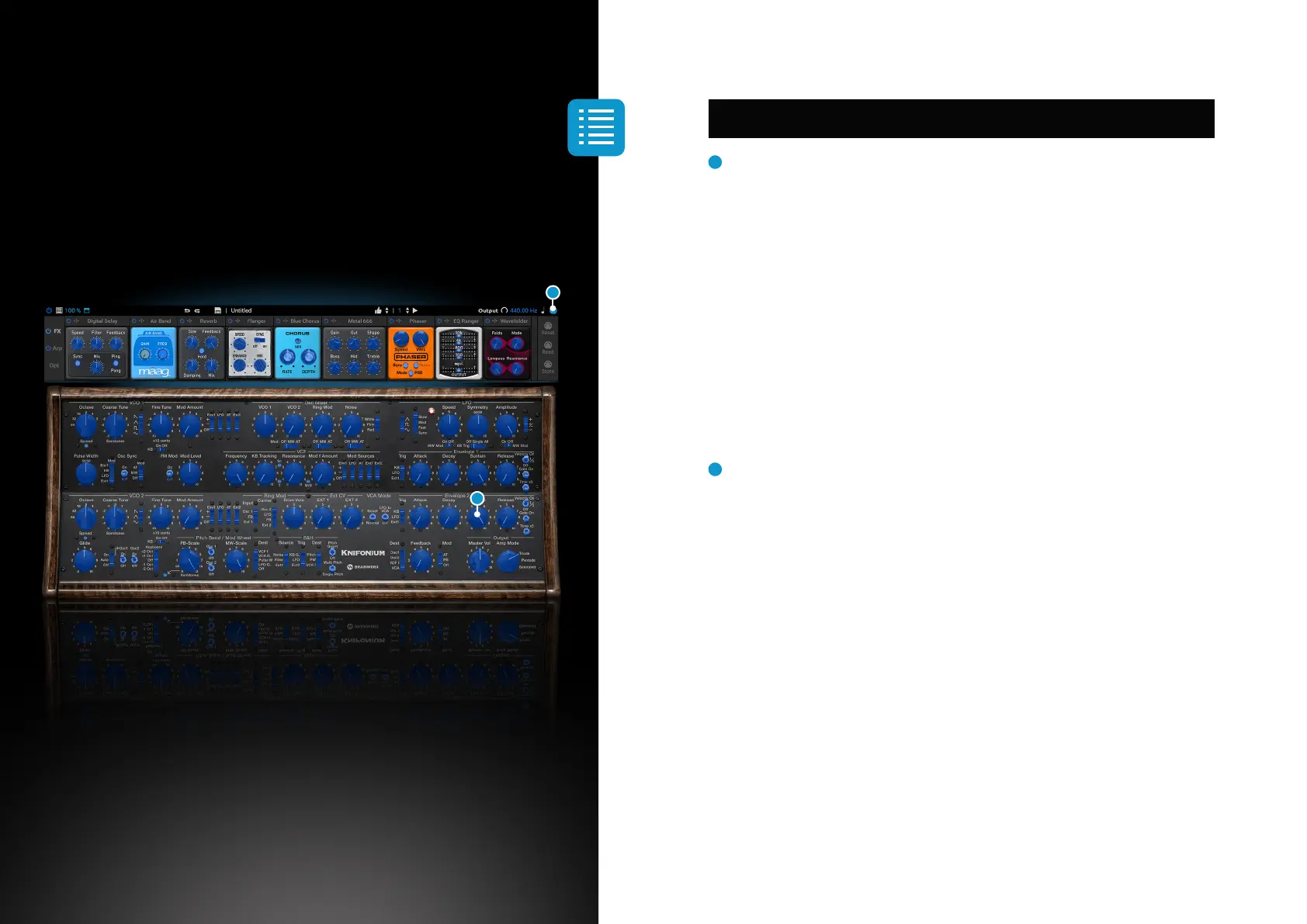
By clicking on the MIDI Learn mode button in the top right corner, you can assign
CC messages from your hardware controller to Knifonium’s controls. In this
mode, a colour overlay on each assignable control shows its MIDI assignment
status. Unassigned controls are coloured in blue, assigned controls are coloured
in green and the currently selected control is coloured in grey. Clicking the MIDI
Learn button again switches off the MIDI Learn mode.
MIDI mappings can be stored in two ways. They are saved within a preset and can
additionally be saved as a file.
2
Assigning
To assign a MIDI CC to a control, select the control by clicking it. A small overlay
window showing the parameter name appears. The next received CC message
will be assigned to this control. The CC number is displayed below the parameter
name together with a trashcan icon. Clicking on the trashcan icon will unassign
the CC from the selected control. When you select another control, the control you
just assigned will be shown in green, so you don’t lose track of your assignments.
1
2


 To Next Page
 Loading...