Need help?
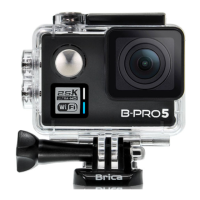
Do you have a question about the Brica B-Pro 5 alpha edition and is the answer not in the manual?
Test waterproof case by submerging it for 10 minutes before use to ensure no leaks.
Adjust exposure for daytime/nighttime and use skeleton case for outdoor shots.
Disable for low-light shooting; enable for higher shutter speed, which darkens the image.
Insert memory card until click, ensuring correct orientation to prevent damage.
Open cover, insert battery with correct +/- signs, press until fully seated.
Connect USB cable and adapter; red indicator shows charging status.
Press power button once to turn on, long press (3-5s) to turn off.
Press power button to switch between Video, Photo, Playback, and Settings modes.
Enter mode, press shutter to start/stop recording or take a photo.
Use Up/Down for navigation, shutter to play/pause video.
Test casing for leakage; warranty claim for waterproof case is 10 days.
Use power button to cycle modes; navigate with Up/Down, confirm with shutter.
Select video resolution: FullHD (1920x1080) @30fps or HD (1280x720) @60/30fps.
Records video in clips, automatically overwriting the oldest when the memory card is full.
Reduces backlight effect during photo and video recording for improved image quality.
Automatically starts video recording when the camera's sensor detects any motion.
Option to disable the microphone for silent video recording.
Enable and set the format for date/time stamps on media.
Set timer for photos: OFF, 5 sec, 10 sec, 20 sec.
Choose photo size from VGA (640x480) up to 12MP (4000x3000).
Select photo quality: Super Fine, Fine, or Normal.
Adjust photo sharpness to High, Normal, or Soft.
Set white balance based on light source for accurate colors.
Apply color effects: Normal, B/W, or Sepia to the display.
Adjust sensor sensitivity to light (Auto, 50-1600) for photo mode.
Control exposure from -2.0 to +2.0 for brighter or darker images.
Reduces shaking effect during photos; can result in darker images.
Increases photo contrast by enabling High Dynamic Range.
Protect specific files or all files from accidental deletion; requires unlocking to delete.
Choose to delete files one by one ('One') or all at once ('All').
Change the menu language from Bahasa Indonesia to other available options.
Adjust LCD refresh rate (50Hz/60Hz) and sound volume.
Manually set date/time or sync automatically with smartphone.
Set the screen to automatically turn off after a period of inactivity.
Automatically turn off the camera after a period of inactivity.
Invert the LCD display; does not affect recording quality.
Camera automatically starts recording when turned on, especially in car charger.
Protects video clips from bumps/shaking with adjustable sensitivity.
Erase all data from the memory card; this process includes protected files.
Modify the camera's WiFi password through the settings menu.
Restore all camera settings to their original factory defaults.
 General
| Wi-Fi | Yes |
|---|---|
| Display | 2.0 inch LCD |
| Video Resolution | 4K at 30fps |
| Photo Resolution | 12MP |
| Battery Life | Up to 90 minutes |
| Lens | Wide-angle lens |
| Storage | Micro SD, up to 64GB |
| Connectivity | HDMI |

 To Next Page