EasyManua.ls Logo

Brinno SHC1000 - User Manual

Brinno SHC1000
2 pages
Print Icon
To Next Page IconTo Next Page
Loading...
145mm
EN_A1 301-0103-00
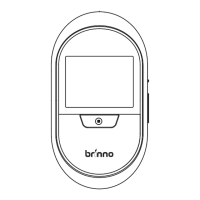
PeepHole Camera
Visitor Log Cam
Package Contents
1
Device Parts
2
SHC1000 User Manual
1. PeepHole Camera
2. Base Flange
3. Tightening Tool
4. Washer (SHC1000 12 only)
5. Peephole
Use the peephole in the package to get the best result.
www.brinno.com
SHC1000 User Manual
PeepHole Camera
Visitor Log Cam
2
7 8
3 4
1
5
Peephole Ø12mm
(SHC1000 12)
Peephole Ø14mm
(SHC1000 14)
Peephole
barrel
Quick Start Guide
Rychlý průvodce
Kurzanleitung
Guía Rápida
Démarrage Rapide
Guida veloce
Snelle Handleiding
Hurtigstartveiledning
Szybki przewodnik użytkowania
Краткое Руководство
คู่มือการใช้งานอย่างย่อ
快速指南
快速指南
クイックガイド
속성 설치 설명서
EN
CZ
DE
ES
FR
IT
NL
NO
PL
RU
TH
CH
CN
JP
KR
Quick Start Guide
SHC1000
6. 4 AA Batteries
7. User Manual
8. Quick Start Guide
www.brinno.com
4
Install Batteries & Micro SD Card
3
Display Icons
1
2 3 4
When Micro SD card is full, please delete les to free
up storage space.
FULLFULL
!
No Micro SD card
Motion sensor connected
Motion sensor disconnected
Motion sensor battery low
Replace batteries
Micro SD card full
Micro SD card error
1. Micro SD card status:
2. Motion sensor (Optional):
3. Knocking sensor ON
4. Battery indicator
5
Turn on camera
1. Open the battery cover.
2. Install 4 AA batteries.
3. Insert Micro SD card.
* Micro SD Card is not included.
* Support up to 32GB Micro SD card.
(8 GB Class 10 is recommended)
!
Press DOWN BUTTON to enter"MENU SETTINGS".
(Press UP or DOWN BUTTON to browse setting options.)
Press to Exit
Exit
2
3
4
Date &
1
Press DOWN BUTTON to
go to MENU SETTINGS.
On MENU SETTINGS screen,
press DOWN BUTTON to go
to the SYSTEM CLOCK option.
On SYSTEM CLOCK screen,
press SHUTTER BUTTON to
set date and time.
Change settings by pressing
UP or DOWN BUTTONS. Then
press SHUTTER BUTTON to
conrm and go to next option.
When nished, press
SHUTTER BUTTON to return
to MENU SETTINGS.
5 6
Menu Setting
Motion Activated Screen
File Format
Band Filter
Set Date&Time
Reset
EXIT
V X.XX.X
Press to Setup
System Clock
YYYY/MM/DD
07:22
Menu Setting
Motion Activated Screen
File Format
Band Filter
Set Date&Time
Reset
EXIT
V X.XX.X
Press to Setup
System Clock
YYYY/MM/DD
07:22
Menu Setting
Motion Activated Screen
File Format
Band Filter
Set Date&Time
Reset
EXIT
V X.XX.X
Press to Setup
System Clock
YYYY/MM/DD
07:22
Menu Settings
6
Set Up Date & Time
7
Time
2013/05/01
17:30
Set
Exit
Press to Next
System Clock
YYYY/MM/DD
07:22
+
-
Date & Time
2013/05/01
17:30
Set
Exit
Press to Next
System Clock
YYYY/MM/DD
07:22
+
-
1. Locking screw
2. Micro SD card slot
3. Micro USB port
4. LED Indicator:
LED On: Battery low. Alert to replace the batteries.
LED Flashing: Camera is capturing photos.
5. Live view/ Shutter button
6. Power switch
7. Playback/ Up button
8. Settings/ Down button
9. Extension port (For optional motion sensor)
10. Battery compartment
6
7
8
10
9
3
5
4
1
2
1. Power ON
Turn on power. The LCD screen displays live view images
outside the doorstep.
2. Power WAKE-UP
LCD screen is automatically turned o to save power when
camera is not in use for 10 secs. Press LIVE VIEW BUTTON
to wake up camera again.
1 2 3
4 5 6
www.brinno.com/support/registration
For manuals in other languages, visit
www.brinno.com/support
The product features, specications sheets and instructions may
dier from actual products. Please refer to Brinno ocial site for
the latest version of user manual.
Browse Images
Knocking Sensor
Auto capture photos when someone knocks on your door.
(Details in Section 12- ENABLE KNOCKING SENSOR )
When LCD option is ON, the screen auto displays images if camera detects
knocking on the door or motion outside the door (must with motion sensor).
Setting LCD option OFF can save power and make battery last longer.
Exit
LCD Option
System Clock
Camera info
Reset
Replay visitor photos (Details in Section 11- IMAGE PLAYBACK)
Camera rmware version.
Reset camera to factory settings.
Storage & Battery
Auto capture photos when someone is near your front door. Refer manual
of motion sensor(MAS200) inside the package for details.
Motion Sensor
Question and Answer IconNeed help?

Do you have a question about the Brinno SHC1000 and is the answer not in the manual?

Summary

Package Contents

Device Parts

Display Icons

Install Batteries and Micro SD Card

Turn on Camera

Menu Settings

Browse Images

Access and replay visitor photos captured by the camera.

Knocking Sensor

Configure automatic photo capture when the door is knocked.

Motion Sensor

Configure automatic photo capture when motion is detected outside.

LCD Option

Control LCD screen behavior for power saving and automatic display.

System Clock

Set the date and time for accurate recording.

Storage & Battery

View camera information regarding storage and battery status.

Camera Info

Display the camera's firmware version.

Reset

Restore the camera to its factory default settings.

Exit

Exit the menu settings and return to the previous screen.

Set Up Date & Time

Install Lens & Camera

Live View & Capture Photo

Auto Capture Photos

Image Playback

Auto Playback

Automatically replay daily visitor photos when in LIVE VIEW state.

Manual Playback

Manually navigate through recorded photos using buttons.

Enable Knocking Sensor

Specifications

Overview

The Brinno PeepHole Camera SHC1000 is a visitor log cam designed to enhance home security by capturing images of visitors at your doorstep. This device integrates seamlessly with your existing peephole, offering a discreet and user-friendly monitoring solution.

Function Description

The primary function of the Brinno PeepHole Camera is to automatically capture photos of individuals who approach or interact with your door. It operates as a digital peephole, allowing you to view who is outside on an LCD screen from the inside of your home without opening the door. The camera records these interactions, creating a visitor log that you can review at your convenience.

The camera features two main auto-capture mechanisms:

  • Knocking Sensor: This built-in sensor detects when someone knocks on your door and automatically triggers the camera to take photos. The sensitivity level of this sensor is adjustable, allowing you to fine-tune it to your specific environment and preferences.
  • Motion Sensor (Optional): For enhanced monitoring, the camera supports an optional external motion sensor (MAS200). When connected, this sensor detects movement near your front door, prompting the camera to capture images. This feature is particularly useful for recording activity even if a visitor does not knock.

All captured photos are stored on a Micro SD card, providing a digital record of visitors and activities at your doorstep. The device also includes a live view function, enabling you to see real-time images of the area outside your door on the LCD screen.

Usage Features

The Brinno PeepHole Camera is designed for straightforward installation and operation.

Installation:

  1. Peephole Installation: The process begins by removing any existing peephole and inserting the provided Brinno peephole barrel from the outside of the door.
  2. Base Flange Attachment: From the inside, the base flange is positioned over the peephole barrel and tightened. Specific instructions are provided for both 12mm and 14mm peepholes, ensuring compatibility with various door types.
  3. Camera Attachment: The camera unit is then attached to the base flange by rotating it clockwise until it locks into place. A locking screw further secures the camera to prevent tampering or removal.

Operation:

  • Power On/Off: The camera is powered on using a dedicated switch.
  • Live View: Pressing the Shutter button activates the LCD screen, displaying a live feed from outside your door.
  • Manual Photo Capture: While in live view, pressing the Shutter button again will manually capture photos. The camera's LED indicator will flash red during recording.
  • Menu Navigation: A menu system, accessed via the Down button, allows users to configure various settings.
    • System Clock: Users can set the date and time, which is crucial for accurate visitor logs.
    • Knocking Sensor Settings: The sensitivity of the knocking sensor can be adjusted within the menu. Users can test the sensitivity by knocking on the door and observing the camera's response.
    • LCD Option: This setting determines whether the LCD screen automatically displays images upon detecting a knock or motion. Turning this off can help conserve battery life.
    • Reset: The camera can be reset to factory settings if needed.
  • Image Playback:
    • Auto Playback: From the live view, pressing the Up button initiates auto playback of daily visitor photos.
    • Manual Playback: During auto playback, pressing the Shutter button pauses the playback, allowing users to navigate through individual photos using the Up and Down buttons.
    • Browse Images by Date: The menu also provides an option to browse images by date, allowing users to select specific daily folders and replay photos from that day.
  • Power Saving Mode: To conserve battery life, the LCD screen automatically turns off after 10 seconds of inactivity. Pressing the Live View button will wake the camera up again.

Maintenance Features

The Brinno PeepHole Camera is designed with ease of maintenance in mind to ensure continuous operation.

  • Battery Management: The camera is powered by four AA batteries. An LED indicator on the device signals when the battery level is low, prompting users to replace them. The estimated battery life is approximately 1,800 triggers, depending on usage and settings.
  • Micro SD Card Management: The camera supports Micro SD cards up to 32GB (8GB Class 10 is recommended). The device's display icons include an indicator for the Micro SD card status, showing if there is no card, if the card is full, or if there is an error. When the Micro SD card is full, users are advised to delete files to free up storage space. The image folders stored on the SD card can also be accessed, edited, or deleted when connected to a computer.
  • Firmware Updates: The "Camera Info" section in the menu displays the camera's firmware version, suggesting that firmware updates may be available to improve performance or add new features. Users are encouraged to refer to the Brinno official site for the latest user manual versions and support.
  • Cleaning: While not explicitly detailed, general maintenance would involve keeping the peephole lens and LCD screen clean to ensure clear image quality and visibility.
  • Registration: Users can register their device online at www.brinno.com/support/registration, likely for warranty purposes, support, and access to additional resources.

The Brinno PeepHole Camera SHC1000 offers a practical and discreet solution for monitoring your doorstep, providing a digital log of visitors and enhancing home security with its automated capture and easy review features.

Brinno SHC1000 Specifications

General IconGeneral
ModelSHC1000
TypeIP Camera
CategoryIP Camera
Resolution1280 x 720
Field of View120 degrees
LCD ScreenNo
SensorCMOS
Power SourceBattery
Viewing Angle120 degrees
FocusFixed
Built-in IR LEDsYes
Video CompressionH.264
Frame Rate30 fps
Image Sensor1/3 inch CMOS
StorageMicro SD card
Power ConsumptionLow
Operating Temperature-10°C to 50°C

Related product manuals