12
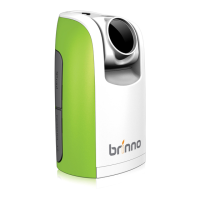
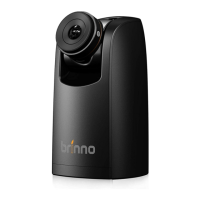
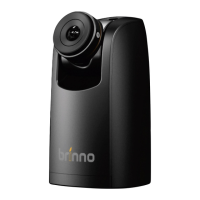
Brinno TimeLapse Camera TLC200
Recording!
Turn o LCD
On the Preview screen, hold the OK button for 2 seconds to start record-
ing. Preview Screen will show REC at the bottom bar.
After selecting the time interval, press OK to proceed to the Preview Screen.
During the recording period, the LCD panel will turn o to save power.
2
1
3
1
3
2
Start Recording
LED Indicator
Set up screen Preview screen Recording
Normal
ASAP
2011/08/31
22:58:32
OK
Green LED light: indicates Image capture in process
When the Green LED ashes, the Time Lapse Camera
(TLC 200) is capturing photos.
Red LED light: Low battery level, Low recording
space on your SD card
Stop Recording
Preview screen
While recording, hold the OK button until the LCD light turns on and
shows the text “Processing”, it means the camera is processing the le.
When completed the processing it will display the text "Ready” This
indicates the recording session is complete.
Remove the SD card from the camera, and insert it into your computer or
laptop to enjoy your amazing Time Lapse Videos!
1
2
1 2
SD
READYProcessing


 To Next Page
 Loading...