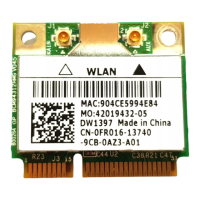
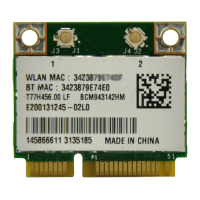
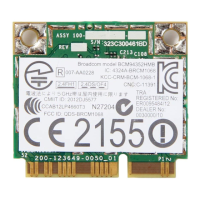
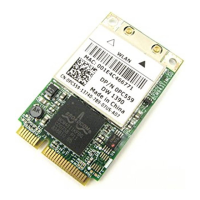
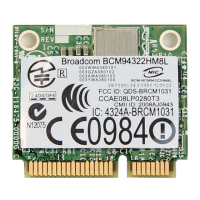
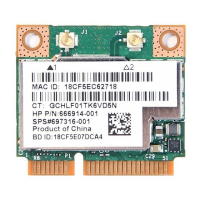
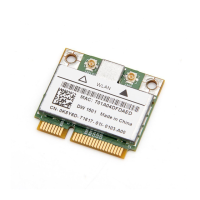
The Broadcom BCM94360CS2 PCI-E Mini Card is a wireless network adapter designed to enable wireless connectivity for computers. This device allows users to connect to various wireless networks, manage network profiles, and monitor network status and performance. The accompanying Broadcom Wireless Utility provides a comprehensive interface for configuring and maintaining wireless connections.
Function Description
The primary function of the Broadcom BCM94360CS2 is to provide wireless network connectivity. It detects wireless networks within range and allows the user to establish connections to them. The device supports the IEEE 802.11g standard and utilizes WEP (Wired Equivalent Privacy) for data encryption, offering an optional security layer for wireless communications.
The Broadcom Wireless Utility, an integral part of the solution, facilitates several key networking tasks. It enables users to manage wireless networks by creating and editing network connection profiles. This includes connecting to available networks, viewing detailed network status, and monitoring signal and noise levels. The utility also provides tools for diagnosing the wireless network adapter's functionality and accessing information about the utility, software, hardware, and location details.
For advanced network configurations, the utility supports EAP-FAST authentication, allowing for automatic addition of trusted servers and acceptance of auto-provisioning and A-ID group changes. Users can also manually manage trusted servers and import/export Protected Access Credentials (PACs) for enhanced security.
Usage Features
The Broadcom Wireless Utility offers a user-friendly interface for managing wireless connections. Before connecting to a network, users need to obtain essential information such as network names (SSID), WEP key information (if applicable), Microsoft® Windows® networking details (customer and workgroup names), network account credentials (user name and password), and IP address (if not using a DHCP server).
The utility's main interface includes several tabs:
- Wireless Networks Tab: This tab is central to managing wireless networks. Users can add, edit, or remove network connection profiles. It allows for changing the order of preferred network connections, connecting to listed networks, and enabling/disabling the radio. Users can also save and import wireless network connection profiles as WPN files. Advanced options include managing trusted servers, enabling manual acceptance/rejection of auto-provisioning and A-ID group changes, and importing EAP-FAST PACs. The utility provides a Wireless Network Wizard for connecting to basic or ad hoc networks, and a Wireless Network Connection Settings tool for advanced network configurations.
- Link Status Tab: This tab displays real-time information about the network connection, including connection status, encryption type, network name (SSID), connection type, speed, channel, streams, MAC addresses (AP, Gateway IP, Client), and IP addresses (Client, Client IPv6). It also features a "Signal & noise history" box, which can be clicked to toggle between displaying both signal and noise, noise only, or signal only history. The utility icon in the notification area visually indicates the strength of the received signal through the number and color of radio waves.
- Statistics Tab: This tab provides current and accumulated statistics related to network performance. Under "Current," users can view the network name (SSID), connection time, packets sent/received, and sent/received packets lost, as well as the total percentage of packets lost. The "Accumulated" section displays similar statistics over a longer period.
- Site Monitor Tab: This tab allows users to discover wireless routers/APs and ad hoc networks within range. The basic Site Monitor lists networks and allows sorting by characteristics like signal strength. Users can view detailed information about selected networks and, if desired, edit their connection settings or add them as new profiles. The advanced Site Monitor provides more detailed information, including AP MAC, channel, AP band, signal strength (dBm), noise (dBm), and SNR (dB). It also allows for logging activity to a file.
- Diagnostics Tab: This tab enables users to run various tests to ensure the wireless network adapter is functioning correctly. Tests include Control Registers, SPROM Format Validation, Memory, Interrupt, DMA and Loopback, and LED. Information about individual tests and their results can be viewed. Running these tests temporarily disconnects the network, but the connection is automatically reestablished afterward.
- Information Tab: This tab provides details about the software, hardware, and location of the wireless network adapter. It includes software version, driver version, supplicant version, board information, chipset, MAC address, and location details such as the country for which the driver is installed and supported channels.
Maintenance Features
The Broadcom Wireless Utility incorporates several features that aid in the maintenance and troubleshooting of the wireless network adapter.
- Diagnostics: The Diagnostics tab is a crucial maintenance tool, allowing users to run tests to verify the proper functioning of the wireless network adapter. If any tests fail, it suggests contacting the hardware provider for support, indicating a potential hardware issue.
- Signal & Noise Monitoring: The Link Status tab's "Signal & noise history" provides valuable insights into connection quality. By monitoring signal and noise levels, users can identify potential interference or weak signal areas, which can help in optimizing network placement or troubleshooting connectivity issues.
- Event Logging: The utility allows users to view a log of wireless network events, accessible through the Diagnostics tab. This log records events such as user session initiation, network connection/disconnection, authentication mode usage, driver status, supplicant status, new device availability, and wireless utility management status. This log can be instrumental in diagnosing intermittent connectivity problems or understanding the sequence of events leading to a network issue.
- Profile Management: The ability to save and import wireless network connection profiles (WPN files) on the Wireless Networks tab is a useful maintenance feature. It allows users to back up their network configurations and easily restore them or transfer them to another computer, reducing setup time and ensuring consistent network access.
- Cisco Compatible Extensions Management: For networks using EAP-FAST authentication, the utility provides tools to manage trusted servers and PACs. This includes manually adding or deleting trusted servers and importing/removing PACs, which is important for maintaining secure connections in enterprise environments.
- Troubleshooting Guidance: The utility's icon in the notification area provides visual cues about signal strength and radio status. If the signal is weak, no signal is received, or the radio is disabled, the utility directs users to "Troubleshooting" for suggested actions, guiding them toward resolving common issues.
Overall, the Broadcom BCM94360CS2 PCI-E Mini Card, coupled with its comprehensive Wireless Utility, provides a robust solution for wireless networking, offering extensive features for connection management, performance monitoring, and diagnostic troubleshooting.

 Need help?
 General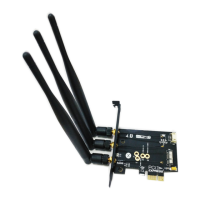


 To Next Page