INSTALLING EZ AUDIO CONVERTER ON A MAC
®
Insert the included CD into your computer’s CD drive.
Open the CD contents and double-click on the EZ Audio
Converter.Installer.pkg file to begin the installation process.
Follow the on-screen instructions to install the EZ Audio Converter.
4. Once the installation process has completed, you can find the EZ Audio
Converter application in your Applications folder.
TRANSFERRING MUSIC WITH EZ AUDIO CONVERTER
Once you have installed the EZ Audio Converter software, you can start recording!
Open EZ Audio Converter by going to Start > All Programs > MixMeister >
EZ Audio Converter—or, open EZ Audio Converter by accessing your
Applications menu.
When you open the software you will see the “Step 1 Get Connected”
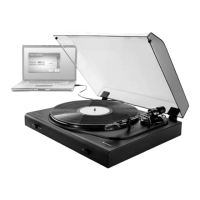
screen. Connect the iConvert USB Turntable to the computer with the
included USB cable.
Once the USB is connected, click NEXT on the “Step 1 Get
Connected” screen.
The “Step 2 Get the Music Ready to Play” screen will appear.
Locate the beginning of the section you would like to record.
Note: We recommend checking your levels before you begin recording
and adjusting the gain level control on your device accordingly.
1.
2.
3.
1.
2.
3.
4.
5.
9


 To Next Page