LCD Operation
GETTING READY
15
1
Settings screen
Touch to change the default machine settings. Touch
or , after you changed necessary settings.
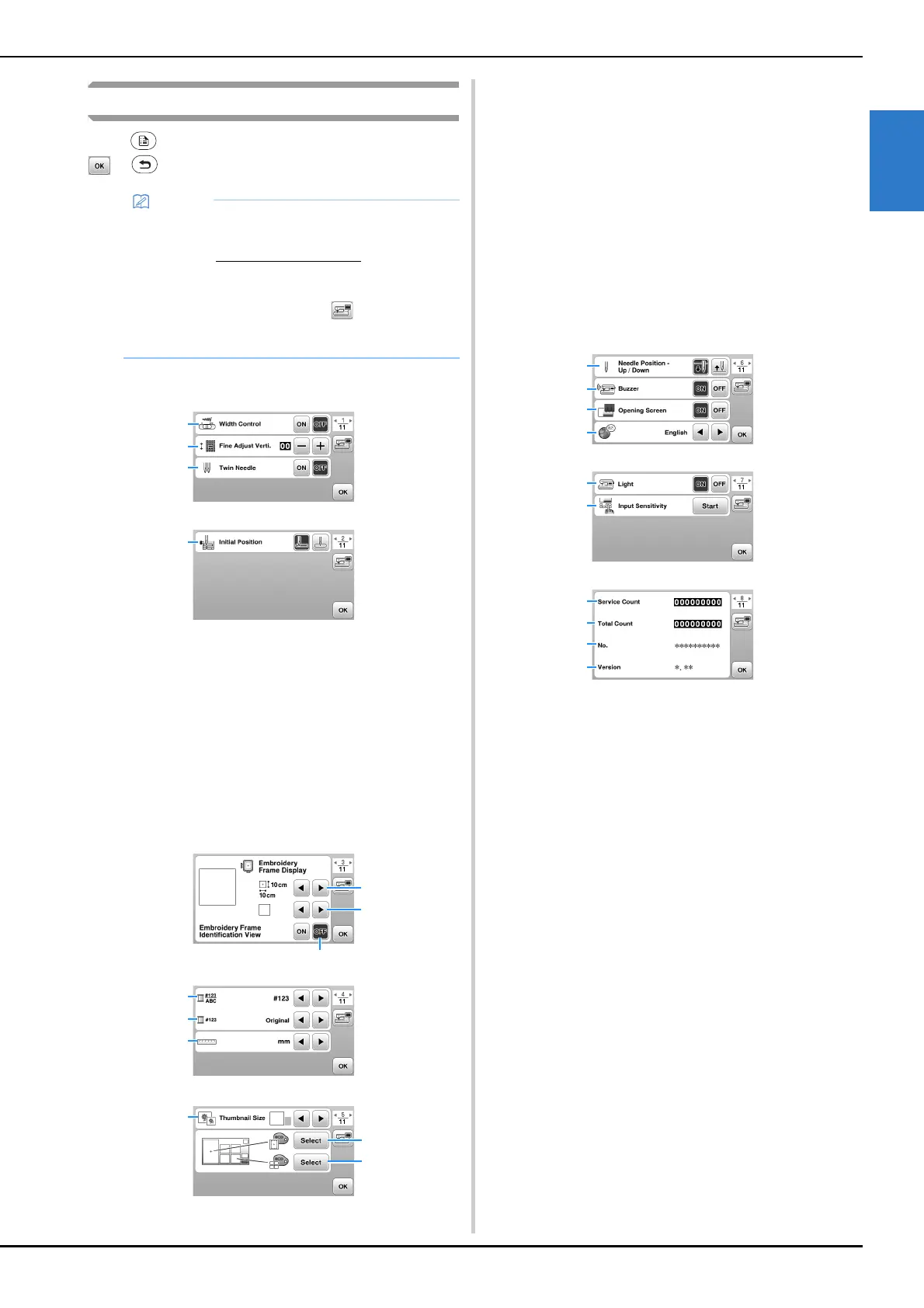
■ Sewing settings
1 Select whether to use the sewing speed controller to
determine the zigzag width. (page 52)
When a straight stitch is selected, the sewing speed
controller can be used to change the needle position.
(page 38)
2 Make adjustments to decorative stitch patterns.
(page 58)
3 Set to [ON] when using twin needle. (page 56)
4 Select either “1-01 Straight stitch (Left)” or “1-03 Straight
stitch (Middle)” as the utility stitch that is automatically
selected when the machine is turned on.
■ Embroidery settings
1 Select the embroidery frame to be used.
2 Select the center mark and grid lines that are displayed.
3 When set to [ON], you can only select the embroidery
pattern corresponding to the embroidery frame size that
you selected in
1. (page 68)
4 Select the thread color display on the embroidery
screen; thread number, color name. (page 71)
5 Select the thread brand. (page 71)
6 Select the display units (mm/inch).
7 Select the size of pattern thumbnails.
8 Select the color of the background for the embroidery
display area.
9 Select the color of the background for the thumbnail
area.
■ General settings
1 Select the needle stop position (the needle position for
when the machine is not being operated) to be up or
down.
2 Select whether to hear the beep operation sound.
3 Select whether to display the opening screen when the
machine is turned on.
4 Select the display language.
5 Select whether to turn work area light on or off.
6 Select the level of the input sensitivity for operation keys.
(page 16)
7 Display the service count which is a reminder to take
your machine in for regular servicing. (Contact your
authorized Brother dealer for details.)
8 Display the total number of stitches sewn on this
machine.
9 The [No.] is the internal machine number for your
machine.
0 Display the program version installed on your machine.
• The latest version of software is installed in your
machine. Check with your local authorized Brother
dealer or at https://s.brother/cpjap/ for available
updates.
• You can save the current settings screen image in
a USB flash drive by touching when the USB
flash drive is inserted into the USB port. The files
are saved in a folder labeled “bPocket”.



 To Next Page