EasyManua.ls Logo

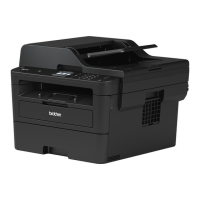
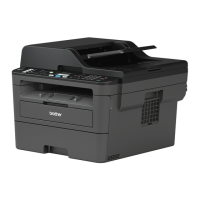
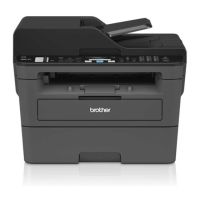
Brother MFC-L2705DW - User Manual

Brother MFC-L2705DW
83 pages
Print Icon
To Next Page IconTo Next Page
Loading...
Basic User's Guide
DCP-L2520DW
DCP-L2540DW
MFC-L2680W
MFC-L2685DW
MFC-L2700DW
MFC-L2705DW
MFC-L2707DW
Brother recommends keeping this guide next to your Brother machine for quick reference.
Online User's Guide
This Basic User's Guide contains basic
instructions and information for your Brother
machine.
For more advanced instructions and information,
see the Online User's Guide at
solutions.brother.com/manuals

Table of Contents

Other manuals for Brother MFC-L2705DW

Questions and Answers

  • T
    Tonya PayneSep 23, 2025
    Why my Brother All in One Printer cannot send a fax?
    • D
      Dalton SullivanSep 23, 2025
      To troubleshoot why your Brother All in One Printer cannot send a fax: Check all line cord connections, ensuring the telephone line cord is plugged into the telephone wall jack and the LINE jack of the machine. Make sure you pressed Fax and the machine is in Fax mode. Print the Transmission Verification Report and check for an error. Contact your administrator to check your Secure Function Lock Settings. Ask the other party to check that the receiving machine has paper.
  • R
    Rachel NewmanAug 23, 2025
    How to fix 'Cartridge Error Put the Toner Cartridge back in' on Brother All in One Printer?
    • D
      david96Aug 25, 2025
      To resolve the 'Cartridge Error Put the Toner Cartridge back in' message on your Brother All in One Printer, remove the toner cartridge and drum unit assembly. Take out the toner cartridge, and put it back in the drum unit again. Reinstall the toner cartridge and drum unit assembly in the machine.
  • F
    fbishopAug 25, 2025
    How do I fix a 'Jam Tray' error on my Brother All in One Printer?
    • M
      Mary EscobarAug 26, 2025
      To fix a 'Jam Tray' error on your Brother All in One Printer, pull the paper tray out completely and remove the jammed paper. Then, put the paper tray firmly back in the machine.
  • T
    Tonya CurtisAug 27, 2025
    What to do if my Brother All in One Printer has a 'Document Jam' error?
    • M
      Mary GordonAug 27, 2025
      If your Brother All in One Printer displays a 'Document Jam' error, it means the document was not inserted or fed correctly, or the document scanned from the ADF was too long. Remove the jammed paper from the ADF unit.
  • L
    Linda HarrisAug 27, 2025
    How to clear a 'Jam Rear' error on Brother All in One Printer?
    • F
      Frank DominguezAug 27, 2025
      To clear a 'Jam Rear' error on your Brother All in One Printer, open the fuser cover and remove the jammed paper. Close the fuser cover. If the error message remains, press Start.
  • C
    campbellzacharySep 15, 2025
    How to improve sending quality on Brother All in One Printer?
    • L
      Luis RamirezSep 15, 2025
      To improve sending quality on your Brother All in One Printer, try changing your resolution to Fine or S.Fine. Make a copy to check your machine’s scanner operation.
  • S
    Samuel EllisSep 13, 2025
    How to fix split pages on received faxes with Brother All in One Printer?
    • W
      william11Sep 13, 2025
      Turn on Auto Reduction on your Brother All in One Printer.
  • S
    silvaaliceSep 14, 2025
    What to do if Brother All in One Printer cannot receive a fax?
    • J
      Joshua GilmoreSep 14, 2025
      To troubleshoot why your Brother All in One Printer cannot receive a fax: Make sure your machine has a dial tone by pressing Hook. If you hear static or interference on your fax line, contact your local telephone company. If you are using a telephone answering machine (External TAD mode) on the same line as the Brother machine, make sure your answering machine is set up correctly. Also, make sure your Brother machine’s Easy Receive feature is turned On.
  • S
    Sierra SteeleSep 5, 2025
    Why does my Brother All in One Printer show a 'Size mismatch' error?
    • T
      Teresa JohnsonSep 5, 2025
      A 'Size mismatch' error on your Brother All in One Printer indicates that the paper in the tray is not the correct size. Load the correct size of paper in the tray and set the size of paper to the tray.
  • A
    Amy SharpSep 2, 2025
    Why does my Brother All in One Printer say 'Manual Feed'?
    • A
      Amanda SanchezSep 2, 2025
      The 'Manual Feed' message on your Brother All in One Printer indicates that Manual was selected as the paper source in the printer driver when there was no paper in the manual feed slot. Place paper in the manual feed slot.

Summary

Customer Support and Information

Contacting Customer Service

Lists contact numbers and website for customer support in the USA and Canada.

Registering Your Product

Explains the benefits and process of registering your Brother product online.

Ordering Supplies and Accessories

Provides information on ordering Brother accessories and supplies in USA and Canada.

FAQs and Troubleshooting Resources

Guide to finding answers to common questions and troubleshooting tips on the Brother website.

Machine Overview and Setup

General Information and Control Panel

Overview of machine features, control panel, LCD, buttons, and power management.

Initial Setup Procedures

Step-by-step guide to configure the machine's date, time, and volume settings.

Accessing Brother Utilities

Instructions on how to launch the Brother Utilities software for managing machine functions.

Paper Handling

Loading Paper and Changing Settings

Instructions on loading paper, changing size/type, and using special paper types.

Recommended Print Media

Lists recommended paper types and brands for optimal print quality and performance.

Core Functions: Print, Copy, Scan, Fax

Printing Documents

Basic steps to print documents from a computer, including duplex and N-in-1 printing.

Copying Documents

Guide to making copies, adjusting settings, and performing 2-sided or ID card copies.

Scanning Documents

Instructions for scanning documents via computer software or the machine's scan button.

Faxing Operations

Setup and procedures for sending and receiving faxes directly from the machine.

Advanced Faxing and Connectivity

Receive Modes and Telephone Services

Explains receive modes, ring delay, and using telephone services like Voice Mail or TAD.

Faxing via Computer (PC-FAX)

Instructions for sending and receiving faxes using PC-FAX software on your computer.

Troubleshooting

Identify and Diagnose Problems

Initial steps to diagnose issues using Status Monitor and understanding error messages.

Resolve Common Issues

Solutions for error messages, paper jams, print/scan problems, and fax/telephone issues.

Appendix and Supplies

How to Enter Text on the Machine

Guide on inputting text and characters using the machine's control panel for various settings.

Replacing Machine Supplies

Information about replacing toner cartridges and drum units when supplies are low or depleted.

Brother MFC-L2705DW Specifications

General IconGeneral
Print TechnologyLaser
FunctionalityPrint, Copy, Scan, Fax
Print Speed (Black)30 ppm
Print Resolution2400 x 600 dpi
Automatic Duplex PrintingYes
Paper Capacity250 sheets
Scan Resolution1200 x 1200 dpi
Fax Speed33.6 Kbps
Memory64 MB
InterfaceUSB 2.0, Ethernet, Wi-Fi
ConnectivityEthernet, USB, Wi-Fi
Scanner TypeFlatbed
DisplayLCD
Mobile PrintingBrother iPrint&Scan, AirPrint, Google Cloud Print
Automatic Document Feeder (ADF)Yes

Related product manuals