User’s Guide
Printed in China
LAA479001
English
GETTING STARTED
INTRODUCTION
With the PT-1080/1090 you can create
labels for any application. Select from the
many frames, character sizes and styles to
design custom labels. In addition, the variety
of tape cartridges allows you to print labels
with different widths and colours.
Read this guide carefully before starting and
keep the guide in a handy place for future
reference.
The contents of this guide and the
specifications of this product are subject to
change without notice.
Declaration of Conformity
(Europe/Turkey only)
We, BROTHER INDUSTRIES, LTD
15-1, Naeshiro-cho, Mizuho-ku,
Nagoya, 467-8561, Japan
declare that this product is in compliance with the essential
requirements and other relevant provisions of Directives
2004/108/EC and 2005/32/EC.
The Adapter AD-24ES is in compliance with the essential
requirements and other relevant provisions of Directive
2006/95/EC.
The Declaration of Conformity (DoC) is on our Web site. Please
go to http://solutions.brother.com -> choose region
(eg. Europe) -> choose country -> choose your model ->
choose “Manuals”-> choose Declaration of Conformity
(*Select Language when required).
SAFETY PRECAUTIONS
WARNING
Follow these guidelines to avoid the risk of
fire, burn, injury, electric shock, damage,
overheating, abnormal odours or smoking.
• Always use the specified voltage and the suggested
AC adapter (AD-24ES) to prevent any damage or
failure.
• Unplug the adapter cord immediately and stop using
the P-touch labeller during an electric storm.
•
Do not use the P-touch labeller/adapter in places of high
humidity such as bathrooms. Do not get the P-touch
labeller/adapter/power plug wet such as by handling
them with wet hands or spilling beverages onto it.
• Do not overload the adapter cord. Do not forcibly bend
or pull the adapter cord. Do not damage or place heavy
objects on the adapter cord or plug.
• Hold the plug when disconnecting the adapter cord
from the power outlet. Do not use an outlet that is loose.
• Do not swallow the cutter stopper.
• Do not disassemble or modify the P-touch labeller/
adapter/batteries. Do not use metallic objects such as
tweezers or a pen when changing the batteries. Do not
throw the batteries into fire or expose to heat.
• Disconnect the adapter, remove the batteries and stop
using the P-touch labeller immediately if you notice
abnormal odour, heat, discoloration, deformation or
anything unusual while using or storing it.
• Do not allow organic solvents (benzene, paint thinner,
nail polish remover, deodorizer, etc.) to come into
contact with the machine and its connecting cables.
Doing so may cause the equipment to deform or
dissolve, and there may be a risk of electrical shock or
fire.
CAUTION
Follow these guidelines to avoid personal
injury, battery leakage, burn and heat
• Do not touch the edge of the cutter or any metal part
near the print head.
• Remove the batteries and disconnect the adapter if you
do not intend to use the P-touch labeller for an
extended period of time.
• Do not use old and new batteries together or mix
alkaline batteries with other types.
• Do not drop or hit the P-touch labeller/adapter. Do not
press hard on the LCD display.
• Do not put your finger between the covers when you
close the cassette cover.
GENERAL PRECAUTIONS
• Depending on the location, material, and
environmental conditions, the label may unpeel or
become irremovable, the colour of the label may
change or be transferred to other objects. Before
applying the label, check the environmental condition
and the material.
• Do not use the labeller in any way or for any purpose
not described in this guide. Doing so may result in
accidents or damage to the machine.
• Only use a soft, dry cloth to clean the labeller; never
use alcohol or other organic solvents.
• Use a cotton swab to clean the print head; never touch
the print head.
• Do not put any foreign objects into the tape exit slot or
adapter etc.
• Do not place the labeller/batteries/AC adapter in direct
sunlight or rain, near heaters or other hot appliances, in
any location exposed to extremely high or low
temperatures (e.g. on the dashboard or in the back of
your car), high humidity, or dusty locations.
• Do not apply excessive pressure to the cutter lever.
• Do not try to print if the cassette is empty; it will damage
the print head.
• Do not pull the tape while printing or feeding; it will
damage the tape and the labeller.
• Any data stored in memory will be lost due to failure or
repair of the labeller, or if the battery expires and no
adapter is connected.
TROUBLESHOOTING
Error messages Cause / remedy
BATTERY! The batteries are about to run out. Replace all batteries.
Invalid! - An invalid number is selected for Label length.
No Text! - You tried to print a text file when there is no data stored
in the memory.
- is pressed when no text is entered.
-
You tried to select [Copies], [Preview] or [Cable] when
no text is entered.
Line Limit!
- You tried to enter a third line by pressing .
Note: Use either 9 mm or 12 mm wide tape when
printing two lines.
Cutter Error Tape cutter lever is pressed while the machine is printing.
Note: Do not push the cutter lever while printing.
Full! The maximum number of characters (80 Characters for
regular text, or 50 characters for DECO MODE) have
already been entered.
Text Limit!
- The text length exceeds the selected Label length.
- The text length exceeds 200 mm when “Label Length”
is set to [Auto] in DECO MODE.
-
If the minimum label length 30mm is selected, some frame
types (Leaf or Star) will not allow you to enter additional text.
No Frame OK? Frames can not be printed on 3.5 mm tape.
Select to print with no frame or to cancel.
OK to Feed? Tape feeds after printing when [Chain Prt] is selected.
Refer to ‘Set margin (tape margin)’.
Cooling
If the print head becomes too hot, the labeller stops printing
and automatically starts to cool down. The cool down time will
be displayed. Once the print head is cool, printing will continue
automatically. Do not touch the labeller while cooling.
Insert 12 mm!
Only 12 mm tape cassette is suitable for DECO MODE.
No Cassette! Insert a cassette
.
Problem Possible solution
The display stays blank after you have
turned on the machine.
- Check the batteries are correctly inserted.
- The batteries could be weak, replace them.
-
Check that the optional AD-24ES adapter is correctly connected.
The power turns off when trying to print - The batteries are weak; replace all batteries.
- Check that the batteries are inserted correctly.
When the label is printed out, there is too
much margin on both sides of the text.
See ‘Set margin (tape margin)’ in this user's guide and select
[Half] or [Narrow] to have smaller margins for your label.
The machine has “locked up” (i.e., nothing
happens when a key is pressed, even
though the machine is on).
Refer to ‘RESETTING THE P-TOUCH’.
All text and format settings need to be
cleared to create a new label
Press and select [Txt&Format].
The machine does not print or printing is
blurry.
- Check that the tape cassette is inserted correctly.
- If the tape cassette is empty, replace it.
- Check that the cassette cover is properly closed.
The settings and texts have cleared on
their own.
- The batteries may be weak; replace them.
- When power is disconnected for more than two
minutes, all texts, settings and any text files stored in
the memory will be cleared.
The tape does not feed properly or gets
stuck inside the labeller
- Check that the end of the tape feeds under the tape guide.
- The cutter lever is pressed while printing. Do not touch
the cutter lever during printing.
To change the language setting Refer to ‘INITIAL SETTINGS’.
A blank horizontal line appears through
the printed label.
- There may be some dust on the print head. Remove the
tape cassette and use a dry cotton swab to gently wipe
the print head with an up-and-down motion.
- The print head can be cleaned more easily if the optional
print head cleaning cassette (TZ/TZe-CL3) is used.
PREPARATION
A: Cassette cover
B: Tape cutter lever
• Open the cassette cover by pressing the above
indicated area at the top end of the machine.
A: Cutter blade
B: Cutter stopper
C: Print head
• Insert six AAA alkaline batteries (LR03).
• Make sure the + and – of the batteries are
positioned correctly.
Note: Only use new batteries.
A: Toothed wheel
• Make sure that the end of the tape feeds under
the tape guide.
•
If the ink ribbon in the cassette is loose, use your
finger to turn the toothed wheel in the direction of
the arrow on the cassette until there is no slack.
A: Tape exit slot
• Insert a tape cassette.
• Make sure that the cassette snaps into place.
• Close the cassette cover.
• After you have installed the tape, feed the tape
(see “Feed (tape feed)”) once and then push in
the tape cutter lever to cut the tape.
Note: Use only Brother TZ/TZe tapes with this
machine.
RESETTING THE P-TOUCH
Reset the P-touch labeller if you want to
initialize the settings or in case the labeller
does not work properly.
• Turn off the labeller.
• Hold down and .
• While holding and , press once
to turn ON the labeller.
• Release and .
Note: The internal memory is reset, and all
text, settings and stored files are
cleared.
A
B
A
C
B
A
A
ACCESSORIES
If the cutter blade becomes blunt after repetitive
use and the tape cannot be cut cleanly, replace
with a new cutter unit (stock no.TC-5) obtained
from an authorized Brother reseller.
Tape cassettes See the included tape
catalogue.
AC adapter AD-24ES
Cutter unit TC-5 (replacement)
Cleaning cassette TZ/TZe-CL3
CAUTION
• Do not touch the cutter blade directly with your fingers.
• Do not swallow the cutter stopper.
SPECIFICATIONS
Dimensions
(W × D × H)
107.9 × 209.4 × 57.6 mm
Weight Approx. 315g
Power supply Six AAA alkaline batteries (LR03)
Optional AC
adapter
Model AD-24ES
Tape cassette Brother TZ/TZe tape (width)
3.5 mm, 6 mm, 9 mm, 12 mm

 Need help?
 General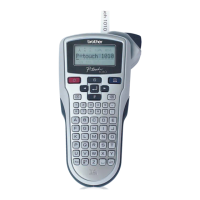






 To Next Page