1
1
2
2
3
3
4
4
ELECTRONIC LABELING SYSTEM
ELECTRONIC L A
BELING S Y S T E
M
ELECTRONIC LABELING SYSTEM
1
1
2
2
3
3
USER'S GUIDE
/ Français
www.brother.ca
LW0737001
Printed in China
English
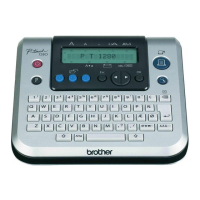
With your PT-1880, you can create labels for any application. Select from the
many frames, character sizes and styles to design beautiful custom labels. In
addition, the variety of tape cartridges available allows you to print labels with
different widths and exciting colors.
Read this manual carefully before starting and keep the manual in a handy
place for future reference.
• Use only Brother TZ tapes with this machine. Do not use tapes that do not have
the mark.
• Do not disassemble or modify the machine/AC adapter.
• Do not clean the machine with alcohol or other organic solvents. Only use a soft, dry
cloth.
• Do not touch the print head mechanism. Use a soft wipe (e.g. a cotton swab) when
cleaning the print head.
• To avoid injuries, do not touch the cutter's edge.
• To prevent damage or breakage, do not press on the LCD display.
• Do not put any foreign objects into or heavy objects on the machine.
• Do not leave any rubber or vinyl on the machine for an extended period of time,
otherwise the machine may be stained.
• Do not get the machine/AC adapter/power plug wet, such as by handling them with
wet hands or spilling beverages on to them.
• Do not expose the machine/AC adapter to extremely high temperatures or high
humidity. Never leave them on the dashboard or in the back of your car, near heaters
or other hot appliances. Keep them out of both direct sunlight and rain.
• Avoid using the machine in extremely dusty places.
• Depending on the environmental conditions and the applied settings, some
characters or symbols may be difficult to read.
• Do not pull on the tape being fed from the P-touch labeler, otherwise the tape
cassette or P-touch labeler may be damaged.
• Do not attempt to cut the tape while printing or feeding since this will damage the tape.
• Do not try to print labels using an empty tape cassette set in the P-touch labeler. Doing
so will damage the print head.
• Remove the batteries and disconnect the AC adapter if you do not intend to use the
machine for an extended period of time. (Note: When power is disconnected for more
than five minutes, all text, format settings and any text files stored in the memory will
be cleared.)
• Do not use old and new batteries together or mix alkaline batteries with other type
batteries, or set the positive and negative end in the wrong position. Otherwise, the
batteries may leak or be damaged.
• Do not use metallic articles, such as tweezers or metallic pen, when exchanging the
batteries.
• Always use the specified voltage and the suggested AC adapter (AD-24) for this
machine to prevent any damage or failure.
• To prevent fire or electric shock, make sure that the plug of the AC adapter is fully
inserted into the power outlet. Do not use an outlet that is loose.
INTRODUCTION
Industry Canada Compliance Statement (Canada Only)
Avis de conformité aux normes d’Industrie Canada (Canada seulement)
This Class B digital apparatus complies with Canadian ICES-003.
Cet appareil numérique de la classe B est conforme à la norme NMB-003 du Canada.
GENERAL PRECAUTIONS
Unpacking Your P-touch Labeler
Check that the package contains the following before using your P-touch la-
beler.
Included items may differ by distribution area.
Tape Cassettes
Make sure that the power is turned off when replacing a tape cassette.
Open the tape compartment cover by lifting up both sides at the same time.
If a tape cassette is already installed, remove it by pulling it straight up.
Insert a tape cassette, making sure that it snaps into place.
• Make sure that the end of the tape feeds under the tape guides.
• If the ink ribbon is loose, use your finger to wind the toothed wheel in the
direction of the arrow on the cassette.
After you have installed the tape, feed the tape ( + ) once and then
push in the tape cutter lever to cut the tape.
Securely close the front cover, making sure that it snaps into place.
Power Supply
Make sure that the power is turned off when replacing batteries.
Turn the machine over and remove the battery compartment cover.
If batteries are already installed, remove them.
Insert six new AA-size alkaline
batteries (LR6), making sure that
their poles point in the correct
directions. Always replace all six
batteries at the same time using
brand new ones.
Attach the battery compartment cover by inserting the three hooks at the
bottom into the slots on the machine, then pushing down firmly on the
cover until it snaps into place.
When using optional AC adapter (model
AD-24)
Insert the plug on the adapter cord into
the adapter jack on the right side of the
machine.
Insert the plug into the nearest standard
electrical outlet.
For memory back up, we recommend using
AA-size alkaline batteries (LR6) together
when using the AC adapter.
TZ tape cassette
Tape Catalog
PT-1880
User's Guide
Warranty Card
Tape compartment
cover
End of tape
Tape guide
Toothed Wheel
Battery compartment
cover
Keyboard & LCD
Turning the Power On
Setting Language (
> [Language] / > [English] /
Setting unit (inch/mm)
> [Unit] / > [inch] /
• The LCD shows one row of 15 characters; however, the text that
you enter can be up to 80 characters in length, which will scroll
across the display.
• Use with Shift key to go to beginning/end of the text.
• The machine automatically turns off if no key is pressed within 5
minutes.
• To cancel operations, press .
• To initialize the P-touch labeler back to factory settings, turn off the
machine and then while holding down and , press to
turn the machine back on. Finally, release and .
Size
Caps
Preview key
Font keys
Character keys
Tab key
Caps key
Shift key
Symbol key
Auto Format key
Width
Style
Underline/Frame
Label Length
Cursor keys
Function key
Power key
Backspace key
Enter key
Shift key
Accent key
Space key
Cursor
Tape cutter lever
Esc key
OK key
Print key
(+)
English/Spanish/
French/Portuguese
(+)
Troubleshooting
Error message
What to do when...
Specifications
All specifications are subject to change without notice.
Accessories (Supplies may differ by distribution area.)
Message Cause/Remedy
Battery Weak! The batteries are weak. Replace them with new ones.
Check Battery! The installed batteries are about to run out.
Invalid! • There is no text above the cursor when you set Number-
ing.
• Invalid character is selected for Numbering.
• Invalid number is selected for Tab Length or Label Length.
No Text! • You tried to print a text file when there is no data stored in
the memory.
• The Print key is pressed when no text is entered.
• You tried to set Copies, Numbering or Mirror when no text
is entered.
Line Limit! • You tried to enter a 3rd line by pressing Enter key.
• You tried to print a 2 line text when 9/64" (3.5 mm) or 1/4"
(6 mm) tape is installed.
No Cassette! You tried to print a label when there is no cassette installed.
Cutter Error! Tape cutter lever is used in the middle of printing process.
Full! The maximum number of characters (80 characters) have
already been entered.
Text Too Long! The text length exceeds the selected label length or the
selected Auto Format setting length.
No Frame OK? Printing on 9/64" (3.5 mm) tape with invalid Frame setting
ON. (Select to print with no Frame, to cancel.)
Problem Solution
The display stays blank
after you have turned on
the machine.
• Check that the batteries are correctly inserted.
• If the batteries are weak, replace them.
• Check that the AC adapter is correctly connected.
When the label is
printed out, there is too
much margin (space) on
both sides of the text.
• Refer to "Setting [Margin] (Tape Margin)" on this users
guide and select [Half] or [Narrow] to have smaller margins
for your label.
The machine does not
print, or the printed
characters are not
formed properly.
• Check that the tape cassette has been inserted correctly.
• If the tape cassette is empty, replace it.
• Check the tape compartment cover is properly closed.
The setting has cleared
on its own.
• The batteries may be weak. Replace them.
• When power is disconnected for more than five minutes, all
text & formats in the display will be lost. Language and unit
settings will also be cleared.
A blank horizontal line
appears through the
printed label.
• There maybe some dust on the print head. Remove the
tape cassette and use a dry cotton swab to gently wipe the
print head with and up-and-down motion.
• The print head can be cleaned more easily if the optional
print head cleaning cassette (TZ-CL4) is used.
The machine has
"locked up" (i.e., nothing
happens when a key is
pressed, even though
the machine is on.)
• Turn off the machine, and then while holding
down and , press to turn the machine back
on. Finally, release and .
• Note: The text and formats in the display are erased. Also,
the language and unit settings will be cleared.
The power turns off
when you try to print.
• The batteries may be weak. Replace them.
• Check that the batteries are correctly inserted.
The tape does not feed
properly or the tape gets
stuck inside the machine.
• Check that the end of the tape feeds under the tape guides.
• The cutter lever is used while printing. Do not touch the
cutter lever during printing.
All text and format settings
need to be cleared to
create a new label.
• Press while holding down , and select [Text&For-
mat].
Item Specification
Dimensions 6.6" (W) × 8.5" (D) × 2.2" (H)
(167mm (W) × 215mm (D) × 57mm (H))
Weight 1.26 lbs. (570 g) (without batteries and tape cassette)
Power supply Six AA-size alkaline batteries (LR6) or optional AC adapter
(model AD-24)
Tape cassette Brother TZ tape (width) :
9/64" (3.5 mm), 1/4" (6 mm), 3/8" (9 mm), 1/2" (12 mm), 3/4" (18 mm)
Accessories Stock No.
Tape Cassettes See the attached "Tape Catalog".
AC Adapter model AD-24
Carrying Case CC3500
Setting Font
image
image
Switching Upper Case/Lower Case
>
Making Two Line Text
Move the cursor to where the second line starts and press .
Use either 3/8" (9 mm) or 1/2" (12 mm), or 3/4" (18 mm) wide tape for two line text.
Entering Symbols
>
• To go to the next group, press .
• To cancel operations, press .
Entering Accented Characters
>>/ > /
• To cancel operations, press .
• The order of accented characters differ by the selected LCD language.
To Clear
To delete a character one by one
To delete all text
> [Clear] > [Text Only]
To delete all text & format
> [Clear] > [Text & Format]
You can also go into [Text & Format] / [Text Only] by pressing + .
Group
Symbols
Group
Symbols
17
28
39
410
511
612
Accented Characters Accented Characters
Aa
Cc
Dd
Ee
Gg
Ii
Kk
Ll
Nn
Oo
Rr
Ss
Tt
Uu
Yy
Zz
Upper case ( ON) Lower case ( OFF)
Display Label image
(+)
Setting [Size]
> [Size] > [Large]
Automatically adjusts the text size according to the tape width.
Select MAX to print with maximum text size when using 3/4" (18 mm) tape, all
texts are in upper case, the Style setting is [Normal], and the Underline/Frame
setting is [Off].
Setting [Width]
> [Width] > [×2]
Setting [Style] (Vertical)
> [Style] > [Vertical]
Setting [Underline/Frame]
> [Underline/Frame] > [Underline]
Frames cannot be printed on 9/64" (3.5 mm) tape.
Setting [Label Length]
(Auto / 1.2" - 12.0"
)
> [Label Length] >
• You can also select the length by entering the length with Num keys.
• To return to [Auto], press .
Setting [Tab]
You can make aligned texts by setting tabs.
Example: To set a tab between "ABC" and "D"
The cursor should be positioned where you set a tab.
>
Setting [Tab Length](Auto / 0.0" - 4.0")
> [Tab Length] >
• You can also select the length by entering the length with Num keys.
• To return to [Auto], press .
Setting [Auto Format]
You can choose label length from six formats to create labels for various ap-
plications.
> [VHS Spine]
Text Preview
You can preview the text before printing.
• The LCD shows the whole text and the label length (inch/mm), then returns to the
original text.
• Only the text can be previewed, not the font, style, size, underline/frame or any
additional features.
Feeding (Tape Feed)
+
• The machine will feed 1" (25mm) of tape, which may be needed when installing a new
tape cassette or when using the [Chain Print] feature.
Printing
• To cut off the label, push in the tape cutter lever on the upper-left corner of the
machine.
• To prevent damage to the tape, do not try to cut while the message "Print" or "Feed"
is displayed.
Setting [Margin] (Tape Margin)
> [Margin] > [Full]
[Full]/[Half]/[Narrow] is for leaving equal margins on both sides of the text.
NOTE: Cut along the printed dots (:) with scissors so the text is centered in the label.
[Chain Print] is for printing more than 1 copy of a label with minimum margin
<e.g. 1>. You can also create a label containing text in various styles; print a
text in one style, and before feeding, enter the second text in another style
<e.g. 2>.
FEED THE TAPE BEFORE USING THE CUTTER (see Feeding/Printing).
Otherwise A PART OF THE TEXT MAY BE CUT OFF. Do not try to pull the
tape since this may damage the tape cassette.
Using [Print Option]
[Copies]
You can print up to 9 copies of each label.
> [Print Option] > [Copies] >
You can also select the number of copies by entering with Num keys.
[Numbering]
You can print many copies of the same text while increasing a selected
number by 1 after each label is printed.
Example: To print copies of a label containing a serial number (0123, 0124 and 0125)
>>
[Print Option] >
[Numbering] >
Select the highest number you wish to be printed when setting the number.
[Mirror]
>
[
Print Option
]
>
[
Mirror
]
>
[Mirror Print?]
Use clear tape in [Mirror], so the labels can be read correctly from the oppo-
site side when attached on glass, windows or other transparent surfaces.
Peel the printed label from backing and apply the label.
Memory (File)
You can save your original labels on to your machine. Up to five labels can
be saved and recalled for printing whenever you desire. You can also edit and
overwrite the stored label.
>> [File] >>
To Save:
> [Save] >
To Print:
> [Print] >
To Open:
> [Open] >
Function Shortcuts
In addition to the basic steps to search for a function, the PT-1880 provides
you with function shortcuts so you can easily jump to a frequently used func-
tion just by pressing and the shortcut key shown in the table below. To
confirm, press .
[Large] [Medium] [Small] [MAX]
[Normal] [×2] [×1/2]
[Normal] [Bold] [Outline]
[Shadow] [Italic] [Italic Bold]
[Italic Outl](Italic Outline)
[Italic Shadow] [Vertical]
[Off] [Underline] [Round] [Candy] [Callout]
[Banner] [Wooden] [Vine] [Hand] [Flower]
Application Length Application Length
VHS Spine 5.5" (140 mm) CD Case Spine 4.4" (113 mm)
MiniDV Spine 1.6" (42 mm) File Tab 3.2" (82 mm)
Audio Tape 3.5" (89 mm) Divider Tab 1.6" (42 mm)
(+)
(+)
(+)
(+)
(+)
Display Label image
ABC D
Tab
(+)
(+)
ABC ABC: ABC:
1/6"(4mm) 1/6"(4mm)
1/2"(12mm) 1/2"(12mm)
1"(25mm) 1"(25mm)
Full Half Narrow
ABC ABC ABC ABC
ABC
DEF
<e.g. 1> <e.g. 2>
(feed & cut) (feed & cut)
Chain Print
(+)
If you try to store a label when there is already a label stored to that
number, a message "Overwrite?" will appear. Press to save your
new label. Press to cancel.
Key Function Key Function
[Size] [Margin]
[Width] [Tab Length]
[Style] [Print Option]
[Underline/Frame] [Language]
[File] [Unit]
[Label Length] [Clear]
Contact Information
Website: www.brother.ca
TEL:1-877-Brother
(+)
(+ )
PREPARATION OPERATION REFERENCE
[GETTING STARTED]
[CREATING LABELS]
MAKING TEXT
DESIGNING LABELS
PRINTING LABELS
COMPLETED LABELS
USEFUL FUNCTIONS


 Need help?
 General