Subsection XX (COMMUNICATION TOOLS AND B.U.D.S.)
Electronic Modules ECU Update
NOTICE
Failure to strictly follow a procedure
to update a module may permanently damage
the module.
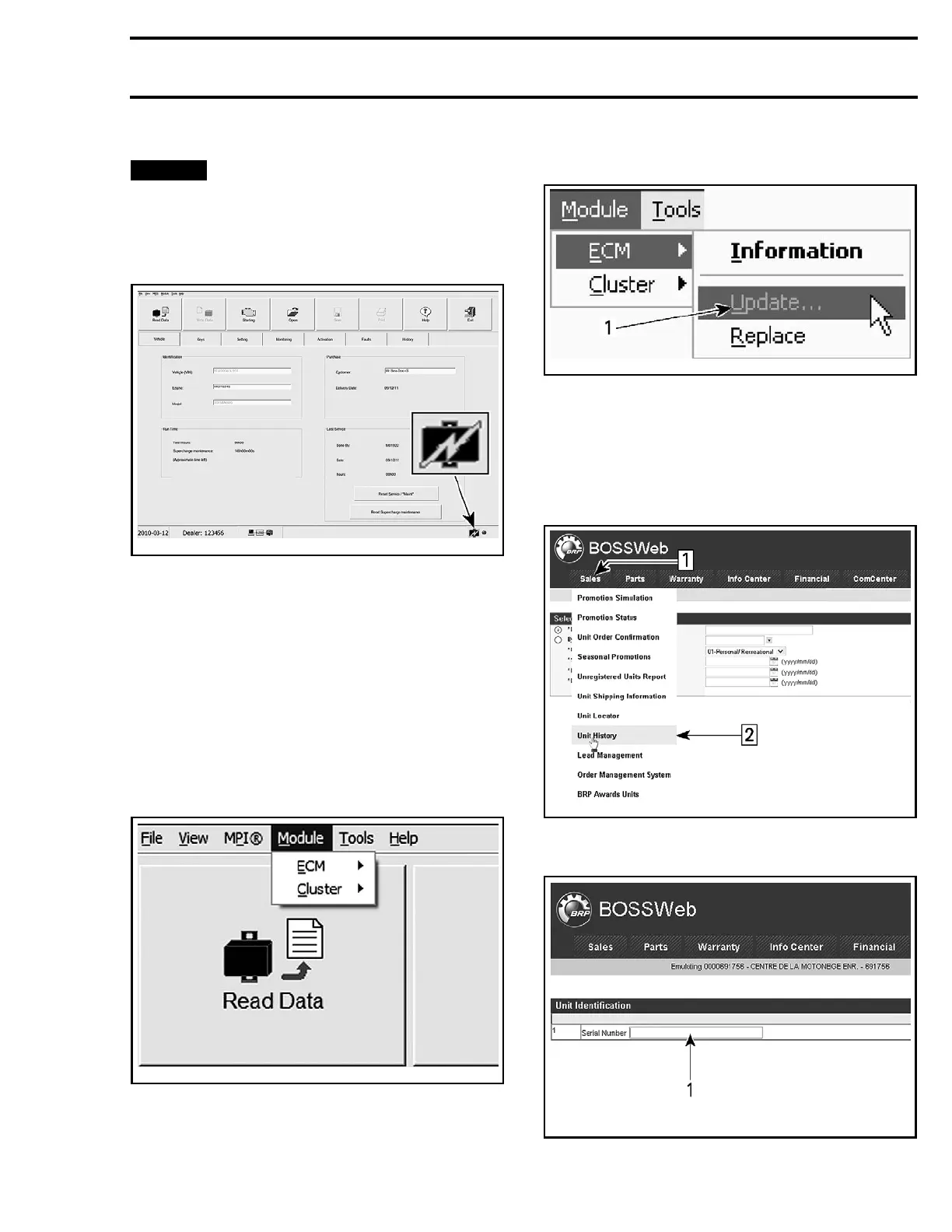
Whenever B.U.D.S. is started, check for an up-
date icon in the B.U.D.S. s tatus bar.
smr2010-030-002_a
TYPICAL
If the icon
is visible, it indicates that a file is avail-
able in B.U
.D.S. to update at least one of the elec-
tronic mod
ules.
NOTE: If an update file is available on BOSSWeb
but the B.U.D.S. software being used is not up
to date, the update icon will not appear. Refer to
the service bulletins to see if there is an update
available.
Use the Module submenu and check all modules
one at a time to s ee which module(s) can be up-
dated.
lmr2010-019-001
MODULE SUBMENU LIST
1. If the Update option is greyed out, no update
file is available for this module.
2. If the Update option is black, an update file is
available for this module.
vmr2008-019-011_a
1. Greyed out:
No u pdate to perform
Black: Update file available
Before applying an update, log in BOSSWeb and
look in Sales for the Unit history to find out if any
information or publication related to the vehicle is
available. If so, carefully follow the given instruc-
tions.
smr2014-026-004_a
SALES, UNIT HISTORY
Step 1: Click on SALES menu
Step 2: Select Unit History
smr2
014-026-005_a
1. Vehicle Serial Number here
smr2014-026 5


 To Next Page