Need help?
Do you have a question about the BRP BUDS2 and is the answer not in the manual?
Viewing recent measurements and min/max values.
Steps to program a new vehicle key.
Lists active, occurred, and inactive faults.
Flashing modules and viewing software history.
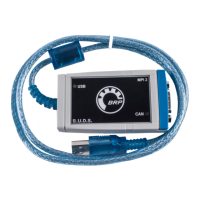
The BRP BUDS2 is a comprehensive diagnostic and maintenance software designed for BRP vehicles. It functions as a user-friendly interface for interacting with various vehicle modules, performing diagnostic scans, managing keys, and accessing detailed vehicle information.
The primary function of BUDS2 is to provide a diagnostic and service platform for BRP vehicles. It operates in two main modes: VCI mode and File mode. In VCI mode, the software connects directly to the vehicle via a Virtual CAN Interface (VCI) to read real-time data and perform operations. This mode is active when a VCI is successfully connected and its drivers are installed. In File mode, BUDS2 operates by opening a previously saved BUDS2 file, which is essentially a snapshot of a vehicle scan. This allows for offline analysis and review of vehicle data without a live connection.
The software's main page presents a "Vehicle diagnostic dashboard" on the left side of the window. This dashboard visualizes an overview of the connected VCI, the vehicle, and its various modules, such as the Cluster, ECM (Engine Control Module), IBR, and IBRM. Users can select any of these elements to view specific information. When a module is selected, detailed information pertinent to that module is displayed. If the VCI or the entire vehicle is selected, information pertaining to the vehicle or all contained modules is shown. Each module on the dashboard is accompanied by status icons that indicate its current state, such as being in boot mode, having valid applications, showing fault codes, or requiring firmware updates. These icons provide a quick visual summary of the module's health and operational status.
A "Status bar" at the bottom of the page provides essential real-time information, including the name of the BUDS2 file, the Vehicle Identification Number (VIN), the key status (ON or OFF), and the current battery voltage. This bar ensures that critical operational parameters are always visible to the user.
The "Toolbar" located at the top of the window offers quick access to various tasks. These tasks include "Scan," "Summary," "Keys," "Faults," "Measurements," "Flash," "Functions," "Settings," "File," "Preferences," and "About." Each button leads to a dedicated page or dialog for performing specific operations.
The "Scan" function initiates a diagnostic scan of the vehicle connected via the VCI. A progress dialog appears, showing the status of the scanning process. While the scanning process is generally not interruptible, users can attempt to cancel it, which will stop the process and clear any data already read.
The "Preferences" section allows users to customize various aspects of the software. This includes activating or deactivating the disclaimer, selecting the user interface language, viewing license information, adjusting the measurement rate, choosing between Metric or Imperial unit systems, and setting the frequency of software updates.
The "About BUDS2" section provides information about the software version and allows users to open the user manual directly from the application.
BUDS2 offers a range of features for vehicle interaction and data analysis. The "Summary Page" provides a comprehensive overview of the vehicle. It categorizes information into "Summary," "Health," and "Statistics." The "Summary" tab, when the VCI or vehicle is selected on the dashboard, displays general vehicle information such as VIN, engine serial number, vehicle model, customer details, delivery date, and engine total hours. Users can modify "Vehicle model" and "Customer" settings directly from this page.
The "Health" tab on the Summary Page shows a legend for the dashboard icons and reports general vehicle problems. It dynamically displays faults found in each module, along with a description for every problem, aiding in quick troubleshooting.
The "Statistics" tab is further divided into "Last instants," "Min/Max," "Run Time," "RPM Profile," and "Speed Profile." The "Last instants" feature records measurements from the last 120 seconds, presenting them in a table and graphically. Users can select specific parameters like Engine Speed, Engine Temperature, or Throttle Position to view their corresponding graphs. The "Min/Max" tab displays the minimum and maximum values recorded for key elements such as Battery Voltage, Engine Temperature, and Intake Air Pressure. Both "Last instants" and "Min/Max" tabs allow users to refresh or clear the displayed values.
The "Run Time" tab lists different keys associated with the vehicle (learning key, limp home, normal key, rental key) and shows the duration the vehicle was operated with each key. This data can be cleared if needed. The "RPM Profile" indicates how long the vehicle was run within various RPM ranges, providing insights into engine usage patterns. Similarly, the "Speed Profile" shows the duration of vehicle operation in different speed ranges.
The "Keys Page" is dedicated to managing vehicle keys. It allows users to program new keys, read currently programmed keys, and change key types (e.g., normal or rental). Users can add a new key by selecting its type and clicking "Add," which registers the connected key. Existing key types can be modified by double-clicking on a key in the "Key Usage" table or by using the "Play" button. The "Erase Key" function removes the currently connected key, while "Erase All Keys" resets all key settings. Key programming is only active when the Anti-Theft System is enabled.
The "Faults Page" lists and describes all detected faults, categorized by "Module," "State," "Code," and "Description." It includes "Active/Occurred" faults (currently active or previously occurred but no longer active) and "Inactive Faults" (faults that did not occur). Users can refresh or clear fault data. For each fault, "Environmental Data" is available, showing vehicle status (speed, ignition angle, etc.) at the time of the fault. "Possible Causes" and "Service Actions" tabs provide information on the potential reasons for the fault and recommended steps to resolve the issues.
The "Measurements Page" comprises "Presets" and "Custom" tabs. "Presets" offers graphs of basic elements and a list of predefined measurements. "Custom" allows for personalized visualization of measurements with three different graph types: "Line graph" for numeric values, "Gauge graph" for single numeric values, and "Switch graph" for Boolean (On/Off or Enabled/Disabled) values. Users can select measurement values from a list, and the corresponding graph is displayed. The line graph features controls for starting, pausing, and stopping drawing, clearing samples, moving the viewport, zooming, resetting zoom, and opening settings to customize graph style (color, line width).
The "Flash Page" includes "Flash" and "Fingerprint" tabs. The "Flash" tab displays a table of all valid firmware files for the selected module. Users can flash a new firmware by selecting a file and double-clicking it or pressing the "Play" button. The "Fingerprint" tab shows information about the last firmware flash, including the date and the person responsible.
The "Functions Page" contains "Functions" and "Activators" tabs. The "Functions" tab lists input and output commands with routines. Commands or routines can be activated by double-clicking or using the "Reading" button. The "Activators" tab allows testing (activating and stopping) various electrical components.
The "Settings Page" provides access to sensor or actuator initializations, configurations, and options for the selected module. The current status of each initialization is shown, and users can perform an initialization by double-clicking or using the "Play" button.
BUDS2 incorporates features that support vehicle maintenance and record-keeping. The "Summary Page" includes a "Last Service" section, which displays maintenance hours, maintenance counter, last service date, and hours. The "Reset Service" button allows users to reset the maintenance counter if supported by the vehicle, facilitating tracking of service intervals.
The "File Management Page" is crucial for data management. It includes "File" and "Log book" tabs. The "File" tab enables users to "Open a BUDS2 file" (previously saved vehicle scan data) and "Save a BUDS2 file" (saving all values read from the connected vehicle). This allows for archiving diagnostic data and reviewing it later.
The "Open Service Report" function generates a summary of all vehicle data, which can be printed or exported as a PDF file. This report serves as a comprehensive record of the vehicle's status and service history, valuable for both technicians and vehicle owners.
The "Log Book" functionality provides the ability to generate a logbook, which may be requested by BRP for technical support purposes. This feature helps in documenting vehicle events and diagnostic sessions over specific periods (last week, last day, last hour), aiding in long-term maintenance tracking and troubleshooting.
 General
| Functionality | Diagnostics, programming, key coding, ECU updates |
|---|---|
| Connectivity | USB |
| Software | BRP software |
| Software Version | Varies (check with authorized distributor) |
| Supported Brands | Sea-Doo, Ski-Doo, Can-Am |


 To Next Page