EasyManua.ls Logo

BT Essentials Wi-Fi Extender 300 - User Manual

BT Essentials Wi-Fi Extender 300
2 pages
Print Icon
To Next Page IconTo Next Page
Loading...
Connection help
Don’t know if you’re connecting via router or extender?
The extender’s network name is the same as your hub/router with ‘EXT-’ added to
the front. For example if your hub/router wireless network name is BTHub5-1234;
your new extended network name will be EXT- BTHub5-1234.
Can’t connect extender to router
If the light on the extender keeps ashing red for more than 1 minute after connection
attempt. Check your hub/router is switched on and try moving your extender closer to it.
If your device often loses internet access and the extender’s light is red because it is too far,
try moving the extender to another socket.
If you are trying to use WPS but it doesn’t work (red light continues to ash), it may be
that it’s incompatible with the WPS function in the extender. Try to unplug and plug the
extender back in and repeat Method 1. If it still fails, follow the steps in Method 2, to
connect without using the WPS button.
If you’re unable to connect using Method 2, check you have selected the correct
wireless network and you’ve entered the correct wireless key.
Can’t connect to internet
Check your router is connected to the internet and your wi- is working correctly.
Can’t connect your device to wireless
Make sure your device is correctly set-up to connect to your hub/router before trying
to use the extender.
Microwaves and some electrical equipment may interfere with the wireless signal.
Check the lights on your extender and make sure you are in good range (light is green),
if not see the section ‘Move extender to optimum location’.
Thick/concrete walls and ceilings will aect wireless performance.
Light is o
Check the power socket is working and switched on.
Light status
Light Status What’s happening
O Extender turned o
Flashing red slowly Slowly ashes red for 10 seconds whilst booting up
or when not congured yet with hub/router
Flashing red quickly Extender is connecting to hub/router. When ashing stops,
it’s ready for use
Red Extender too far from hub/router
Green Extender in good range from hub/router
Amber Extender too close to hub/router
After pressing the WPS/Link button
Amber ashing Authentication in progress
If WPS successful:
Flashing red quickly while connecting to the hub/router. Then turns either
steady green, amber or red depending on the range from the hub/router.
If WPS fails:
Flashing red slowly as not congured with hub/router
General information
For information on safety instructions,
technical information or setting up the
extender, please see the Frequently Asked
Questions at bt.com/essentials300
Guarantee
Your Essentials Wi-Fi Extender 300 is guaranteed for a
period of 3 years from the date of purchase. Subject to the
terms listed below, the guarantee will provide for the repair
of, or at BT’s or its agent’s discretion, the option to replace
the Essentials Wi-Fi Extender 300 or any component
thereof which is identied as faulty or below standard, or
as a result of inferior workmanship or materials. Products
over 28 days old from the date of purchase may be
replaced with a refurbished or repaired product.
The conditions of this guarantee are:
the guarantee shall only apply to defects that
occur within the 3 year guarantee period
proof of purchase is required
the equipment is returned to BT or its agent
as instructed.
This guarantee does not cover any faults or defects caused
by accidents, misuse, fair wear and tear, neglect, tampering
with the equipment, or any attempt at adjustment or
repair other than through approved agents.
This guarantee does not aect your statutory rights.
To nd out what to do if your extender is in or
outside of the 3 year guarantee, please see the FAQ
at bt.com/essentials300
Reset to factory settings
If you need to access advanced settings,
have forgotten your password or if the
extender stops working you can reset it to
its factory settings.
1 Make sure the extender is plugged in.
2 Press the Reset button for 1 second to
restore factory default settings.
How to recycle your equipment
The symbol shown here and on the product
means that the product is classed as electrical
or electronic equipment, so DO NOT put it in your
normal rubbish bin.
It’s all part of the Waste Electrical and Electronic Equipment
(WEEE) Directive to recycle products in the best way – to be
kinder to the planet, get rid of dangerous things more safely
and bury less rubbish in the ground.
You should contact your retailer or supplier for advice on
how to dispose of this product in an environmentally
friendly way.
Radio Equipment Directive
Declaration of Conformity
Hereby, British Telecommunications plc declares
that the radio equipment type Essentials Wi-Fi Extender 300
(088159) is in compliance with Directive 2014/53/EU.
The full text of the EU declaration of conformity
is available at the following internet address:
bt.com/producthelp
This device has been evaluated for and shown compliant with
European Guidelines when installed and operated with a
minimum distance of 20cm between the unit and your body.
Radio transmission information
Frequency range 2401 – 2483MHz
Max power 19.87dBm 97.05mW
Power consumption
In operation
2.7 Watts
Network standby
2.14 Watts
Turn over for set-upTurn over for set-up
Oces worldwide
The services described in this publication are subject to availability and may be
modied from time to time. Services and equipment are supplied subject to
British Telecommunications plc’s respective standard conditions of contract.
Nothing in this publication forms any part of a contract.
© British Telecommunications plc 2017.
Registered Oce: 81 Newgate Street, London EC1A 7AJ.
Registered in England No. 1800000.
Designed and produced by The Art & Design Partnership Ltd.
Printed in China / Issue 3 / ADP08-17
Find out more
• If you need more help, go to bt.com/essentials300 where
you can view Frequently Asked Questions.
If you cannot nd the answer to your problem in the
Frequently Asked Questions, then please call our free
Helpline on 0808 100 6116
*
. Our dedicated advisors are
more likely to be able to help you than the retailer where
you made your purchase.
Box contents
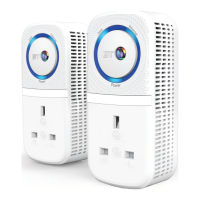
Essentials Wi-Fi
Extender 300
Extender default settings
Please write the default settings from the label on the
back of the extender here.
Default Wi-Fi Network (SSID):
Default Wi-Fi Key:
Default Admin Password:
Essentials Wi-Fi
Extender 300
User Guide

Question and Answer IconNeed help?

Do you have a question about the BT Essentials Wi-Fi Extender 300 and is the answer not in the manual?

Summary

Connection Help and Troubleshooting

Extender Connection Issues

Guidance for when the extender cannot connect to the router or the internet.

Device Wireless Connection

Troubleshooting steps for when a device cannot connect to the wireless network.

Extender Light Status

Explanation of the extender's LED indicators and their meanings.

Resetting to Factory Settings

General Information and Support

Guarantee Information

Details regarding the product's guarantee period and terms.

Radio Equipment Compliance

Information on compliance with EU directives for radio equipment.

Radio Transmission Specifications

Technical details on the device's radio frequency and power.

Recycling Your Equipment

Finding More Information

Extender Default Network Settings

Instructions on where to find default Wi-Fi network names and passwords.

Connecting to Your Hub;Router

Method 1: Using WPS Button

Step-by-step guide to connect the extender using the WPS button.

Method 2: Without WPS Button

Guide to connect the extender via a web browser without using WPS.

Moving the Extender to an Optimum Location

Interpreting Light Status for Location

Guidance on understanding LED colors to find the best placement.

Connecting Your Devices

Summary

Connection Help and Troubleshooting

Extender Connection Issues

Guidance for when the extender cannot connect to the router or the internet.

Device Wireless Connection

Troubleshooting steps for when a device cannot connect to the wireless network.

Extender Light Status

Explanation of the extender's LED indicators and their meanings.

Resetting to Factory Settings

General Information and Support

Guarantee Information

Details regarding the product's guarantee period and terms.

Radio Equipment Compliance

Information on compliance with EU directives for radio equipment.

Radio Transmission Specifications

Technical details on the device's radio frequency and power.

Recycling Your Equipment

Finding More Information

Extender Default Network Settings

Instructions on where to find default Wi-Fi network names and passwords.

Connecting to Your Hub;Router

Method 1: Using WPS Button

Step-by-step guide to connect the extender using the WPS button.

Method 2: Without WPS Button

Guide to connect the extender via a web browser without using WPS.

Moving the Extender to an Optimum Location

Interpreting Light Status for Location

Guidance on understanding LED colors to find the best placement.

Connecting Your Devices

Overview

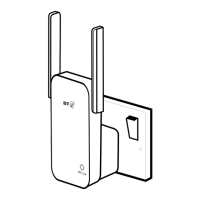
The Essentials Wi-Fi Extender 300 is a device designed to extend the range of an existing Wi-Fi network, providing better coverage in areas where the primary router's signal is weak. It acts as a repeater, taking the signal from your main hub/router and rebroadcasting it, effectively creating a larger Wi-Fi coverage area.

Function Description:

The primary function of the Essentials Wi-Fi Extender 300 is to boost and extend your existing Wi-Fi signal. It connects wirelessly to your main hub/router and then creates a new extended network with the same name as your hub/router, but with "EXT-" added to the front (e.g., if your router is "BTHub5-1234", the extender creates "EXT-BTHub5-1234"). This allows devices to connect to the extended network and receive a stronger signal in areas previously experiencing poor or no Wi-Fi coverage. The device supports two main methods for connection to the hub/router: using a WPS (Wi-Fi Protected Setup) button for quick, automatic pairing, or a web-based setup for manual configuration via a computer's internet browser.

Important Technical Specifications:

  • Model Name: Essentials Wi-Fi Extender 300 (088159)
  • Frequency Range: 2401 - 2483MHz
  • Maximum Power: 19.87dBm (97.05mW)
  • Power Consumption:
    • In operation: 2.7 Watts
    • Network standby: 2.14 Watts
  • Wireless Standard: Compliant with Directive 2014/53/EU (Radio Equipment Directive).
  • Physical Interface: Features a WPS/Link button for easy setup and a Reset button for factory default restoration.
  • Indicators: An LED light indicates the device's status (Off, Flashing Red Slowly, Flashing Red Quickly, Red, Green, Amber, Amber Flashing).

Usage Features:

  • Easy Setup:
    • WPS Method: For routers supporting WPS, simply plug in the extender, press the WPS button on the router, then on the extender. The device automatically configures itself.
    • Web-based Setup: For non-WPS routers, users can connect a computer wirelessly to the extender's default network (BTWifiExtndr-XXX), then access a web interface (http://192.168.1.1) to log in with the admin password and follow an on-screen wizard to connect to the hub/router.
  • Optimal Placement Guidance: The LED light provides visual feedback on the extender's signal strength relative to the hub/router.
    • Green: Indicates good range and optimal signal strength.
    • Amber: Indicates the extender is too close to the hub/router; it should be moved further away towards the desired coverage area.
    • Red: Indicates the extender is too far from the hub/router; it needs to be moved closer.
    • Flashing Red Slowly: Indicates the device is booting up or not yet configured with the hub/router.
    • Flashing Red Quickly: Indicates the extender is connecting to the hub/router.
  • Extended Network Name: The extended Wi-Fi network will have "EXT-" prefixed to the original hub/router's Wi-Fi name, making it easy to identify.
  • Shared Wireless Key: The extended network uses the same wireless key as the primary hub/router, simplifying connection for devices.
  • Troubleshooting Assistance: The manual provides detailed guidance for common connection issues, such as inability to connect to the router, loss of internet access, or device connection problems. It also suggests checking for interference from microwaves or other electrical equipment, and considering the impact of thick walls or ceilings on wireless performance.

Maintenance Features:

  • Factory Reset: A dedicated Reset button allows users to restore the extender to its factory default settings. This is useful for troubleshooting, if the device stops working, or if the admin password is forgotten. To perform a reset, the extender must be plugged in, and the Reset button pressed for 1 second.
  • Firmware Updates (Implied): While not explicitly detailed in the provided text, network devices typically support firmware updates to improve performance, add features, or address security vulnerabilities. Users would usually check the manufacturer's website for such updates.
  • Online Support: BT provides extensive online support through FAQs at bt.com/essentials300 and a free helpline (0808 100 6116) for further assistance.
  • Guarantee: The device comes with a 3-year guarantee from the date of purchase, covering defects due to faulty materials or workmanship. This guarantee requires proof of purchase and return of the equipment as instructed. It does not cover damage from accidents, misuse, neglect, tampering, or unauthorized repairs.
  • Environmental Responsibility: The product features a Waste Electrical and Electronic Equipment (WEEE) symbol, indicating that it should not be disposed of with normal household waste. Users are advised to contact their retailer or supplier for environmentally friendly disposal methods.
  • Compliance: The device is evaluated and compliant with European Guidelines, ensuring safe operation with a minimum distance of 20cm between the unit and the user's body. It also complies with the Radio Equipment Directive 2014/53/EU.

BT Essentials Wi-Fi Extender 300 Specifications

General IconGeneral
BrandBT
ModelEssentials Wi-Fi Extender 300
CategoryExtender
LanguageEnglish

Related product manuals