
 Need help?
Do you have a question about the Buffalo AirStation and is the answer not in the manual?
Instructions to install wireless drivers from the CD, before connecting the device.
Procedure to install Client Manager V utility software, noting Windows XP incompatibility.
Details on using AOSS/WPS for automatic wireless LAN setup and security configuration.
Steps to connect using a WPS PIN generated by Client Manager V.
Guide to manually connect to an access point using Client Manager V, bypassing AOSS/WPS.
Instructions to connect using the built-in Windows wireless utility, without Client Manager V.
Overview of Client Manager V utility software for connecting to access points and verifying connections.
How to start, close, and identify the connection status of the Client Manager V application.
Description of the main screen, displaying connection status and available operations.
Explains the two connection methods: automatic (AOSS/WPS) and manual (Advanced Setup).
Screen for selecting connection method: specifying SSID or entering WPS PIN.
Lists available wireless access points and allows manual connection information entry.
Configuration screen for wireless network settings like SSID, security, and encryption.
Options for automatic connection via WPS-PBC or AOSS buttons.
Displays detailed current connection status information for the wireless adapter.
Manage wireless connection profiles: create, edit, delete, or reorder them.
View and modify current wireless connection settings like SSID and security.
Configure IP address settings for the wireless connection.
Configure Internet Explorer home page and proxy settings for wireless connections.
Set the default printer for use when connected wirelessly.
Steps to resolve issues where the PC fails to detect the wireless adapter.
Solutions for problems preventing a wireless connection to the network.
Guidance on recovering or re-entering forgotten Wi-Fi SSID, encryption key, or password.
Addresses common wireless connectivity issues and provides general troubleshooting tips.
Details required computer hardware, USB port, CD-ROM drive, and compatible operating systems.
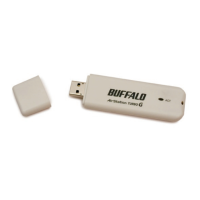
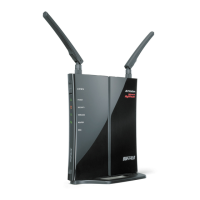
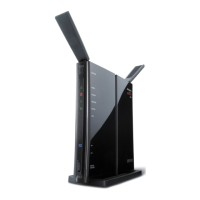
Overview and identification of the physical components of the wireless adapter.
Lists all items included in the AirStation product package.
Technical specifications for wireless interface, transmission rates, security, power, and dimensions.
Step-by-step instructions for uninstalling the Client Manager V utility software.
Step-by-step instructions for removing the AirStation wireless client drivers.
Instructions for configuring TCP/IP settings across various Windows versions (10, 8.1, 8, 7, Vista, XP).
FCC statement on device interference, generation, and reception of radio frequency energy.
Cautionary note about unauthorized modifications and their effect on user authority.
Important FCC note concerning compliance with radiation exposure limits for uncontrolled environments.
Industry Canada statement regarding device compliance with RSS-210 rules.
Important Canadian note on compliance with radiation exposure limits for uncontrolled environments.
CE notification for Class B products and potential radio interference in domestic environments.
EU Declaration of Conformity for essential requirements of the R&TTE Directive 1999/5/EC.
Defines the intended use of the 2.4 GHz wireless LAN transceiver for indoor home and office.
Lists EU member states and EFTA countries where the device is intended for use.
Lists EU countries where the device is not intended for use.
Details potential restrictive use and country-specific limitations for the device.
Taiwan SAR compliance information for typical laptop computer usage.
Information on environmental impact, hazardous substances, and proper take-back/recycling systems.
 General
| Wi-Fi band | Single-band (2.4 GHz) |
|---|---|
| Frequency range | 2.412 – 2.462 GHz |
| Maximum data transfer rate | 150 Mbit/s |
| Connectivity technology | Wired |
| USB powered | Yes |
| Dimensions (WxDxH) | 25 x 124 x 142 mm |
| Minimum system requirements | Windows 7 (32/64bit) / Vista (32/64bit) /Windows XP |
| Compliance industry standards | IEEE802.11b/IEEE802.11g |
| Non-operating relative humidity (non-condensing) | 20 - 80 % |
| Operating temperature (T-T) | 0 - 40 °C |
 Weight and Dimensions
| Weight | 15 g |
|---|




 To Next Page
