
 Need help?
Do you have a question about the Buffalo WHR-G300N V2 and is the answer not in the manual?
Details the features of the WHR-G300N wireless router.
Explains the dual speed mode for faster wireless transmission up to 300Mbps.
Supports automatic connection standards AOSS and WPS for easy setup.
Lists the security features available on the AirStations.
Monitors interference to automatically assign the best wireless channel.
Allows wireless clients to switch between AirStations for optimal signal.
Restores the unit to factory default settings by holding the Reset button.
Allows easy configuration via a web browser on your computer.
Automatically detects network mode (router/bridge) for setup.
Specifies system requirements for using the AirNavigator CD.
Describes the 300 Mbps maximum link speed and its implications.
Lists all items included in the AirStation package.
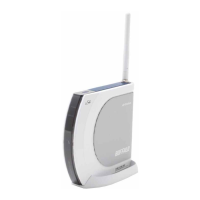
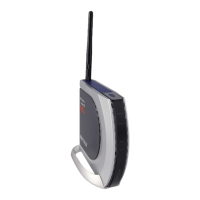
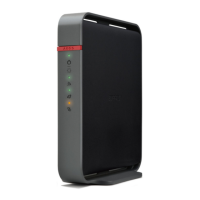
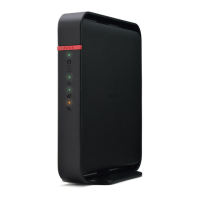
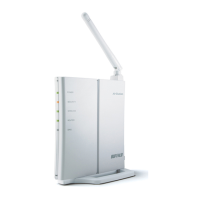
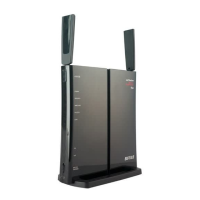
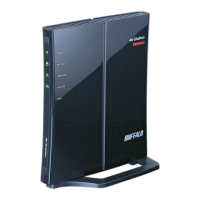
Provides an overview of the AirStation's hardware components.
Explains the meaning of the status indicator LEDs on the front panel.
Details the ports, switches, and connectors on the back panel.
Describes the buttons and features located on the top of the unit.
Describes the reset button and other features on the bottom of the unit.
Notes on the right side of the unit, including a heat warning.
Instructions on how to place the unit vertically using the provided stand.
Instructions on how to place the unit horizontally on a surface.
Steps to attach the AirStation to a wall using the stand.
Guide for setting up the AirStation using the included software CD.
Procedure for manually configuring the AirStation without using the CD.
Steps to access and log in to the AirStation's web-based configuration interface.
Lists configuration options and their corresponding page numbers for router mode.
Lists configuration options and their corresponding page numbers for bridge mode.
The main home page of the AirStation configuration utility.
Configure the AirStation's Internet and LAN settings.
Configure PPPoE connection settings for Internet access.
Configure Dynamic DNS service settings.
Configure VPN server settings for remote access.
Configure LAN-side IP address settings.
Configure DHCP lease settings for IP address assignment.
Configure Network Address Translation (NAT) settings.
Configure the AirStation's IP communication routes.
Configure Wireless Protected Setup (WPS) settings.
Configure AirStation One-touch Secure System (AOSS) settings.
Configure basic wireless settings like SSID, channel, and encryption.
Configure advanced wireless settings such as multicast rate and privacy separator.
Configure Wi-Fi Multimedia (WMM) Quality of Service (QoS) settings.
Restrict wireless access to devices with specific MAC addresses.
Control multicast packet behavior on wireless LAN ports.
Configure Wireless Distribution System (WDS) bridging.
Configure security settings for the router.
Configure firewall rules to protect against external threats.
Create and edit IP filters to manage packet transmission.
Configure pass-through settings for VPN protocols.
Configure LAN-side settings.
Configure port forwarding for applications and games.
Configure DMZ settings for specific devices.
Configure Universal Plug and Play (UPnP) functionality.
Configure Quality of Service (QoS) for Internet traffic.
Configure administrative settings for the AirStation.
Configure the AirStation's name and network services.
Set the login password for the configuration utility.
Configure the AirStation's internal clock and time zone.
Configure Network Time Protocol (NTP) for automatic time synchronization.
Restrict access to the AirStation's settings screens.
Configure and manage system logs.
Save and restore AirStation configuration settings.
Reboot or initialize the AirStation to factory default settings.
Update the AirStation's firmware.
Access diagnostic tools and system information.
View detailed system information about the AirStation.
Check and review the AirStation's activity logs.
View statistics on transferred network packets.
List and monitor connected client devices.
Perform a ping test to check network connectivity.
Guide for automatically connecting wireless devices using AOSS or WPS.
Connect wirelessly on Windows Vista using Client Manager V.
Connect wirelessly on Windows XP using Client Manager 3.
Instructions for manual wireless connection using Windows utilities.
Connect to the network using Windows 7's WLAN AutoConfig.
Connect to the network using Windows Vista's WLAN AutoConfig.
Connect to the network using Windows XP's Wireless Zero Configuration.
Troubleshoot issues preventing wired Internet connectivity.
Troubleshoot problems accessing the AirStation's web interface.
Troubleshoot issues with wireless network connectivity.
Steps to reset settings if login credentials are forgotten.
Address slow wireless link speeds and 300 Mbps mode limitations.
Provides solutions for common issues and general tips.
Technical specifications for the wireless LAN interface.
Technical specifications for the wired LAN interface.
Specifications for power, dimensions, and weight.
Default Internet settings for router mode.
Default PPPoE settings for router mode.
Default DDNS settings for router mode.
Default VPN server settings for router mode.
Default LAN configuration settings.
Default DHCP lease settings for router mode.
Default NAT settings for router mode.
Default routing configuration settings.
Default WPS configuration settings.
Default AOSS configuration settings.
Default basic wireless settings.
Default advanced wireless settings.
Default WMM-EDCA parameters.
Default WMM-EDCA parameters for high priority.
Default WMM-EDCA parameters for normal priority.
Default MAC filtering settings.
Default multicast control settings.
Default WDS bridging settings.
Default firewall settings for router mode.
Default IP filter settings for router mode.
Default VPN pass through settings for router mode.
Default port forwarding settings for router mode.
Default DMZ settings for router mode.
Default UPnP settings for router mode.
Default QoS settings for router mode.
Default AirStation name and network services settings.
Default administrator password settings.
Default time and date settings.
Default NTP settings.
Default access control settings.
Default log settings.
Steps to configure TCP/IP settings in Windows 7.
Steps to configure TCP/IP settings in Windows Vista.
Steps to configure TCP/IP settings in Windows XP.
FCC interference statement and precautions.
EU directives and standards compliance information.
Industry Canada compliance statement and exposure limits.
Contact information for Buffalo Technology technical support in North America.
Contact information for Buffalo Technology technical support in Europe.
Contact information for Buffalo Technology technical support in Asia Pacific.
 General
| Wireless Standard | IEEE 802.11n |
|---|---|
| Frequency Band | 2.4 GHz |
| Maximum Data Rate | 300 Mbps |
| Ethernet Ports | 4 x 10/100 Mbps |
| WAN Port | 1 x 10/100 Mbps |
| Security | WPA, WPA2, WEP |
| Antennas | 2 |




 To Next Page