EasyManua.ls Logo

Bunker Hill Security 68332 - User Manual

Bunker Hill Security 68332
43 pages
Print Icon
To Next Page IconTo Next Page
Loading...
Smart Phone Compatible
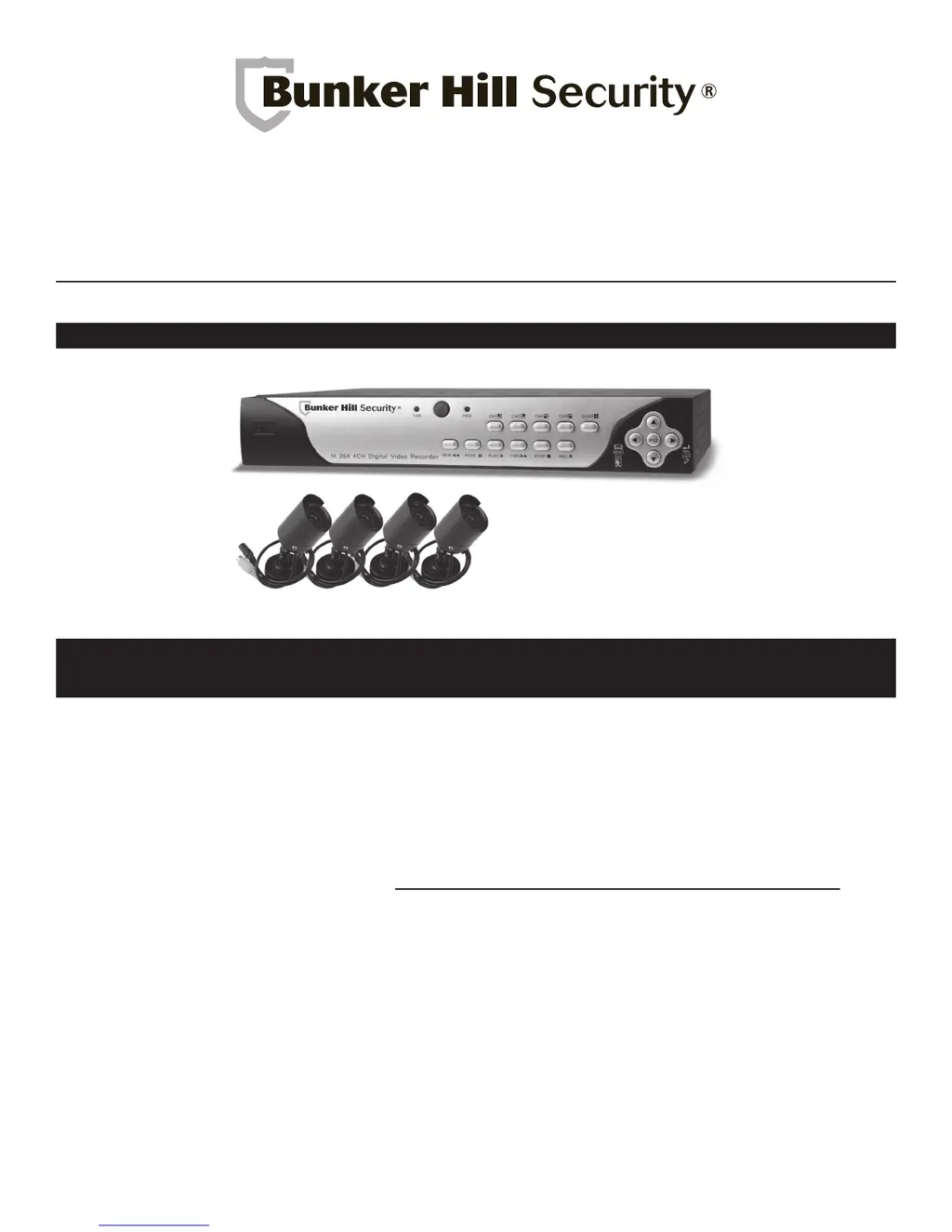
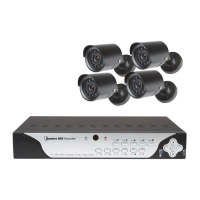
H.264 DVR Security System
68332 DVR Security System
When unpacking, make sure that the product is intact and undamaged. If any parts are missing or broken,
please call 1-800-444-3353 as soon as possible.
Visit our website at: http://www.harborfreight.com
Copyright
©
2011 by Harbor Freight Tools
®
. All rights reserved. No portion of this manual or any artwork contained herein may be reproduced in any shape
or form without the express written consent of Harbor Freight Tools. Diagrams within this manual may not be drawn proportionally. Due to continuing
improvements, actual product may differ slightly from the product described herein. Tools required for assembly and service may not be included.
Manual Revised 11f
Record Product’s Serial Number Here:
Note: If product has no serial number, record month and year of purchase instead.
Note: Some parts are listed and shown for illustration purposes only, and are not available individually
as replacement parts.

Questions and Answers

  • J
    Janice GrossAug 18, 2025
    Why can't I access my Bunker Hill Security 68332 Security System DVR remotely?
    • D
      Dwayne JonesAug 18, 2025
      If you cannot remotely access your Bunker Hill Security System's DVR, there might be several reasons. First, ensure that you've completed the port forwarding procedures to properly set up your modem. You may need to consult online resources or a computer technician for assistance. Also, verify that you are using the correct external IP address. Check your firewall settings, as they might be hindering access. Finally, make sure the proxy is specified and added to allowed IP addresses.
  • D
    Donna ClarkAug 20, 2025
    How to fix Bunker Hill Security 68332 monitor not displaying image?
    • T
      Timothy JohnsonAug 20, 2025
      If your Bunker Hill Security System monitor isn't displaying an image, begin by checking all wire connections to ensure they are secure and correctly located, including reconnecting all black power cables. If the connections are correct, adjust the image settings on the monitor itself. You should also check the camera settings through the Main Menu: ensure the channel is set to ON in both Camera Setup and Record Setup; adjust the frames per second in Record Framerate; set the Record Schedule to Normal or Sensor; configure Motion Detector Setup if desired; verify the time in Misc. Setup; check if the channel is hidden in Misc. Setup; and adjust Image Parameters in Misc. Setup for the clearest image.
  • M
    Michael SmithAug 23, 2025
    What to do if I cannot access connected modem on Bunker Hill Security Security System?
    • N
      Nicole TrujilloAug 23, 2025
      If you cannot access the connected modem for your Bunker Hill Security System, first check that all connections are secure and plugged into the correct location in the correct order. If the connections are correct, go to the Main Menu under Network Setup and check that the IP Allocation is set to DHCP. Note the IP Address, enter it in the address bar in Internet Explorer, and press enter. If your modem does not support DHCP, you will need to get the address information from your internet provider.
  • J
    Jonathan CabreraAug 26, 2025
    How to improve poor quality images on Bunker Hill Security Security System?
    • K
      kim81Aug 26, 2025
      If you are experiencing poor quality images on your Bunker Hill Security System, especially when viewed on a TV screen, start by adjusting the TV settings. Then, through the Main Menu, check that the Record Framerate is adjusted, increase the Video Quality to the highest setting, and adjust the Image Parameters in Misc. Setup for the clearest image.
  • N
    Nicole CooperAug 28, 2025
    What to do if Bunker Hill Security 68332 Security System buzzer is sounding?
    • J
      John JenkinsAug 28, 2025
      If the buzzer is sounding on your Bunker Hill Security System, it may be because one or more of the cameras are not connected. Check that all the camera wiring is completely plugged in at all connection points.
  • J
    Jessica Hayes MDAug 31, 2025
    Why can't I access my Bunker Hill Security System DVR remotely?
    • J
      Jessica AdamsAug 31, 2025
      There are several reasons why you might not be able to access your DVR remotely. It could be due to incomplete port forwarding procedures. You may need to set up your modem for port forwarding. Another reason could be an incorrect IP address. Also, check your firewall settings to ensure they are not hindering access. Finally, ensure that the proxy is specified by adding it to allowed IP addresses.
  • K
    Kelly LivingstonSep 5, 2025
    What to do if I cannot access the connected modem for my Bunker Hill Security System?
    • F
      fpetersonSep 5, 2025
      First, check that the connections are secure and plugged in at the correct location in the correct order. If the connections are correct, go to the Main Menu under Network Setup and check that the IP Allocation is set to DHCP. Note the IP Address and enter it in the address bar in Internet Explorer and press enter. If your modem does not support DHCP, you will need to get the address information from your internet provider.
  • M
    Michael WalkerSep 7, 2025
    Why my Bunker Hill Security System does not detect HDD?
    • T
      Tyler EspinozaSep 7, 2025
      If the system isn't detecting the HDD, the cause may be loose or incorrect connections. Check that all wire connections are secure and in the correct location.
  • E
    Edward SmithSep 9, 2025
    How to improve poor quality images on my Bunker Hill Security System?
    • J
      Jennifer OrtizSep 10, 2025
      If you are viewing the images on a TV screen, try adjusting the TV settings. You can also improve image quality through the Main Menu by checking that: * In Record Framerate, adjust frames per second. * In Video Quality, increase to highest setting. * In Misc. Setup, adjust the Image Parameters for the clearest image.
  • T
    Tiffany ForbesSep 12, 2025
    Why is the buzzer sounding on my Bunker Hill Security System?
    • A
      antonio22Sep 12, 2025
      The buzzer may be sounding because one or more of the cameras are not connected. Check that all the camera wiring is completely plugged in at all connection points.

Summary

Specifications

Safety Warnings and Precautions

Work Area and Electrical Safety

Safety guidelines for the work environment and electrical connections.

DVR Programming: System Initialization

DVR Programming: Main Menu Options

Advanced DVR Configuration

Recording Management

Managing recording schedules, resolution, and time parameters.

Network Configuration

Setting up network types like DHCP, PPPoE, and static IP addresses.

PTZ and Motion Detection

Configuring PTZ camera controls and motion detection recording zones.

Video and Data Management

Mobile Device Access

Remote Access and Playback

Net-Viewer Remote Access

Guide to installing the PC viewer software and configuring network access.

Net-Viewer Operation and Remote Management

Instructions for logging in, operating the remote viewer, and managing settings remotely.

Troubleshooting and Warranty

Troubleshooting Common Issues

Solutions for typical problems encountered with the DVR system.

Bunker Hill Security 68332 Specifications

General IconGeneral
Zones4
Channels4
Night VisionYes
Remote ViewingYes
Weather ResistanceYes

Related product manuals