Using your Home Theatre
Let’s get started
Using your Home Theatre
13
or online at www.argos-support.co.uk If you still require further assistance, call one of our experts on 0345 604 0105.
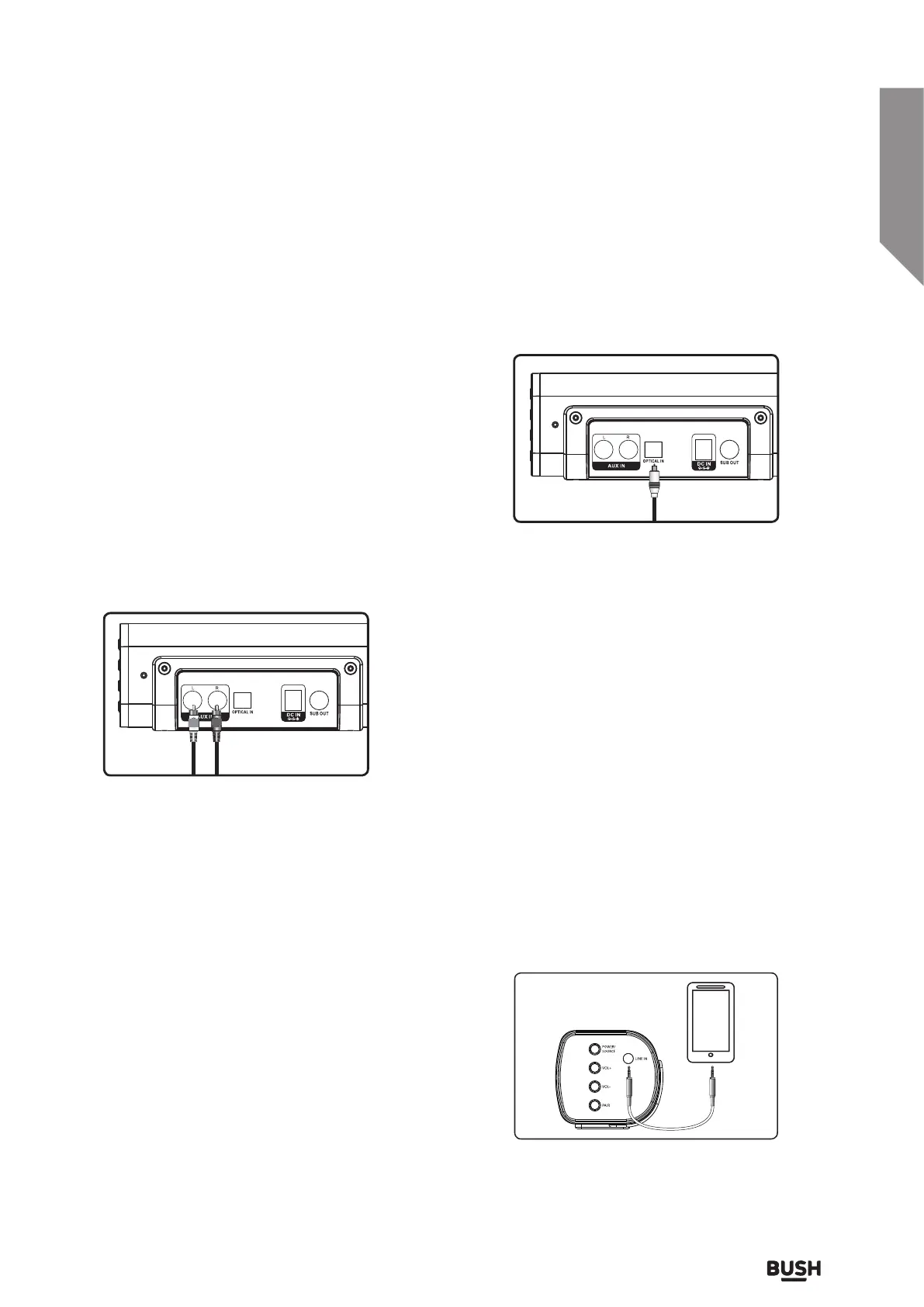
USING THE STEREO RCA INPUTS
When connecting two products using an RCA cable,
matches the colored ports with the same colored
connection. Before use, disconnects any cable
connected to the Line in.
1. Connect the RCA Cable to the AUX IN stereo
inputs located on the back of the unit, and to the
audio outputs on the television.
2. Press and hold 2 seconds the POWER / SOURCE
button on side panel or POWER button directly
on the remote control to switch on the unit.
3. Press the SOURCE button on your remote control
repeatedly to enter AUX mode or one touch the
POWER/SOURCE button on the unit repeatedly
to enter AUX mode, indicated by a white light.
4. Audio played through the television will now be
heard through the speakers.
Using the Optical Input
You will need: An audio source
with an Optical Audio Output and
a Digital Optical Audio cable
(included)
1. Connect the Digital Optical Audio cable to the
optical output on the audio source and to the
OPTICAL IN on the speaker bar.
2. Press and hold 2 seconds the POWER/SOURCE
button on side panel or POWER button directly
on the remote control to switch on the unit..
3. Press the SOURCE button on your remote control
repeatedly to switch to Optical Mode or one touch
POWER/SOURCE button on main unit repeatedly
to select the Optical mode. The mode indicator
LED will turn orange.
1. Plug one end of a 3.5mm audio input cable
(included) into the LINE IN on the unit. Before
use,
disconnect and cables connected to the
Stereo RCA Inputs.
2. Plug the other end of the cable into the audio
output/headphone output on an MP3 player
or other audio source.
3. Press and hold 2 seconds the POWER/SOURCE
button on side panel or POWER button directly
on the remote control to switch on the unit.
4. Press the SOURCE button on your remote
control repeatedly to enter LINE in mode or one
touch the POWER/SOURCE button on the unit
repeatedly to enter Line in mode.
The mode indicator will turn green.
5. Audio played through the connected device will
now be heard through the speakers.
Using the LINE in
4. Using the native controls on your connected
device, make sure the audio settings are set to
PCM or Optical Audio and are turned On.
5. Audio from the connected audio source will now
be played through the speakers.



 To Next Page