Applications: Map
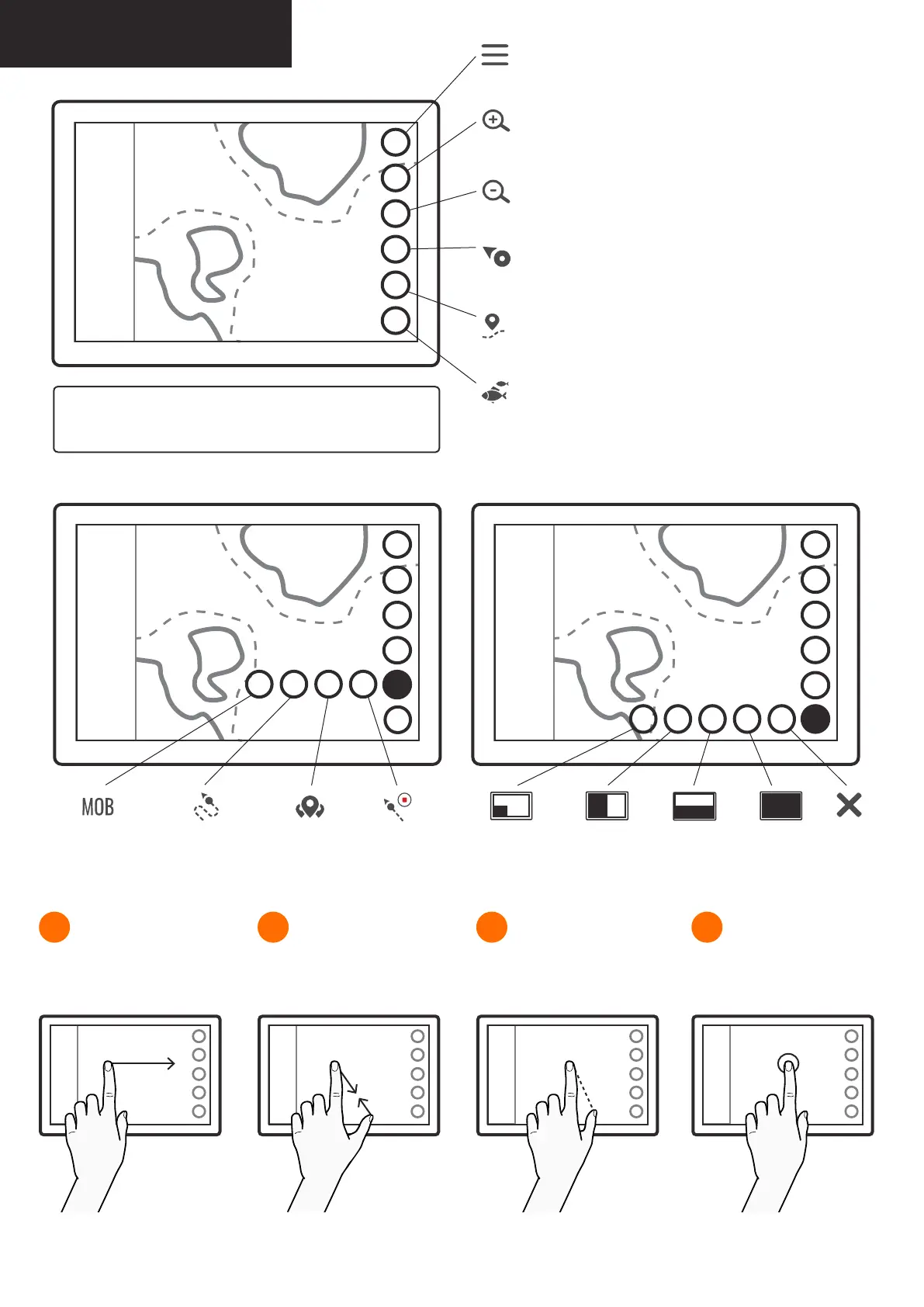
Drag the map to any direction
with one or two ngertips.
1
Spread or pinch your ngers
to zoom. You can also use the
function keys on the right.
2
Place your ngertips to the start
and the end of the distance you
want to measure.
3
Tap on any point on screen to
view its coordinates and other
position information.
4Moving the map Zooming Measuring distances Position information
Menu
opens main menu,
long press is a shortcut to default application from other apps
Zoom in
zooms the map in,
apply long press for a quick zoom
Zoom out
zooms the map out,
apply long press for a quick zoom
Find ship
returns the view to boat and locks the view to its location,
long press zooms to boat
My Routes & Places
opens route and place related functions,
long press opens boat information
Fishnder (optional)
opens shnder’s display options e.g. corner or vertical,
long press opens shnder in its latest display option
Tip: You can change map’s orientation by tapping on the
north icon. Icon’s arrow always points to the north.
Man OverBoard
adds a marker
on boat’s location
My Routes
opens My Routes
My Places
opens My Places
Trail Route
records
boat’s route
Corner
displays shnder
in the left corner
Full screen
displays shnder
on full screen
Close
Horizontal
displays a
horizontal
panel
Vertical
displays a
vertical panel
My Routes & Places functions: Fishnder display options:


 To Next Page