This document describes the BX V1.0 Portable Flat-panel Display, a compact and lightweight display designed for mobile office and entertainment use.
Function Description
The BX V1.0 Portable Flat-panel Display serves as an external display, offering a smaller, lighter, and more portable alternative to traditional monitors. It enhances efficiency for mobile office users and functions as an entertainment partner on the go. The display supports various connection methods, including full-function Type-C for computers and mobile phones with TV-out function, HDMI for computers and multiple HDMI devices, and direct connection to Nintendo Switch. It can be powered by the connected device (e.g., mobile phone battery in energy-saving mode) or an external power supply. For touch-enabled models (like ZB156), it supports touch operation with compatible systems (e.g., Windows 10). The display also features reverse charging for mobile phones when an external power supply is used.
Important Technical Specifications
The manual details two models: BX156 and BX133.
Common Specifications:
- Brand LOGO: NO
- Screen Ratio: 16:9
- Screen Level: A grade (A+) IPS-ADS
- Dot Pitch (mm): 0.17925x0.17925mm
- Brightness (cd/m²): 220cd/m² (typical value)
- Contrast (typical value): 800:1
- Color Gamut: 45%
- Viewing Angle (typical value) (CR ≥10): 85/85/85/85 (Left/right/up/down)
- Vertical Refresh Rate (Hz): 60Hz
- Response Time (typical value): 30ms (Tr+Tf)
- Maximum Resolution: 1920x1080
- Display Color: 16.7M
- Energy Efficiency Rating: 1
- Horn: 8Ω1W*2
- Shell Color: Black
- HDCP Function: YES
- Signal Input: TYPE-C, HDMI
- Signal Interface: TYPE-C (USB3.1), HDMI (2.0)
- USB Interface: Mini USB
- Power Input: Support 5 ~ 20V PD power supply
- External Adapter: NO
- Plug and Play: VESA DDC 2B™
- Adjustment Control: MENU, -, +, Power/EXIT
- Operating Humidity: 10%-90%
- Storage Humidity: 5%-95%
- Operating Height: Altitude below 2000m
- Storage Height: 15000ft
- Lid and Tray: YES
- Stacking Limit (large box): 4th floor
Model-Specific Specifications:
BX156:
- Screen Size: 15.6" LED panel
- Display Size: 344.16X193.59mm
- Power Consumption: 8W (working mode); <0.5W (Shutdown mode)
- Net Weight (kg): 0.82kg
- Single Gross Weight (kg): 1.85kg
- Dimensions: Thinnest part 6mm, thickest part 10.6mm.
BX133:
- Screen Size: 13.3" LED panel
- Display Size: 293.76×165.24mm
- Power Consumption: 7W (working mode); <0.5W (Shutdown mode)
- Net Weight (kg): 0.63kg
- Single Gross Weight (kg): 1.49kg
Environmental Application Range:
- Range of Working Temperature: 10°C~+40°C
- Storage Temperature Range: -20°C~+45°C
Usage Features
The display is equipped with a dial wheel for menu navigation and adjustments, along with an independent power button/return button.
- Power On/Off: Press the power button/return button for 3 seconds.
- OSD Menu: Press the dial wheel to open the On-Screen Display (OSD) menu. The dial wheel controls cursor movement, and pressing it confirms selections. The power button/return button acts as a return key.
- Brightness Adjustment: Move the dial wheel upwards to access and adjust brightness.
- Volume Adjustment: Move the dial wheel downwards to access and adjust volume.
Interface Functions:
- USB Type-C2 (Full-function): Handles power supply, audio/video signal transmission, and touch signal transmission. Supports insertion from both sides.
- USB Type-C1 (Power Supply): Provides external power supply and reverse charging. Compatible with PD2.0 power supply protocol, supporting 5V-20V (5V/3A recommended).
- Mini HDMI Port: For audio and video signal transmission.
- 3.5mm Headphone Jack: For headphone/speaker extension.
Connection Scenarios:
- Computer (Full-function Type-C): Connects with a standard Type-C cable for extended or duplicated display. Touch models support touch operation with compatible systems (e.g., Windows 10).
- Mobile Phone (TV-out function): Connects with a standard Type-C cable to output screen content or customize UI.
- No External Power: Mobile phone battery powers the display (energy-saving mode, brightness adjusted to 30%). Users can adjust brightness/volume, but if power demand exceeds phone output, the device will shut down/restart.
- External Power: Display reverse charges the mobile phone. An 18W or above charger/power bank is recommended for sufficient current.
- Nintendo Switch:
- External Power (5V): Powers the display, Switch runs on internal battery, output is 720P.
- External Power (15V PD): Powers both display and Switch (charging Switch battery), output is 1080P.
- Computer (HDMI): Connects via Mini HDMI. Can be powered by computer's USB 3.0 (if sufficient) or external 5V/2A power supply. For touch models, an additional USB A to C cable is needed for touch signal and power.
- Multiple HDMI Devices: Connect HDMI cable externally, ensuring power supply is connected first for normal signal transmission.
- Single Wire (Type-C2): Activates energy-saving mode, automatically adjusting brightness to 30% to conserve power. Users can adjust brightness as needed.
Maintenance Features
Cleaning:
- Turn off the display and unplug the power cable.
- Clean the surface with a non-linen, non-abrasive cloth moistened with a neutral detergent to remove stains.
- Do not use detergents containing alcohol or acetone.
- Use special cleaner for liquid crystal screens.
- Do not spray detergent directly on the screen to prevent liquid from permeating the display and causing electric shock.
Normal Phenomena:
- Slightly uneven brightness on the screen, related to the desktop pattern.
- After prolonged display of the same image, a temporary afterimage may remain when switching images. This will slowly recover or can be resolved by turning off the display for several hours.
Troubleshooting & Repair:
- If the screen turns black or flickers, contact the distributor or service center for repairs. Do not attempt to repair the screen yourself.
Repacking:
- Retain the original EPE (Expandable Polyethylene) and carton box.
- Repack the display in its original state if it needs to be returned for replacement or repair.
Disposal:
- The fluorescent lamp contains trace amounts of mercury.
- Do not dispose of the product as ordinary household waste.
- Disposal must comply with local regulations.
Safety Information:
- Read all attached documents before setup.
- Avoid exposure to rain or moisture to prevent fire or electrical shock.
- Ensure all cables are correctly connected and the power cable is undamaged.
- Avoid dust, humidity, or extreme temperatures. Place the device on a stable surface.
- Do not insert objects or splash liquids into cabinet openings.
- Use the provided power cable or one that meets national standards.
- Use a 5V/2A or above power supply (mobile phone chargers, power banks, USB 3.0 interfaces).
- Do not open the rear cabinet; there are no user-repairable parts.
- Do not place the display on an inclined table without safety measures.
- Avoid dropping, clicking, or throwing objects onto the screen to prevent injury and damage.
- Turn off the display when leaving the room for a long time.
- Do not allow children to drop or insert items into the display.
- Do not install non-designed accessories.
- Disconnect the power cable when unattended for a long time.
- Avoid touching power or signal lines during thunder/lightning.
- Do not press or tangle the power cable.
- Do not place the display where the power cable can be easily damaged.
- Avoid placing the display where it falls easily or near radiators/heat sources.
- The power cable is the main power isolation device and should be easily accessible.
- Do not rub the screen with hard objects or press it with fingers for long periods.
- Bad pixels (red, green, blue) may appear but do not affect display function.
- Use recommended image resolution for best results.
- Use a screen saver to prevent afterimage from still images.
- Contact professional technical service personnel or distributor for any problems.
After-Sale Service:
- Products are warranted for one full year.
- Within 7 days of purchase: Return, replace, or repair for faults listed in the Performance Failure Table for Commodity of Microcomputers.
- Within 15 days of purchase: Replace or repair for faults listed in the Performance Failure Table for Commodity of Microcomputers.
- Within one year of purchase: Repair for faults listed in the Performance Failure Table for Commodity of Microcomputers.
Circumstances Not Covered by "Three Guarantees":
- Exceeded valid period of "Three Guarantees."
- Failure to provide valid voucher and invoice.
- Altered or inconsistent invoice contents.
- 3 or less bad spots, 3 or less bright spots, or a total of 5 or less bad and light spots on the screen.
- Damage due to improper use, maintenance, repair, or unauthorized removal/repair.
- Goods sold outside mainland China (excluding Hong Kong, Macao, Taiwan).
Paid Services (for issues not covered by warranty):
- Exceeded warranty period.
- Scratches, bumps, deformations, sags on the liquid crystal panel.
- Product removed or repaired by unauthorized personnel.
- Damage from accidental/human factors or external forces (misoperation, handling, collision, inappropriate voltage).
- Damage from non-standard/unpublished software or non-standard computer components (e.g., graphics card).
- Damage from force majeure (earthquake, fire, flood).
Services beyond free warranty incur a fee (Technical Service Fee + Fee of Replacement Parts). The company reserves the right to interpret/amend provisions without prior notice. In case of disputes, "Provisions on the Responsibility of Repair, Replacement and Refund of Commodity of Microcomputers" shall prevail.

 Need help?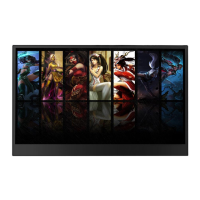

 To Next Page
 General