10
Introduction to buttons
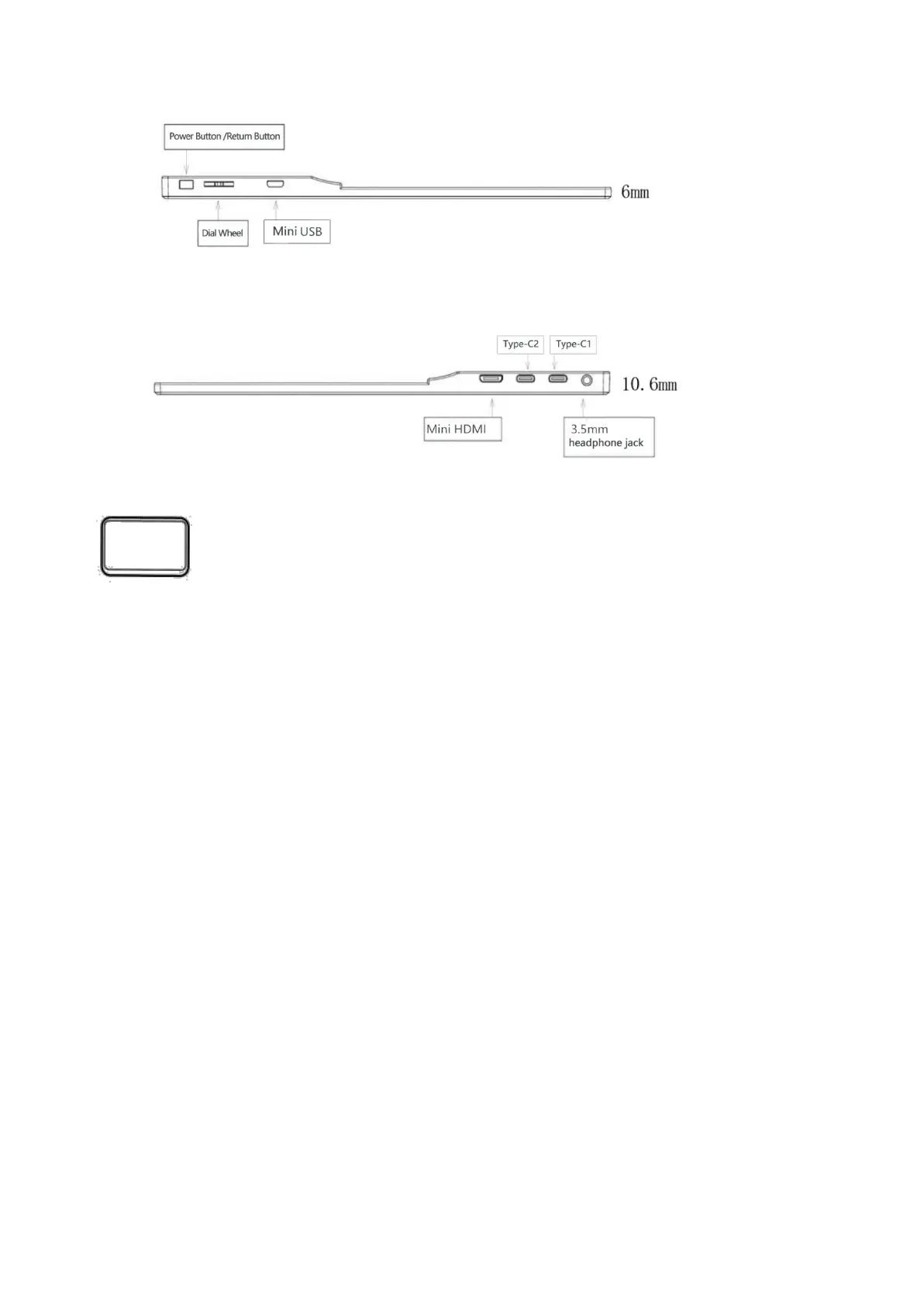
• The function button adopts the design of dial wheel and is provided with an independent power
button/return button.
• Press the power button/return button for 3 seconds to turn on/off the display.
• Press the dial wheel to open the OSD(On-Screen Display)menu of the display. In the menu, move
the dial wheel upwards and downwards to control the cursor. Press the dial wheel to confirm, and
press the power button/return button to return.
• Move the dial wheel upwards to open the brightness shortcut adjustment menu and move upwards
and downwards to control the brightness.
• Move downwards the dial wheel to open the volume shortcut adjustment menu and move upwards
and downwards to control the volume.
USB Type-C2 full-function interface: is responsible for power supply of display, audio and video
signal transmission, touch signal transmission, and support for insertion function from both sides.
USB Type-C1 power supply interface: provides support for external power supply and reverse
charging function, is compatible with PD2.0 power supply protocol, and supports 5V-20V protocol
power supply (5V/3A is recommended).
Mini HDMI port: is responsible for audio and video signal transmission
3.5mm headphone jack: refers to headphone/speaker extension connector


 To Next Page