4
Troubleshooting and Tips - Continued
2. The “Status” shows “Connected” and “Internet Access” shows “No”
In some cases, if you are at a public WiFi such as an RV Park, Hotel, Hospital, coffee shop,
etc. that requires a Username & password, or to accept the User’s Terms and Agreement,
open your internet browser and follow their instructions.
3. If your CC Vector WiFi Repeater is not working as it should, dropping connections or not
being responsive, you should first do a reset of the repeater to see if the problems persist.
Other scenarios where you might want to reset your repeater is if you've forgotten the
password or mis-configured it and can't get access anymore.
To reset your CC Vector WiFi Repeater please follow these steps:
- Power up your CC Vector.
- Press and hold the reset button on the bottom of the unit for 15 seconds (Use a paper clip or
a non-sharp object).
- Repeat Steps A1 through G.
This process usually works for resetting the CC Vector WiFi Repeater to its factory setting.
4. Error Messages
“WiFi Connection Failed” - Most likely the password entered for the selected Network to repeat
is incorrect. Re-enter correct password.
“Connection lost – The Device connection lost” - Your device has lost connection with the
CCRANE Network. Most likely your computer, laptop or smartphone re-connected to another
nearby network instead of the CCRANE network. Please check your connection to the
CCRANE network.
Additional Tips
• For best performance we recommend 5 to 15 feet of separation between the CC Vector
and the USB Antenna.
• In some cases you may receive faster WiFi by rotating the USB Antenna horizontally, making
sure to aim the broad side towards the distant WiFi network.
• It is normal to receive some speed reduction when repeating a WiFi network (because it
has to deliver the signal twice).
•
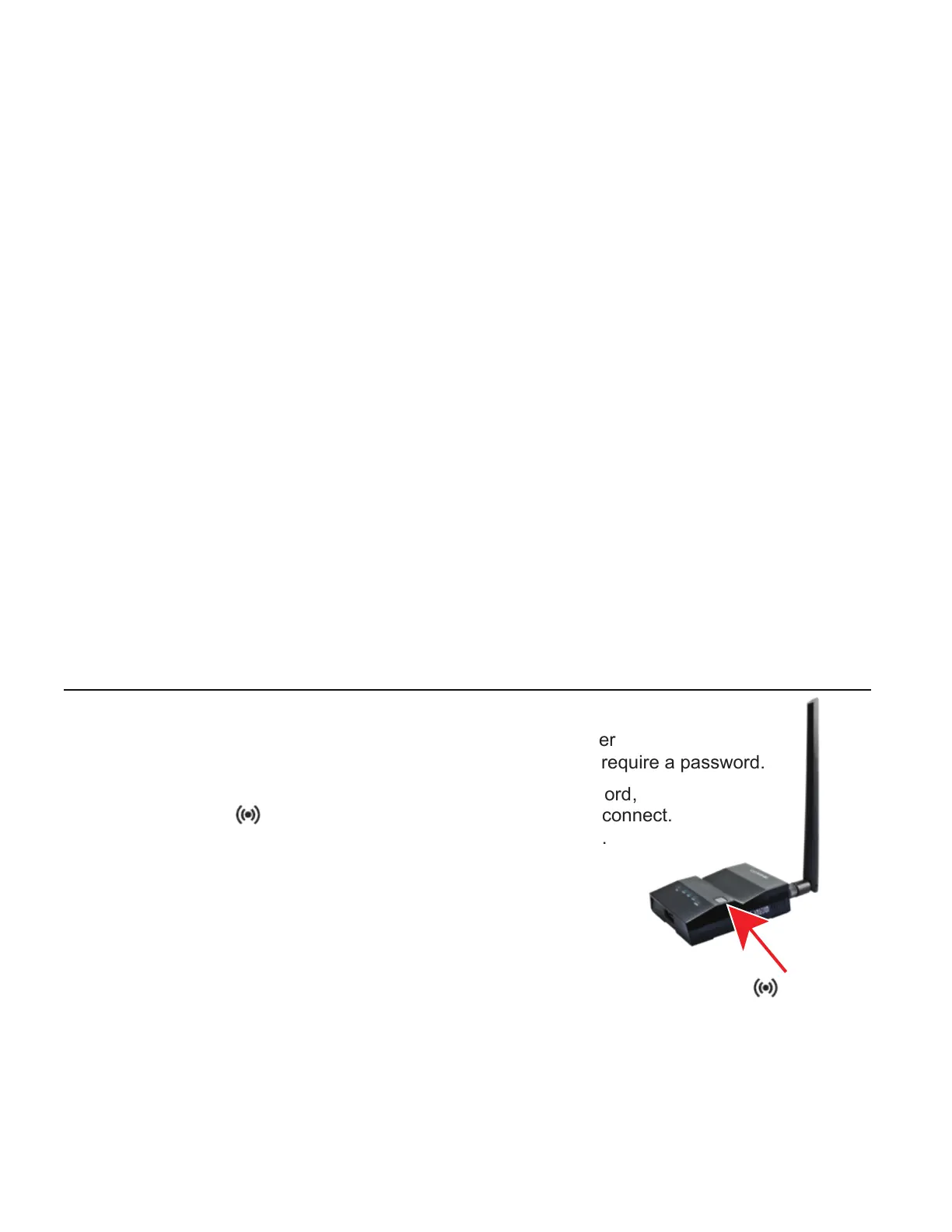
Some devices such as smartphones, tablets, printers, etc. offer
WPS as an alternate form
of WiFi connection which does not require a password.
To connect devices to the CC Vector without entering a password,
press the “WPS” button when prompted by your device to connect.
or WiFi device.
•
Check the WPS instructions for your computer
“WPS” button
Please visit our website at ccrane.com for additional information or call 800-522-8863.


 To Next Page
 Loading...