3
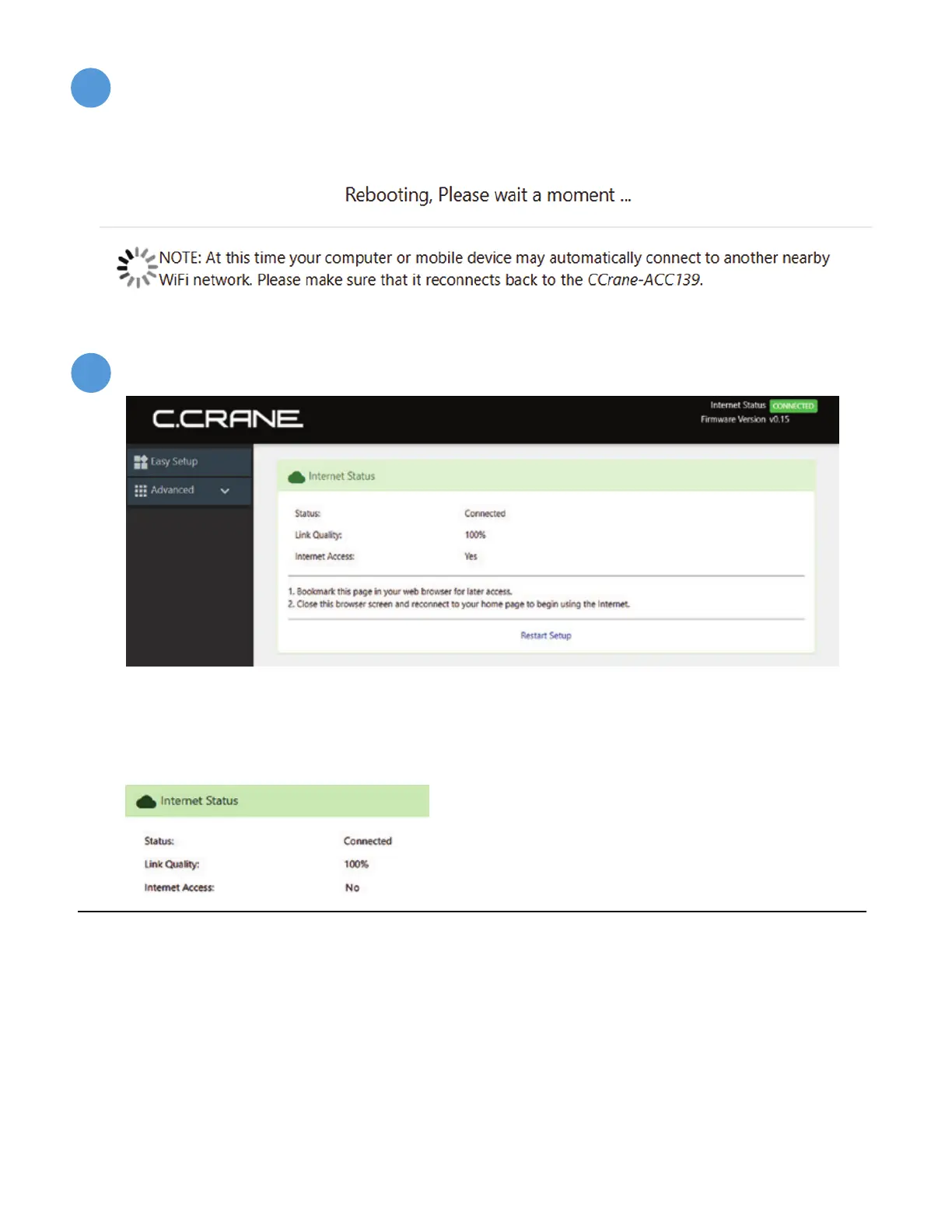
The system will reboot. Please make sure your computer, phone or tablet stays connected
to “CCrane” and does not automatically connect to another WiFi network. If no response
after 1 minute then close and re-open your web browser screen.
If “Status” is “Connected” and “Internet Access” is “Yes”, then you are finished with the setup.
Bookmark this page with your web browser in case you need to return to it to check the
connection or change networks. You can now close this screen and continue using the
internet normally.
F
You should now see a screen similar to this: (Screens may vary on some devices).
G
If “Status” is “Connected” and “Internet Access”
is “No”, please wait for 5 to 10 minutes.
If no change, please see “Troubleshooting and
Tips” #2.
Troubleshooting and Tips
1. No “Network Names” are showing under the titles for Step “D” under “Pick network
to extend” or it continues to show “Scanning”.
a. No WiFi networks in range of the USB WiFi Receiver and antenna. Try moving or re-adjust
the USB WiFi Receiver (CC DX Mile) and antenna.
b. Check to make sure that the small USB end of the cable is properly inserted fully into the
USB WiFi receiver’s (CC DX Mile) connector.
c. Make sure to use the main USB connector of the USB cable and that it is inserted into the
USB Port of the USB Amplifier Cable. After above is checked, click Rescan. Call C. Crane
at (800) 522-8863 if you are still not able to see any “Network Names” in Step “D”.


 To Next Page
 Loading...