30 HYDRA2 Operator Manual
Using H20
SOURCE SETTINGS
H2O can be used to manage source
settings—including mic gain and
phantom power (48V) when using
analogue I/O boxes and SRC when
using digital I/O boxes.
Accessing from the Port Patching
Screen
When viewing I/O boxes within H2O’s
port patching screen, depending on which
box type you are viewing, you will see a
SOURCE SETTINGS button at the bottom
of the window. Pressing this repopulates
the screen with the relevant source
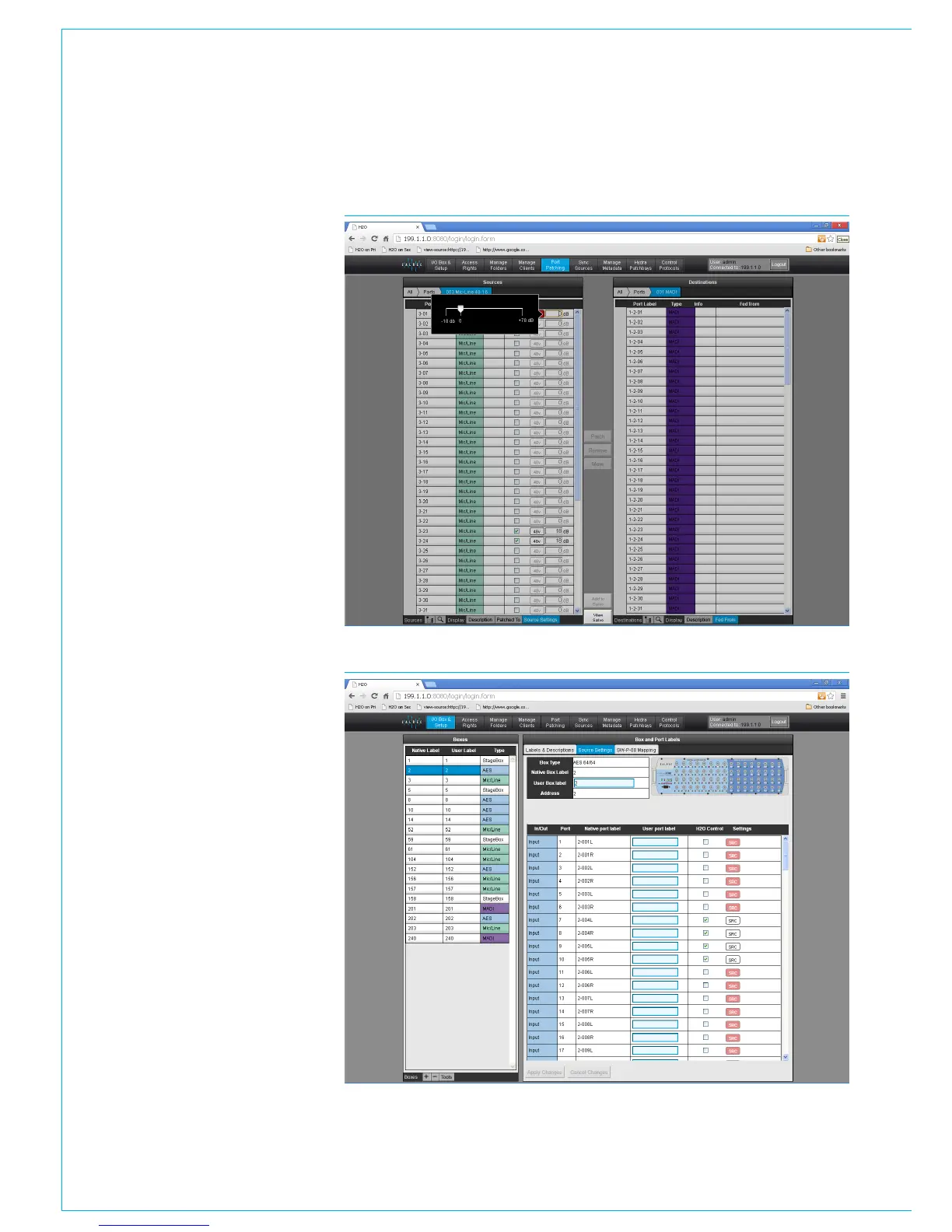
settings. The first picture on this page
shows accessible settings for Mic/Line
I/O boxes.
• To enable source settings for any port,
simply check the checkbox.
• Selecting the gain control displays a
level slider as shown.
• Phantom power can be toggled on and
off by pressing the 48 V button.
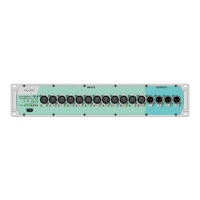
• Sample rate conversion can be toggled
on and off by pressing the SRC button.
Accessing from the I/O Box & Setup
Screen
When viewing I/O boxes within the I/O
Box & Setup Screen, select the SOURCE
SETTINGS tab to view the controls as
described above. The second image on
this page shows available controls when
viewing an AES I/O box.
SOURCE SETTINGS — AES I/O BOX
SOURCE SETTINGS — MIC/LINE BOX


 To Next Page