Need help?
Do you have a question about the Cambridge Audio DacMagic XS and is the answer not in the manual?
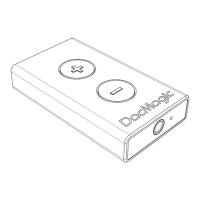
Connect headphones or RCA to the 3.5mm jack.
Press buttons to increase or decrease volume level.
Connect the device to a PC using the supplied Micro USB cable.
Explains LED colours for sample rates, max volume, and mute functions.
Details using the DacMagic XS in its default USB Class 1.0 mode for improved audio.
Explains how to switch to and use USB Class 2.0 for higher sample rates.
Step-by-step guide to download, install, and update the USB Class 2.0 driver on Windows.
Guides users to set the DacMagic XS as the default playback device and select sample rates.
 General
| Type | USB DAC |
|---|---|
| DAC Chip | Wolfson WM8740 |
| Input | USB |
| USB Standard | USB 2.0 |
| USB Audio Class | USB Audio Class 1.0 |
| Output | 3.5mm headphone jack |
| Headphone Amplifier | Yes |
| Supported Sample Rates | 44.1kHz, 48kHz |
| Bit Depth | 16-bit, 24-bit |
| Operating System Compatibility | Windows, macOS, Linux |

 To Next Page