The CAME-TV WAERO Duplex Digital Wireless Foldable Headset is an intercom system designed for easy setup and reliable communication. It offers an open range of approximately 366m/1200ft between the Master and Remote headsets. Two versions are available: a US version for the United States and an EU version for EU countries and other regions without specific frequency regulations. This manual covers both the WAERO-R (Remote) and WAERO-M (Master) models.
Technical Specifications:
- Standard: DECT technology, GAP compatible
- Range: 1200ft (366 Meters) in open space
- Talk Time: Master 10 Hours; Remote 13 Hours
- Channel Bandwidth: 1.728MHz
- Modulation Type: GFSK
- Duplex Operation: Time Division Duplex (TDD)
- CE Frequency: 1881.792-1897.344 MHz
- FCC Frequency: 1920-1930 MHz
- MIC Frequency: 1895.616-1902.528 MHz
Usage Features:
Quick Start Guide:
To begin, correctly install the batteries into the battery compartments of both the master and remote headsets. The device will automatically power on and be ready for use.
Power On/Off:
- Power on: The headset powers on automatically when a battery is installed. If a battery is already in its compartment, a quick press of the power button will turn on the headset.
- Power off: Press and hold the power button for approximately 5 seconds until the power indicator turns off.
- Note: Always power off remote headsets first; otherwise, the master headset cannot be powered off.
LED Indicators:
- Master: A red LED on the earcup indicates a master headset.
- Remote: A blue LED on the earcup indicates a remote headset.
Microphone Boom:
- MUTE OFF: When the microphone boom is in the down position, you can talk and listen.
- MUTE ON: Flipping the boom microphone up mutes your microphone only, allowing you to still hear what everyone else is saying.
Volume Control:
- Voice +: Raise the volume.
- Voice -: Lower the volume.
Optimizing Communication Effect:
- For optimal communication, it is recommended to place the master (or HUB) in a central position, with remotes arranged around it to ensure each remote is within the working distance.
- If both a master headset and a HUB are used, maintain an appropriate distance (within 1200ft) between them. It's crucial to distinguish which remote headsets are paired with the master and which are paired with the HUB. A remote headset paired with the master will not be able to communicate if it exceeds the master's working range, even if it is close to the HUB.
Team Configurations and Pairing:
Person Team:
A master headset can connect to up to three remote headsets, forming a 4-person team. The maximum distance between the master and remotes is 1200ft (366m), creating a circular communication range.
Person Team (with HUB):
The HUB incorporates two Masters (M1, M2) and one built-in Remote (R). Each Master within the HUB can accommodate up to 3 Remotes.
- Master A connects to Remote Hub R and two other remotes (B, C).
- Hub M1 connects to three remotes (D, E, F).
- Hub M2 connects to three remotes (G, H, I).
This configuration allows for up to 9 headsets within a single system. The maximum distance between Master A and the HUB, and between the HUB and its paired remotes, is 1200ft (366m).
Person Team (with HUB):
Similar to the 7-person team, but with an additional remote connected to Master A.
- Master A connects to Remote Hub R and two other remotes (B, C).
- Hub M1 connects to three remotes (D, E, F).
- Hub M2 connects to three remotes (G, H, I).
This setup allows for a total of 9 headsets. The maximum distance between Master A and the HUB, and between the HUB and its paired remotes, is 1200ft (366m).
Person Talking in One Group or Split into Two Groups (Each Group Four Person):
Two Master A headsets can be connected via a 3.5mm Audio Cable to form a larger group or split into two independent 4-person groups. Ensure the cable connects two different groups.
Expanding to 18 Person Talking or Split into 2/3/4 Different Groups:
Multiple Master A headsets and HUBs can be interconnected using 3.5mm audio cables to expand the system to accommodate up to 18 people or split into multiple groups.
WAERO with HUB Set:
The Hub features two Masters (M1, M2) and one built-in Remote (R). Each Master in the Hub can connect to up to 3 Remotes. A single hub supports up to 9 headsets. Two hubs can facilitate connections for up to 14 headsets.
HUB Power and Charging:
- The hub has a micro USB port for power/charging via a 5V DC USB power supply or power bank.
- When connected to power, the hub can run directly without batteries and also charge installed batteries.
- The hub can run on batteries alone. With one battery installed, runtime is about 8-10 hours; with two batteries, runtime increases to about 15-18 hours.
- An NB-6L battery in the compartment constantly supplies power to the hub. If no battery is present, the hub can be powered externally via the USB port.
HUB 3.5mm TRRS Audio Jack:
- Adheres to the United States CTIA standard.
- If your equipment follows the OMTP standard, a conversion cable will be needed.
HUB USB Function:
- Direct Power Supply to the HUB.
- Charge batteries in the battery compartment.
HUB Product Details (Front View):
- 1, 3: Working indicator for M1 group, M2 group respectively.
- 2: Working indicator for HUB remote.
- 4, 6: Master 1 button, Master 2 button respectively.
- 5: Remote button.
- 7, 9: Charging indicator.
- 8: Power indicator.
- 10: Battery compartment.
Working Indicator for M1 and M2 (on HUB):
These indicators help distinguish which Master a remote belongs to. When viewed vertically from the top, the M1 and M2 indicators show the number of remotes connected to them (each Master supports up to 3 remotes). Up to 6 indicators can illuminate simultaneously. If a remote powers off or disconnects, its corresponding indicator will extinguish.
Pairing Instructions:
The product comes pre-paired for immediate use. Pairing is only necessary if a remote loses connection with the master.
WAERO Pairing Steps:
- Ensure both the Master and all Remote devices are powered on. Any remotes not powered on when the Master enters pairing state will be cleared.
- Mute the microphone. (A slowly flashing LED indicates mute is on, which may disrupt pairing).
- Simultaneously press the Volume Up and Down keys on the Master until the Red LED indicator flashes quickly and "pairing" is heard. This indicates pairing state. Remote headsets use the same volume up/down button press to activate pairing. Pair one remote at a time; once "your headset is connected" is heard, proceed to the next lost remote. Newly connected remotes can be powered on without additional steps.
- The Master will automatically exit pairing and the LED will become solid once fully connected with all 3 Remotes. If fewer than 3 remotes are present, manually exit pairing by pressing the Master Headset power button. To pair a Remote with a new Master, turn off the previous Master it was paired with first.
Waero with HUB Pairing Instructions:
It is crucial to identify which group master a disconnected remote belongs to:
- Master A group (Remote Hub R and Remote B/C)
- Hub M1 group (Remote D/E/F)
- Hub M2 group (Remote G/H/I)
Only pair the disconnected group. Ensure both the master and all remote devices in that group are powered on. Any remotes not powered on in the same group will be cleared when the Master enters pairing.
Pairing Master A with Remote Hub R and Remote headsets B/C:
(Ensure Master A, Remote Hub R, and Remote headsets B/C are powered on.)
- If Remote B/C/J disconnected from Master A: Activate Master A's pairing mode (Volume Up + Down simultaneously until LED flashes quickly and "pairing" is heard). Then activate the lost remote headset's pairing mode. Pair one remote at a time.
- If Remote Hub R disconnected from Master A: Press Volume Up + Down on Master A simultaneously until LED flashes quickly. Press and hold the middle button on Remote Hub R until its Blue LED flashes quickly. Once connected, the working indicator for Hub Remote R will become solid. Master A will automatically exit pairing and its LED will become solid when fully connected with 3 Remotes (Remote Hub R and Remotes B/C). If fewer than 3 remotes, manually exit pairing by pressing Master A's mute button.
Pairing the Hub M1 group (Remote D/E/F):
- Ensure Hub M1 and all Remote D/E/F are powered on.
- Press and hold the left button on Hub M1 until the blue LED flashes quickly. Simultaneously press Volume Up + Down on the disconnected remote Nano until its LED flashes quickly and "pairing" is heard. Pair one remote at a time.
- Hub M1 will automatically exit pairing and its LED will become solid when fully connected with 3 remotes (Remote D/E/F). If fewer than 3 remotes, manually exit pairing by long-pressing the HUB M1 button.
Pairing the Hub M2 group (Remote G/H/I):
- Ensure Hub M2 and all Remote I/H/G are powered on.
- Long-press the Hub M2 button to activate pairing. The procedure is similar to Hub M1 pairing.
Important Notes:
- The Master module and remote module in the hub cannot be paired simultaneously, as this may cause malfunction.
- It is crucial to identify the group a disconnected remote belongs to before pairing.
- Pairing is only needed for the disconnected group, and all remotes in that group must be powered on before pairing.
FCC Regulatory Compliance:
This device complies with Part 15 of the FCC Rules. Operation is subject to two conditions: (1) it may not cause harmful interference, and (2) it must accept any interference received.
- Warning: Changes or modifications not expressly approved by the party responsible for compliance could void the user's authority to operate the equipment.
- Note: This equipment has been tested and complies with Class B digital device limits. It generates and uses radio frequency energy, and if not installed and used according to instructions, may cause harmful interference. There is no guarantee that interference will not occur in a particular installation.
- Interference troubleshooting: If interference occurs, try reorienting/relocating the receiving antenna, increasing separation between equipment and receiver, connecting equipment to a different circuit, or consulting a dealer/technician.
FCC RF Radiation Compliance:
The device has been tested and complies with FCC SAR limits. This transmitter must not be co-located or operating in conjunction with any other antenna or transmitter.

 Need help?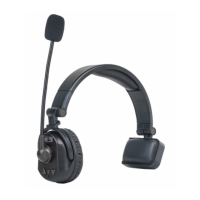

 To Next Page
 General