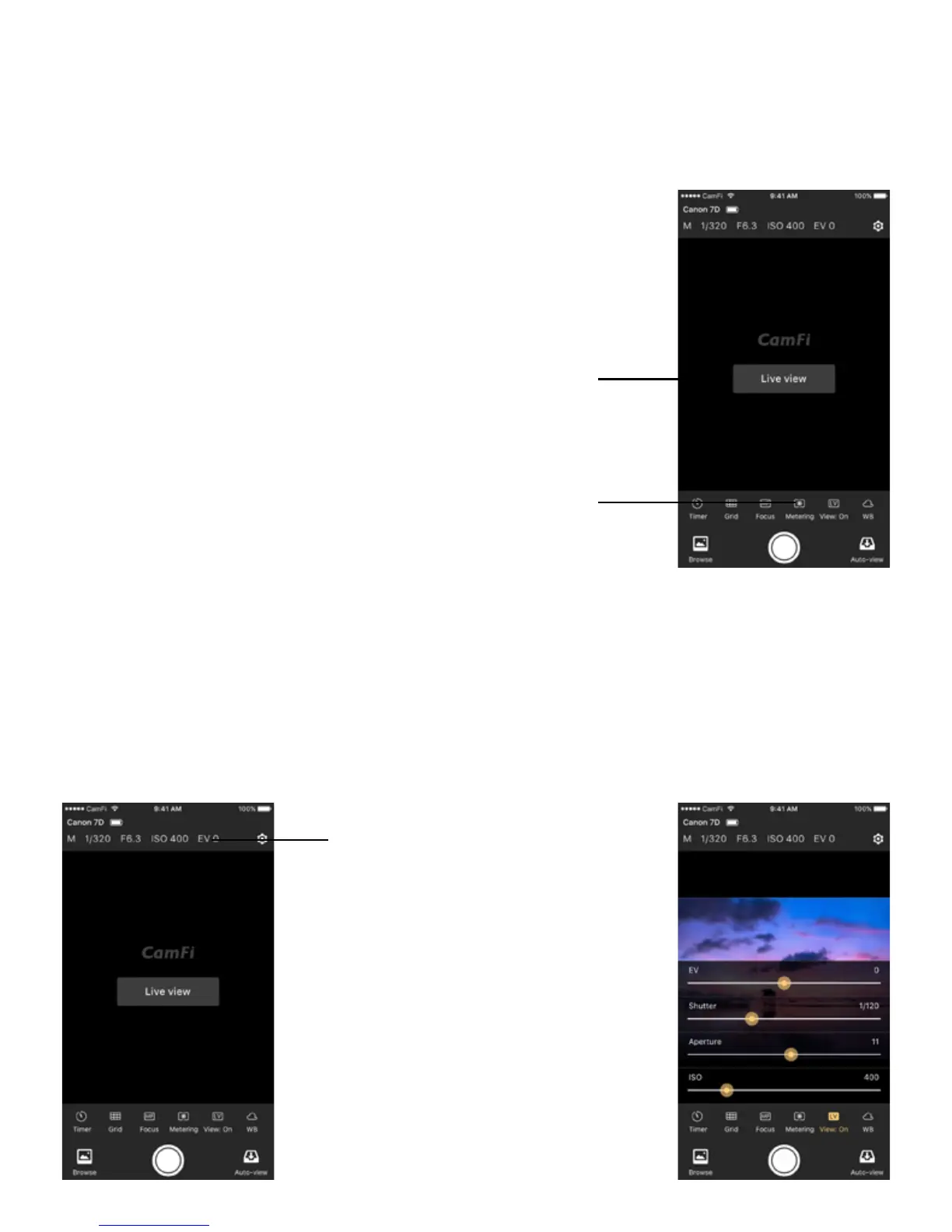
Live view
Change the capture settings
Tap the “Live view” at the center of
the screen or the “View On” button at
the bottom to start the live view.
Tap the shutter button at the bottom to remote control the camera to capture.
To change the capture settings, please tap the top area of the screen where shows the
exposure mode, shutter, aperture and ISO.
It will pop up a setting window. User can drag the sliders to change the settings.
Note: the exposure mode for Canon camera cannot be set.
Open live view
Live view switch
Tap to set the exposure mode,
shutter, aperture and ISO
Remote capture
7



 To Next Page