4. Simply-fi oven enrollment
EN 09
Please ensure that the clock time is set before trying to enrol an
oven.
Locating your Wi-Fi Password
Locate the Wi-Fi Password (WPA/WEP Key) which is normally found
on the back of your Wi-Fi router.
Take a note for later use
Router name _______________________________
Once this step has been completed, ensure the appliance is working
by controlling the appliance directly using the control panel.
Password (WPA/WEP Key) _______________________________
Please take the time to read the program guides and functions as this
will help you to take full advantage of the features of your new
appliance.
If you are having trouble locating the Wi-Fi Password, please contact
your Internet Provider.
Connect your device to the same Wi-Fi router ready to install the App
Once you have your Wi-Fi Password, please take a note of it here
below as you will need this later on whilst connecting the appliance to
the App.
Downloading the App
Download the Candy simply-Fi App from the App store relevant to your
device.
Install the appliance in accordance to the installation guide within this
instruction book.
Installing the appliance
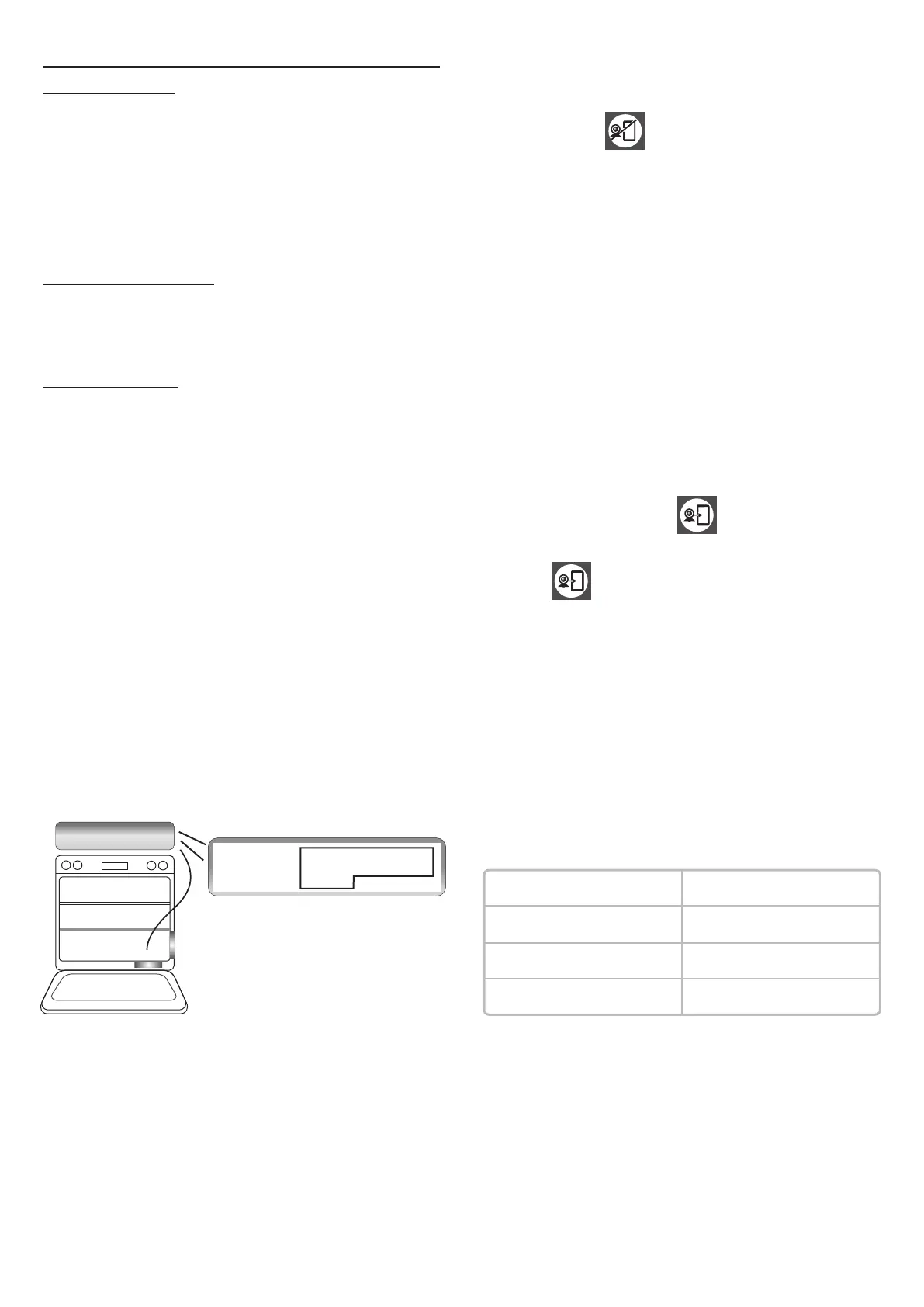
Take note of the serial number
The illustration shows the format of the appliance information. Write
your product serial number here below:
Note – The App is suitable for iOS (version 8 and greater) and Android
(version 4.4 and greater). App Name – Candy simply-Fi
Locating your product code
Serial number (16 digits)
Locate the product code of your appliance with the help of the image
below.
In the homepage, tap on the appliance that you want to connect and
tap on “Ok”.
Note – You can explore all the features of the full simply-Fi range by
tapping on “Demo”.
- Step 1:
- Step 2:
Open the App Candy simply-Fi. Create your account by tapping on
“Sign-Up”. Accept the privacy policy and complete the fields.
Insert the 16 digits serial number that you wrote down above and tap
on “Next”.
- Step 3:
Check that the product details are correct and then tap on “Confirm”.
It’s important that there is a good Wi-Fi signal strength from the home
router to the appliance: low Wi-Fi signal strength would cause the final
stage of the set up to fail. To establish if this is the case, start the
connection process again from Step 1; once at Step 8, place with your
device (smartphone or tablet) next to the router and search for
"WIFIOVEN-xyzk" net generated by the machine. If this does not
come up as an option, this means the router cannot see the appliance.
In this case, we recommend to bring the router near to the machine (if
possible) or contact your internet provider and require the assistance
to purchase a compatible "Wi-Fi Range Extender" to increase the
signal strength.
Long press the icon to enroll the appliance.
To control again the oven directly on the door screen do a short press
on the icon
If you do not find it, wait few more seconds or do a new scan.
Then, you have 5 minutes to complete the process; otherwise, you will
need to start it again.
Exit the Candy simply-Fi app. Go to your device Wi-Fi settings.
- Step 9:
- Step 10:
- If the set up does not complete
- Step 5:
- Step 4:
Once your appliance has been recognized, tap on “Next”.
For more advantages, you can Register your product by tapping the
dedicated button.
- Step 7:
- Step 8:
- Step 6:
Exit from the settings of your device. Return to the Candy simply-Fi
App and wait for the App to detect the appliance. Once the “Wi-Fi
Network is active” screen appears, tap on “Next”
Your home Wi-Fi Network will be automatically set by the App. (If not,
enter the name of your home Wi-Fi network, paying attention to
lowercase and uppercase letters). Insert the Wi-Fi Password
(WPA/WEP Key), then tap on “Confirm”.
- Remote control mode
To see webcam streeming on the external device (APP SIMPLY-FI),
the door must be connected to the net.
Tap on "Start" to return in the App Homepage.
In the list of available Wi-Fi networks, select "WIFIOVEN-xyzk".
With a short press on the icon the oven can be remotly
controlled.
WIRELESS PARAMETERS MAIN BOARD
Serial number
Model Code
Serial Number
Mod:
N.
G:
WDYN 854DB-80
33700000 1224 0087
00
Type LCM6
Technology
Standard
Frequency Band(s) [MHz]
Maxmum Power [mW]
W-F
IEEE 802.11b/g/n
2412÷2484
41.4


 To Next Page
 Loading...