Start Here
Easy Setup Instructions
series
Photo Printer
1 Unpack the Printer
Carefullyremove all items from the box.
Remove the tapes from the printer.
NOTE:
·Ittakes about an hour to complete the setup of the
printer.
·A USB cable is necessary to connect the printer
with your computer.
Power Cord
PIXMA Pro9500 series
Print Head
Documentation and
Software Kit
PIXMA Pro9500 series
Photo Printer
2 Prepare the Printer
Plug the power cord into the back of the printer
and connect the other end to a power outlet.
Press the POWER button. The printer will
initialize. Wait until the POWER lamp displays a
steady blue light.
Open the Front Tray. Raise the Top Cover.
NOTE: Gently press the mark on the
Front Tray. The Front Tray automatically opens.
The Print Head Holder automatically moves to
the center. Remove the protective tape from
the Print Head Holder. The tape position is
subject to change.
Write down the serial number located inside
the printer. You will need this to register your
products.
IMPORTANT: If the Top Cover is left open for
more than 10 minutes, the Print Head Holder
moves to the right. Close and reopen the Top
Cover to return the holder to the center.
2
1
3 Install the Print Head
Firmly raise the print head lock lever.
Remove the Print Head from its package.
CAUTION: There might be some transparent or
light color ink on the inside of the bag the Print
Head comes in - this has no effect on print
quality. Be careful not to get ink on yourself
when handling these items.
NOTE: Do not touch the nozzles.
Remove and discard the orange protective cap
from the Print Head.
CAUTION: There might be some transparent or
light color ink on the inside of the protective
cap - this has no effect on print quality. Be
careful not to get ink on yourself when handling
these items.
NOTE:
· Do not touch the print head nozzles and the
electrical contacts.
· Do not attempt to reattach the protective cap once
it has been removed.
Slide the Print Head into the holder.
The Print Head will rest at a slight angle.
NOTE: Do not touch the electrical contacts.
Lower the print head lock lever carefully.
4 Install the Ink Tanks
Remove the Red Ink Tank (PGI-9R) from its
package.
Remove and discard the orange protective cap
located on the bottom of the ink tank.
IMPORTANT: Do not touch the electrical
contacts.
NOTE:
·To avoid spilling ink, never press on the sides of
an ink tank.
· Do not touch the open ink port once the protective
cap is removed, as this may prevent the ink from
being ejected properly.
Insert the ink tank into the rightmost slot.
Press the mark on the ink tank until it clicks
into place and then its lamp lights red.
Insert the remaining nine ink tanks into their
assigned slots. Ensure that ink lamps light red.
Close the Top Cover. Lift open the Paper
Support and the Paper Support Extension, then
pull out the Front Tray Extension.
NOTE: If the ALARM lamp on the printer flashes
orange after you have closed the Top Cover, an
ink tank may not be installed properly. Open the
Top Cover and make sure that the ink tanks are
installed in the correct order directed on the
label.
3
2
1
5
Connect the Printer
and Load Paper
IMPORTANT: When the POWER lamp flashes
blue and the printer vibrates, the printer is
shaking the ink tanks. Once you have installed
the ink tanks and have closed the Top Cover,
wait for about 2 minutes 30 seconds until the
POWER lamp stops flashing and stays lit, and
the printer has stopped making operating
noises before proceeding. Do not open the Top
Cover while the printer is operating (the POWER
lamp is flashing blue).
TURN THE PRINTER OFF.
IMPORTANT: Be sure the printer is off before
continuing, or the computer will attempt to
install the printer driver before the printer is
ready.
Connect one end of the USB cable to the
computer, the other to the appropriate USB
port on the printer.
NOTE: The Pro9500 series Photo Printer is
equipped with USB 2.0 Hi-Speed port. If your PC
does not support USB 2.0 Hi-Speed, or if any
non-certified USB 2.0 cable or driver is used for
the connection, the printer will operate at a
lower speed provided under USB 1.1.
Pinch the Paper Guide and slide it to the left.
Load two sheets of plain paper into the Auto
Sheet Feeder, align the paper with the right
edge of the Auto Sheet Feeder, then slide the
Paper Guide toward the left edge of the paper.
IMPORTANT: Print Head Alignment (Step 6)
requires that letter size paper is loaded in the
Auto Sheet Feeder (top paper feeder).
Top Cover
Tear at notch to open
Nozzles
Print Head
Nozzles
Electrical
Contacts
Electrical
Contacts
USB Cable
USB Cable
USB Port
Protective Cap
Auto Sheet
Feeder
Paper
Guide
Continue with Step 6
on the back page.
Front Tray Extension
Paper Support
Extension
Paper Support
Top Cover
POWER Button
POWER Lamp
USB Port
Protective Tape
Serial Number Location
PGI-9PM
Photo
Magenta
PGI-9PBK
Photo
Black
PGI-9MBK
Matte
Black
PGI-9PC
Photo
Cyan
PGI-9GY
Gray
PGI-9M
Magenta
PGI-9Y
Yellow
PGI-9C
Cyan
PGI-9G
Green
PGI-9R
Red
Electrical Contacts
Ink Lamp
Print Side
Refer to the color
guide on the print
head lock lever.
Front Tray
Ink Port
QT50144V02

 Need help?
 General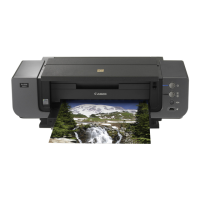





 To Next Page