
 Need help?
Do you have a question about the Canon EOS C700 and is the answer not in the manual?
Safety instructions to reduce risk of electric shock and interference.
Details on the camera's 4K recording capabilities, sensor, and image engine.
Explanation of the available video recording formats and codecs.
Capabilities for recording and outputting 4K RAW video data.
Details on performing color grading using the ACES workflow for professional results.
Steps for powering the camera on and off, including tally lamp indicators.
Steps for accessing and changing settings within the camera menu.
Steps for accessing and changing settings via the monitoring menu.
Steps for attaching and using the optional electronic viewfinder.
Procedure for connecting and configuring the optional viewfinder settings.
Guidelines for attaching EF lenses, including alignment and tightening.
Details on supported CFast and SD card types and specifications.
Step-by-step guide for inserting CFast cards into the camera slots.
Step-by-step guide for inserting and removing SD cards.
Procedure for initializing CFast and SD cards for first-time use or data erasure.
Procedure to recover data from corrupted XF-AVC or ProRes clips.
Step-by-step guide to starting and stopping video recording operations.
Explanation of icons, displays, and screen buttons on the camera's HOME screen.
Explanation of onscreen displays and AF frames during shooting.
Choosing between XF-AVC and ProRes formats for main recording.
Choosing the appropriate bit rate and compression for XF-AVC video.
Setting the camera's system frequency for recording and output.
Choosing the desired frame rate for video recording.
Configuring video resolution and color sampling settings.
Operation of the direct setting mode for quick adjustments via viewfinder or assignable buttons.
Procedure for selecting shutter speed modes and adjusting values.
Procedure for selecting and adjusting ISO speed or gain values.
Steps for adjusting aperture manually using the control dial or menu.
Using the PUSH AUTO IRIS button for temporary automatic aperture adjustment.
Enabling the camera to automatically adjust aperture with compatible EF lenses.
Overview of the camera's preset color configurations for various looks.
Applying, editing, and managing custom picture files for tailored image settings.
Procedure for fine-tuning gamma, color space, and color matrix settings.
Guide to choosing white balance modes like AWB, Custom, or Preset.
Procedure for fine-tuning color temperature and color compensation values.
Steps to manually calibrate and save custom white balance settings.
Activating and using face detection for automatic focus on subjects.
Enabling the camera to track moving subjects for continuous focus.
Steps for connecting external devices for Genlock or time code synchronization.
Configuring Genlock synchronization using external video signals.
Outputting the camera's video signal as a reference sync signal.
Receiving and recording external time code signals.
Outputting the camera's time code signal to external devices.
Explanation of how menu settings and controls determine audio input and channel assignment.
Procedure for attaching and connecting external microphones and audio input sources.
Configuring input types (AES/EBU or Analog) for camera input terminals.
Choosing audio input sources for CH1/CH2 and CH3/CH4 independently.
Manually or automatically adjusting audio recording levels for each channel.
Connecting headphones to monitor recorded audio and adjusting volume.
Overview of physical buttons and screen buttons that can be customized.
Table of functions that can be assigned to buttons and screen buttons.
Guide to configuring and using the camera's USER screen for custom shortcuts.
Applying, editing, and managing custom picture files for tailored image settings.
Details on preset color settings including Gamma, Color Space, and Color Matrix.
Procedure for fine-tuning gamma, color space, and color matrix settings.
Interface and controls for playback mode operations.
Choosing the media and format to select clips for playback.
Steps for selecting and playing back clips from the recorded media.
Table detailing SDI OUT terminal configurations based on recording format.
Table detailing MON. and HDMI OUT terminal configurations.
Procedure for outputting video and audio signals via SDI OUT terminals.
Outputting video, audio, and onscreen displays via MON. terminals.
Using LUTs to adjust video output appearance for monitoring and workflow.
Outputting video, audio, and onscreen displays via HDMI OUT terminal.
Using Canon XF Utility to save and organize clips on a computer.
Using Cinema RAW Development software to process RAW footage.
Using WPS for easy Wi-Fi setup via button or PIN code.
Manually adjusting advanced network settings for specific needs.
Using AF-Boosted MF mode remotely for precise focus.
Configuring camera ID, user settings, and network parameters for Browser Remote.
Steps to launch the Browser Remote application on a connected device.
Explanation of controls available on the main remote recording screen.
Controlling focus modes, AF frames, and focus assistance features remotely.
Performing manual focus adjustments using the remote interface.
Setting and using continuous autofocus remotely.
Initiating one-shot autofocus remotely.
Critical safety warnings to avoid severe harm or fatality.
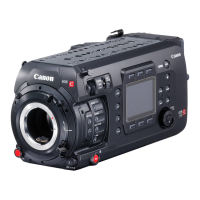
 General
| Megapixel | 9.6 MP |
|---|---|
| Camera type | MILC |
| Image stabilizer | Yes |
| Total megapixels | 8.85 MP |
| Image sensor size | - \ |
| Image formats supported | - |
| Supported aspect ratios | 16:9 |
| Maximum image resolution | 4096 x 2160 pixels |
| Image stabilizer location | Body |
| Still image resolution(s) | 4096x2160 / 3840x2160 / 2048x1080 / 1920x1080 |
| Digital zoom | - x |
| Lens mount interface | Canon EF, Canon EF-S, Canon RF |
| Image stabilizer type | Electronic Image Stabilization (EIS) |
| Focus adjustment | Auto/Manual |
| Auto focusing (AF) modes | Continuous Auto Focus, One Shot Focus |
| Product color | Black |
| ISO sensitivity | 100, 160, 200, 400, 800, 1600, 3200, 6400, 12800, 16000, 20000, 25600, 32000, 40000, 50000, 51200, 80000, 102400 |
| Light exposure modes | Auto, Manual |
| ISO sensitivity (max) | 102400 |
| ISO sensitivity (min) | 100 |
| Camera shutter speed | 1/2000 - 1 s |
| Fastest camera shutter speed | 1/2000 s |
| Slowest camera shutter speed | 1 s |
| Built-in flash | No |
| Camcorder type | Handheld camcorder |
| Image processor | DIGIC DV 7 |
| Memory slots | 2 |
| Camcorder media type | Memory card |
| Compatible memory cards | SD, SDHC, SDXC |
| Internal storage capacity | - GB |
| Video resolutions | 1920 x 1080, 2048 x 1080, 3840 x 2160, 4096 x 2160 pixels |
| Maximum frame rate | 180 fps |
| Supported video modes | 1080p, 2160p |
| Video formats supported | H.264, H.265, MP4, XF-AVC |
| Storage temperature (T-T) | -5 - 45 °C |
| Operating temperature (T-T) | 0 - 40 °C |
| Display diagonal | 3.5 \ |
| Display resolution | 1280 x 720 pixels |
| Headphone connectivity | 3.5 mm |
| USB 2.0 ports quantity | 0 |
| USB 3.2 Gen 1 (3.1 Gen 1) Type-C ports quantity | 1 |
| Battery capacity | - mAh |
| Battery life (max) | - h |
 Weight and Dimensions
| Depth | 130 mm |
|---|---|
| Width | 160 mm |
| Height | 116 mm |
| Weight | 1190 g |

 To Next Page