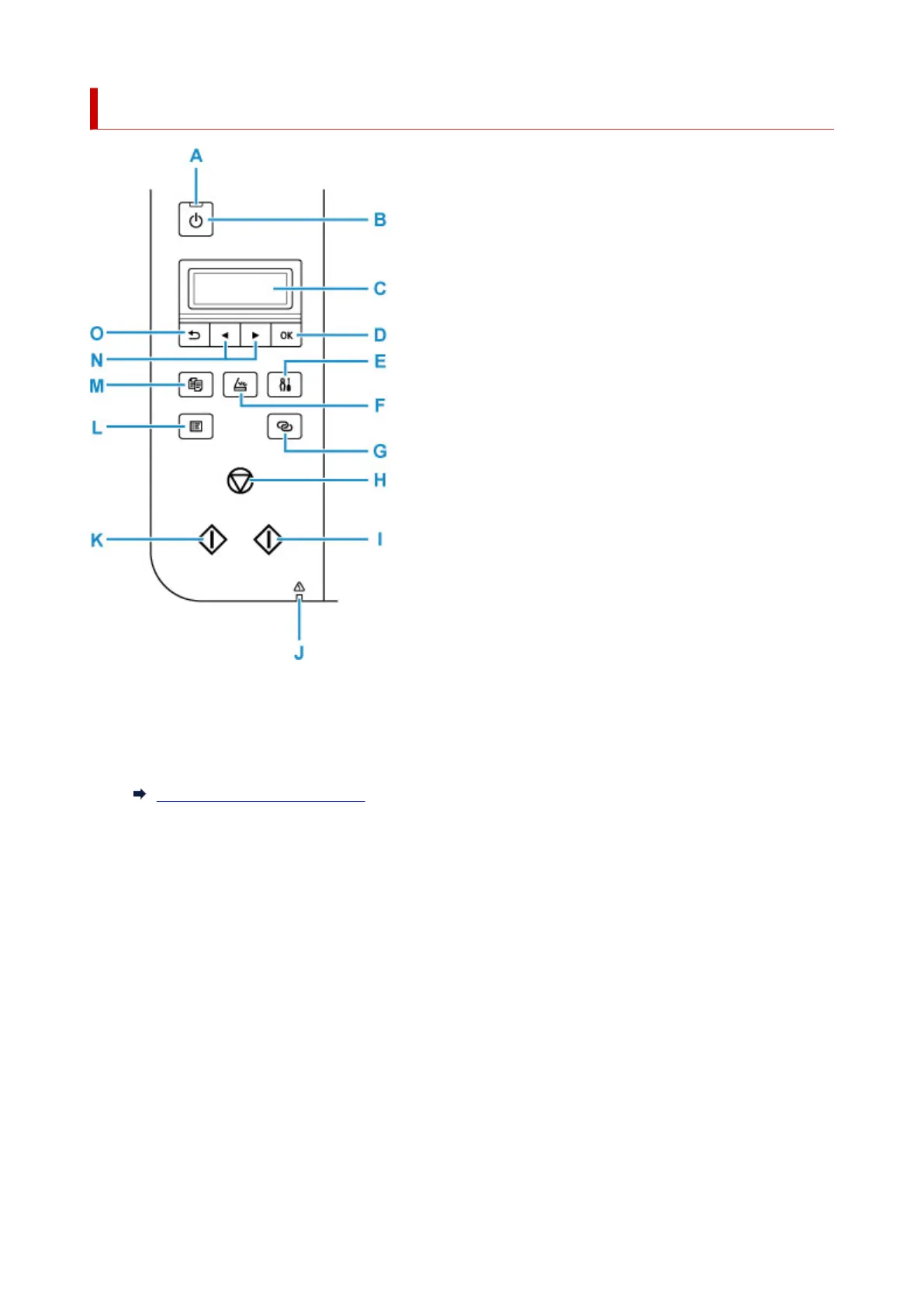
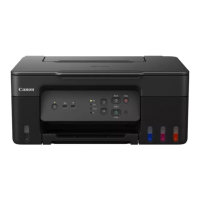
Operation Panel
A: ON lamp
Lights after flashing when the power is turned on.
B: ON button
Turns the power on or off. Before turning on the power, make sure that the document cover is closed.
Turning the Printer On and Off
C: LCD (Liquid Crystal Display)
Displays messages, menu items, and the operational status.
D: OK button
Finalizes your selection of items. Also used to resolve errors.
E: Setup button
Displays the Setup menu screen. With this menu, you can perform printer maintenance and change
printer settings. Also used for selecting the input mode.
F: SCAN button
Switches the printer to the scan mode.
G: Wireless connect button
To set wireless router information in the printer directly from a smartphone or other such device (without
having to do any procedures at the router), hold down this button.
H: Stop button
Cancels operation when printing is in progress or when selecting a menu item.
143



 To Next Page