Navigating the Menu
Item selection or moving the cursor among the
menu items
Select an item with [▲] or [▼].
Press
OK
or [
►
] to proceed to the next hierarchy.
Press
or [
◄
] to return to the previous hierarchy.
Setting conrmation
Press
OK
. However, when <Apply> appears on the
display, select <Apply>, and then press
OK
.
Text Input Method
Changing entry mode
To change the entry mode, press .
Entry mode Available text
<A> Uppercase alphabetic letters and symbols
<a> Lowercase alphabetic letters and symbols
<12> Numbers
Entering text, symbols, and numbers
Enter with the numeric keys or .
Moving the cursor (Entering a space)
Press [
◄
] or [
►
], to move the cursor. To enter a space,
move the cursor to the end of the text, and press [
►
].
Deleting characters
Press . Pressing and holding deletes all char-
acters.
Entry mode: <A> Entry mode: <a> Entry mode: <12>
@ . - _ / 1
ABC abc 2
DEF def 3
GHI ghi 4
JKL jkl 5
MNO mno 6
PQRS pqrs 7
TUV tuv 8
WXYZ wxyz 9
(Not available) 0
(space) @ . / - _ ! ? & $ % # ( )
[ ] { } < > * + = ” , ; : ’ ^ ` | \ ˜
(Not available)
30
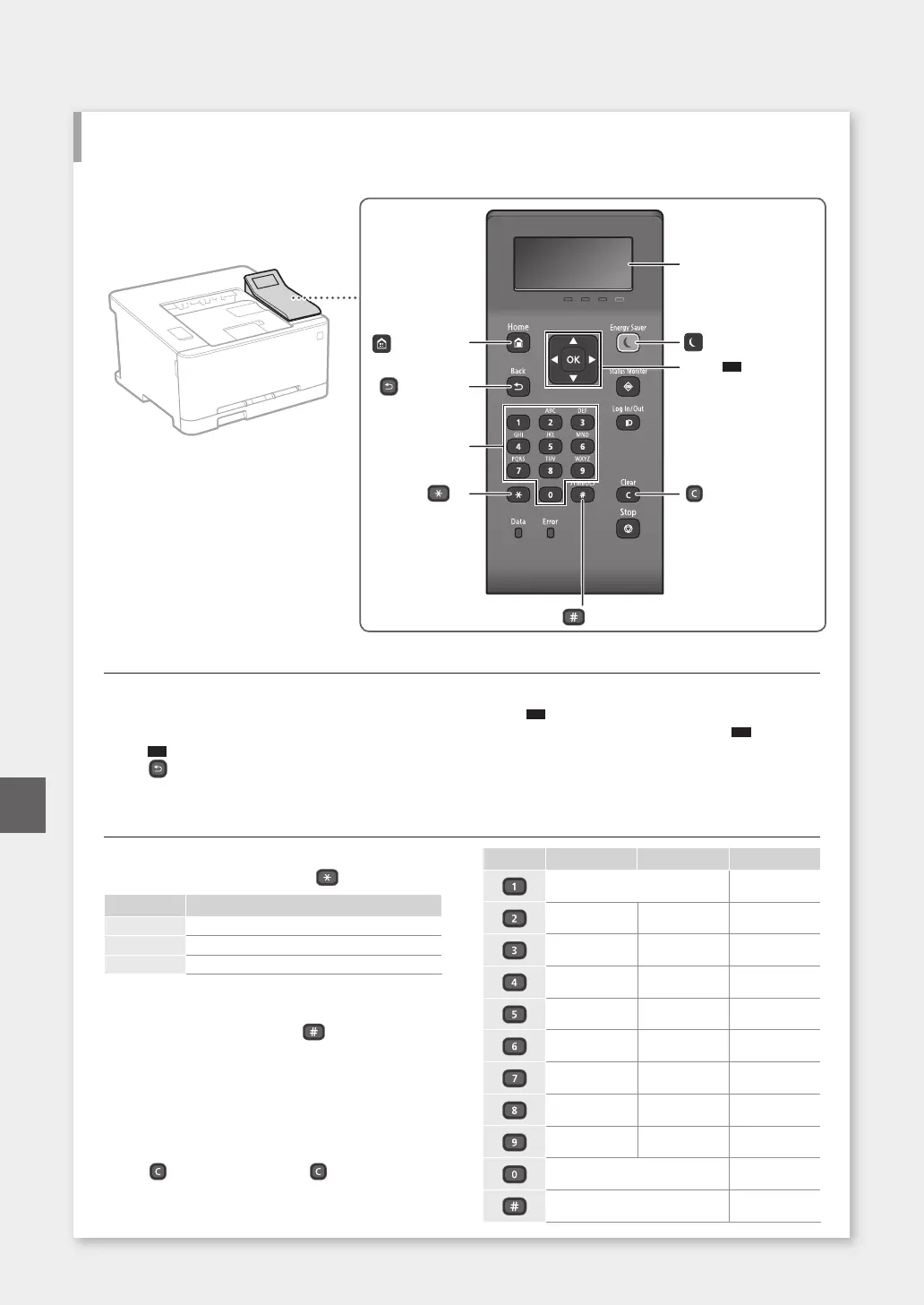
Start the Operation from the Operation Panel
Machine
Quick Operation
(*)
Display (screen)
([Clear] key)
(#)
([Energy Saver] key)
([Home] key)
▲▼
▲
▲
OK
Numeric keys
([Back] key)
Operation Panel
En











 To Next Page