11
6. TROUBLESHOOTING FLOWCHART
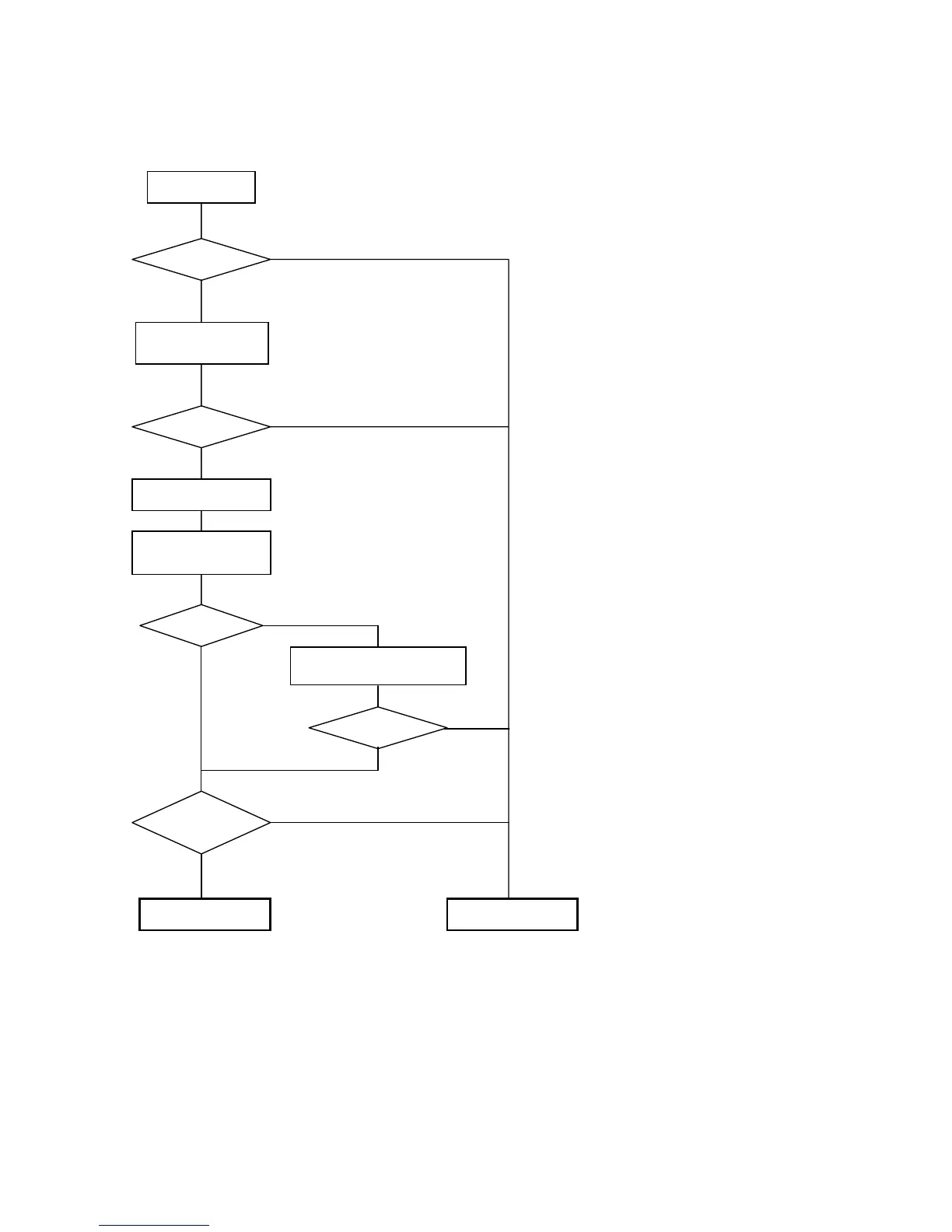
6-1. Printer Main Unit Troubleshooting Flowchart (how to confirm printer operation at refurbishment)
< Note for normal printer refurbishment >
At refurbishment, install the print head, and while pressing and holding the Power button, connect
the AC plug. After the LED lights in green, while holding the Power button, press the Resume/Cancel
button 2 times, and release the Power button. (Each time the Resume/Cancel button is pressed, the
LED lights alternately in orange and green, starting with orange.)
With this condition, print the shipment inspection pattern and reset the EEPROM in accordance with
4. SERVICE MODE, EEPROM reset / Destination setting.
Since the printer enters the shipping mode (carriage in replacement position, paper lifting plate
raised) by powering off using the Power button, remove the print head, unplug the power cord, and
do not print afterwards.
Open access cover,
and install print head
Power ON
Service Call Error?
Connect to computer
Shipment inspection
pattern printing
Service Call Error?
Yes
No
Yes
No
No
Refer to 4. SERVICE MODE
regarding printing method.
Correct?
< Shipment inspection pattern check items>
(Refer to the attached print sample.)
1. Non-ejection of ink: Yes NG
2. Top margin: Outside of paper NG
3. Line: Not connected NG
4. Gray area: White lines / uneven density NG
Replace print head and print
shi



 To Next Page