
 Need help?
Do you have a question about the Canon Ixus 240 hs and is the answer not in the manual?
Lists available manuals on the DIGITAL CAMERA Manuals Disk.
Discusses product compatibility and limitations with Eye-Fi cards.
Provides tips for using the touch screen with a stylus and calibrating it.
Instructions on how to attach and use the camera strap.
Demonstrates proper ways to hold the camera for shooting.
Step-by-step guide on how to charge the camera's battery.
Detailed instructions for inserting the battery and memory card into the camera.
Steps to remove the battery from the camera.
Steps to remove the memory card from the camera.
Guide on setting the camera's date and time for accurate image metadata.
Instructions on how to change the camera's display language settings.
Introduces the Smart Auto mode for automatic shooting settings based on scenes.
Explains the process of focusing and shooting still images in Smart Auto mode.
Details how to start and finish recording movies in Smart Auto mode.
Instructions on navigating through captured images in Playback mode.
Overview of functionalities offered by the bundled software like ImageBrowser EX.
Information on the manuals provided with the camera and their access.
Lists the system requirements for installing and using the camera's software.
Step-by-step guide for installing the software from the included CD-ROM.
Instructions on connecting the camera and transferring images to a computer.
Lists the items that come included with the camera package.
Provides details on battery life, shot counts, and movie recording times.
Indicates how much recording time is available on memory cards of different sizes.
Specifies the effective distance range for the camera's flash.
Details the focusing and shooting distance ranges for various camera modes.
Lists the speed (shots per second) for continuous shooting.
Outlines the available shutter speed ranges for different modes.
Details the camera's aperture settings (f-numbers).
Provides specifications for the camera's rechargeable battery packs.
Explains how the camera conserves battery by automatically turning off the screen and device.
Explains the process of focusing and taking still photos in Smart Auto mode.
Details how to start and finish recording movies in Smart Auto mode.
Provides tips and notes for shooting still images in Smart Auto mode.
Offers advice and notes for shooting movies in Smart Auto mode.
Describes scenes where the camera automatically captures multiple shots.
Explains how to use digital zoom to enlarge subjects beyond optical zoom range.
Guide on using the self-timer to include yourself in group photos or timed shots.
Instructions on how to use the touch screen to focus and shoot photos.
Steps to configure the camera to shoot without using the flash.
How to add the shooting date and time to images, which cannot be removed.
Guide on registering personal face information, names, and birthdays.
How the camera prioritizes registered subjects for focus, brightness, and color.
Steps to view and check registered face information.
How to edit the name or birthday associated with registered face information.
Instructions on how to change the image aspect ratio.
Guide on selecting image resolution from four levels.
How to automatically correct red-eye occurrences in flash photography.
Options for selecting movie quality settings.
Feature to reduce distorted audio caused by strong wind.
How to display grid lines on the screen for shooting composition.
Instructions on how to check focus by magnifying the image area.
Steps to turn off the lamp that aids focus in low-light conditions.
How to disable the lamp that helps reduce red-eye.
How to take shots of people with a softening effect for portraits.
Technique for shooting evening scenes by combining shots.
How to shoot with minimal blur in low-light conditions.
Capturing bright, natural shots of people against snowy backgrounds.
Achieving vivid shots of fireworks.
Applying a smoothening effect to people's skin.
Capturing shots with rich, vivid colors.
Creating shots that resemble old posters or illustrations.
Applying a distorting fish-eye lens effect to images.
Creating a miniature model effect by blurring image areas.
Making images resemble toy camera shots by vignetting and color changes.
Applying a soft focus effect, adjustable to desired levels.
Capturing images in black and white, sepia, or blue and white tones.
Keeping one color while changing others to black and white.
Replacing one image color with another before shooting.
Automatically records short movie clips of scenes, combining them into a single file.
Camera automatically shoots when a smile is detected.
Camera shoots about two seconds after detecting a wink.
Camera shoots after detecting a person entering the shooting area.
Specifies shutter speed for long exposures to capture low-light scenes.
Captures a series of shots in rapid succession.
Captures fast-moving subjects for later playback in slow motion.
Records movies in iFrame format for easy editing.
Allows adjustment of the standard exposure set by the camera.
Feature to lock exposure and optionally focus before shooting.
Adjusts how the camera measures brightness.
Selects ISO speed to suit shooting conditions.
Automatically adjusts image brightness and contrast.
Adjusts white balance to make image colors look natural.
Manually sets white balance based on a plain white subject.
Allows adjusting image color tones, converting them to sepia or black and white.
Adjusts image contrast, sharpness, color saturation, and skin tones.
Enables shooting a series of shots rapidly.
Restricts focus to subjects at close range.
Restricts focus to distant subjects.
Increases focal length using digital tele-converter for higher magnification.
Adjusts the auto-focus frame mode.
Detects people's faces for focus, exposure, and white balance.
Detects people's faces using AiAF for focus, exposure, and white balance.
Displays one AF frame for reliable focusing.
Allows recomposing shots while keeping focus and exposure locked.
Helps capture moving subjects by continuously focusing and adjusting exposure.
Adjusts default focus operation from constant to shutter-press activated.
Allows shooting after selecting a subject, face, or location to focus on.
Locks focus after it's set, so it doesn't change when the shutter button is released.
How to enable the flash to fire for each shot.
Fires flash to brighten the main subject while using a slow shutter speed for the background.
Locks the exposure for flash shots.
Selects image compression ratios for varying image quality and file sizes.
Allows adding or rearranging icons on the shooting screen.
Instructions on how to remove icons from the shooting screen.
Options to choose from three preset icon layout configurations.
Prepares the camera to take shots by simply touching the screen.
Configures image stabilization modes for different shooting scenarios.
Navigates through captured images using touch gestures or the zoom lever.
Allows switching images by tapping the camera sides during display.
Displays names of detected people registered in Face ID.
Changes the information displayed on the screen.
Shows a graph of image brightness distribution to check exposure.
Magnifies image areas to check the focus at the time of shooting.
Displays multiple images in an index for quick browsing.
Filters images based on criteria like name, date, category, or type.
Allows viewing Movie Digest movies by date.
Displays individual images within a group shot together.
Allows editing incorrect names for detected people.
How to erase names associated with detected people.
Magnifies images up to 10x for detailed viewing.
Customizes slideshow repeat, transitions, and display duration.
Offers similar images to the current one for viewing.
Selects specific images to protect.
Protects all images on the memory card.
Erases all images on the memory card at once, except protected ones.
Selects individual images for erasure.
Erases all selected images simultaneously.
Turns off the automatic rotation of vertically shot images.
Marks images as favorites for easier organization.
Organizes images into categories based on shooting conditions.
Activates assigned functions using touch gestures like dragging across the screen.
Simplifies operations by reassigning dragging patterns to functions.
Saves copies of images at a lower resolution.
Specifies a portion of an image to save as a separate file.
Adjusts image colors and saves the edited image.
Adjusts dark image areas and overall contrast.
Automatically corrects images affected by red-eye.
Turns off camera sounds.
Controls the volume level for camera sounds.
Selects preset sounds or customizes operating sounds.
Deactivates the display of hints and tips.
Adjusts the brightness level of the LCD screen.
Customizes the screen displayed after turning the camera on.
Assigns custom images or operating sounds for the start-up sequence.
Changes the color scheme used for the camera's display interface.
Erases all data on a memory card, preparing it for use.
Performs a thorough format of the memory card to resolve errors.
Configures how camera files are numbered.
Organizes images into folders based on shooting date.
Adjusts how quickly the lens retracts.
Adjusts the timing for automatic camera and screen deactivation.
Sets the camera's time zone and daylight saving time.
Guide on adjusting the camera's date and time settings.
Calibrates the touch-screen panel for accurate touch input.
Instructions on changing the camera's display language.
Lists other adjustable settings like Video System and Ctrl via HDMI.
Resets all camera settings to their default values.
Displays certification logos met by the camera on screen.
Provides tips on charging, storing, and using the battery and charger.
Instructions for viewing camera shots on a TV screen.
Connects camera to HDTV via HDMI for high-definition playback.
Enables playback control using a TV remote via HDMI CEC.
Connects camera to SDTV using Stereo AV Cable for viewing shots.
Uses AC Adapter Kit ACK-DC70 to power the camera from household power.
Powers the camera using AC Adapter Kit ACK-DC90 from household power.
Simple steps for printing shots by connecting to a PictBridge-compatible printer.
Sets print format, date/file number inclusion, and other print options.
Selects a specific image area to print.
Selects paper size and layout options for printing.
Prints images suitable for identification purposes.
Prints still images from movie scenes.
Adds images to a print list conforming to DPOF standards.
Adds images to the print list using the FUNC. menu.
Configures print settings for individual images.
Configures print settings for all images in the print list.
Removes all selections from the print list.
Prints images that have been added to the print list.
Selects images to import into software for creating photobooks.
Selects all images for import into photobook software.
Clears all selected images from the photobook setup.
Checks the access point SSID and connection status for Eye-Fi card transfers.
Configures the setting to disable Eye-Fi transfer.
Addresses issues related to camera power and battery performance.
Troubleshooting steps for distorted or missing images on a TV.
Covers common shooting problems like inability to shoot or strange screen displays.
Solutions for images that are not in focus.
Tips to prevent blurry images.
Advice for improving brightness when subjects appear too dark.
Solutions for images where subjects appear too bright or highlights are washed out.
Tips to reduce graininess in images.
How to address red-eye issues.
Solutions for slow memory card performance.
Troubleshooting for incorrect elapsed time or interrupted movie recording.
Addresses issues preventing playback or causing audio skips.
Tips for using the touch screen, including calibration.
Solutions for problems transferring images to a computer.
Troubleshooting for issues related to Eye-Fi card transfers.
Error message when no memory card is inserted or it's inserted incorrectly.
Error message when the memory card's write-protect tab is set to locked.
Error message indicating shooting without a memory card.
General error message related to memory card issues.
Message indicating not enough free space on the memory card.
Indicates unavailability of touch functions.
Message when the subject selected for Touch AF is no longer detected.
Prompt to change the battery pack when it is depleted.
Details the various icons and information displayed during shooting.
Describes the on-screen icons and messages indicating the battery charge level.
Details the information displayed on the screen when viewing images in detail.
Explains the icons and functions of the movie control panel during playback.
Table showing function availability across different shooting modes.
Lists functions accessible via the FUNC. Menu and their availability by shooting mode.
Details functions available within the Shooting Menu and their accessibility by shooting mode.
Lists setup menu items and their reference pages.
Lists playback menu items and their reference pages.
Lists functions available within the Print Menu.
Lists functions accessible via the FUNC. Menu in Playback mode.
 General
| Megapixel | 16.1 MP |
|---|---|
| Camera type | Compact camera |
| Sensor type | CMOS |
| Image stabilizer | Yes |
| Image sensor size | 1/2.3 \ |
| Supported aspect ratios | 3:2, 4:3, 16:9 |
| Maximum image resolution | 4608 x 3456 pixels |
| Still image resolution(s) | 480 x 480, 640 x 360, 640 x 424, 640 x 480, 1200 x 1200, 1600 x 1064, 1600 x 1200, 1920 x 1080, 2448 x 2448, 3264 x 1832, 3264 x 2176, 3264 x 2448, 3456 x 3456, 4608 x 2592, 4608 x 3072, 4608 x 3456 |
| Digital zoom | 4 x |
| Optical zoom | 5 x |
| Combined zoom | 20 x |
| Focal length range | 4.3 - 21.5 mm |
| Maximum aperture number | 5.9 |
| Minimum aperture number | 2.7 |
| Number of aspheric elements | 4 |
| Lens structure (elements/groups) | 6/5 |
| Maximum focal length (35mm film equiv) | 120 mm |
| Minimum focal length (35mm film equiv) | 24 mm |
| Focus | TTL |
| Focus adjustment | Auto |
| Auto focusing (AF) modes | Continuous Auto Focus, Servo Auto Focus, Single Auto Focus |
| Closest focusing distance | 0.03 m |
| Light metering | Centre-weighted, Spot |
| ISO sensitivity | 100, 200, 400, 800, 1600, 3200, Auto |
| ISO sensitivity (max) | 3200 |
| ISO sensitivity (min) | 100 |
| Light exposure correction | ± 2EV (1/3EV step) |
| Fastest camera shutter speed | 1/2000 s |
| Slowest camera shutter speed | 15 s |
| Flash modes | Auto, Flash on, Forced off, Manual, Red-eye reduction, Slow synchronization |
| Flash sync-speed | 0.0005 s |
| Flash range (tele) | 0.9 - 2 m |
| Flash range (wide) | 0.5 - 3.5 m |
| Power source type | Battery |
| Aperture range (F-F) | 2.7 - 5.9 |
| Compatible operating systems | Windows 7 SP1 Windows Vista SP2 Windows XP SP3 Mac OS X v10.6-10.7, v10.6.8 |
| Focal length (35mm film equivalent) | 24 - 120 mm |
| Scene modes | Night, Portrait, Self-portrait, Snow |
| Photo effects | Black&White, Neutral, Positive film, Sepia, Skin tones, Vivid |
| White balance | Auto, Cloudy, Custom modes, Daylight, Fluorescent, Fluorescent H, Tungsten |
| Camera playback | Movie, Single image |
| Image processor | Digic 5 |
| Self-timer delay | 2, 10 s |
| Camera file system | DCF 2.0, DPOF 1.1, Exif 2.3 |
| Playback zoom (max) | 10 x |
| On Screen Display (OSD) languages | ARA, CHI (SIMPL), CHI (TR), CZE, DAN, DEU, DUT, ENG, ESP, FIN, FRE, GRE, HUN, ITA, JPN, KOR, NOR, POL, POR, RUM, RUS, SWE, THA, TUR, UKR |
| Video resolutions | 320 x 240, 640 x 480, 1280 x 720, 1920 x 1080 pixels |
| Motion JPEG frame rate | 24 fps |
| Video formats supported | H.264, MOV |
| Maximum video resolution | 1920 x 1080 pixels |
| Analog signal format system | NTSC, PAL |
| Audio formats supported | PCM |
| Internal memory | - MB |
| Compatible memory cards | SD, SDHC, SDXC |
| Field of view | 100 % |
| Second display | No |
| Display diagonal | 3.2 \ |
| Display resolution (numeric) | 461000 pixels |
| USB version | 2.0 |
| USB connector | Mini-USB B |
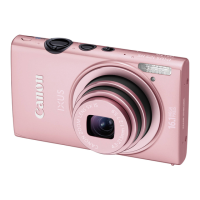
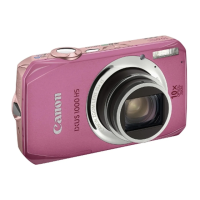
| Product color | Pink |
| Battery type | NB-11L |
| Battery life (CIPA standard) | 170 shots |
| Bundled software | ImageBrowser EX PhotoStitch |
 Weight and Dimensions
| Depth | 20.8 mm |
|---|---|
| Width | 93.5 mm |
| Height | 56.8 mm |
| Weight (including battery) | 145 g |


 To Next Page
