EasyManua.ls Logo

Canon IXUS 310 HS - User Manual

Canon IXUS 310 HS
103 pages
Print Icon
To Next Page IconTo Next Page
Loading...
CaHOH
_o_S_o,IXUS 310 HS
ELIF_H SO0 HS
Camera User Guide
Make sure you read this guide, including the "Safety
Precautions" section before using the camera.
Reading this guide will help ,. learn to use the camera
properly.
Store this guide use it in the future.
Question and Answer IconNeed help?

Do you have a question about the Canon IXUS 310 HS and is the answer not in the manual?

Summary

Getting More Out of Your Camera

Setting the Shutter Speed

Allows setting the shutter speed for desired shooting effects.

Setting the Aperture Value

Adjusts aperture settings to control depth of field and light exposure.

Safety Shift Function

Automatically adjusts exposure settings for correct exposure when needed.

Using Various Functions for Shooting Movies

Shooting Various Kinds of Movies

Explores different movie shooting modes and effects for creative filming.

Miniature Effect Movie Shooting

Create movies with a miniature model effect by blurring scene portions.

Super Slow Motion Movies

Capture fast-moving subjects and play them back in slow motion.

Changing Image Quality Settings

Select from four different image quality settings for movies and stills.

Using Various Playback and Editing Functions

Quickly Searching Images

Find desired images efficiently using index display and scrolling.

Viewing Movies with Movie Digest

Select and view movies recorded in Movie Digest mode by date.

Viewing Images in Filtered Playback

Filter and display images based on specified criteria like favorites or date.

Viewing Slideshows

Automatically play back images from the memory card with transition effects.

Changing Slideshow Settings

Adjust slideshow repeat, transition effects, and display time.

Checking Image Focus

Magnify areas of recorded images to check focus accuracy.

Magnifying Images

Zoom in on images to view details or check focus.

Viewing Images in Groups

View grouped images individually or as a group.

Ungrouping Images

Ungroup images taken in a specific mode to view them individually.

Smart Shuffle Image Display

Display images in an unexpected order based on the current image.

Touch Actions for Easy Operation

Register functions to drag patterns for quick access during playback.

Viewing Images on a TV

Viewing Images on High-Definition TV

Connect to an HD TV using an HDMI cable for viewing images.

Controlling Camera with TV Remote

Operate camera functions like playback using a TV's remote control via HDMI CEC.

Protecting Images

Choosing Images Individually for Protection

Select and protect individual images to prevent accidental deletion.

Erasing Images

Choosing Images Individually for Erasing

Select and erase individual images.

Erasing All Images at Once

Erase all images on the memory card simultaneously.

Tagging Images as Favorites

Organizing Images by Category

Image Manipulation Functions

Rotating Images

Change the orientation of an image and save the rotated version.

Resizing Images

Resize images to a lower pixel setting and save as a separate file.

Trimming Images

Cut out a portion of a recorded image and save it as a new file.

Adding Effects with My Colors

Change the color of an image and save it as a separate file.

Correcting Brightness with i-Contrast

Automatically adjust image brightness and contrast for optimum results.

Correcting Red-Eye Effect

Automatically correct red eyes in images and save them as new files.

Chapter 9: Printing Images

Easy Printing with PictBridge

Print pictures directly from the camera to a PictBridge compliant printer.

Making Print Settings

Configure print options like number of copies, date, and image effects.

Choosing Paper Size and Layout

Select paper size, type, and layout for printing images.

Choosing Images for Printing (DPOF)

Standardized method to select images and specify print settings for batch printing.

Chapter 10: Customizing Camera Settings

Low Level Memory Card Formatting

Perform low level formatting to resolve memory card errors or performance issues.

Calibrating the Touch Panel

Adjust the touch panel for accurate response to touch inputs.

Changing IS-Mode Settings

Adjust image stabilization settings for different shooting conditions.

Chapter 11: Useful Information

Using Household Power with AC Adapter

Connect the AC adapter kit to use the camera without battery.

Using an Eye-Fi Card

Transfer images wirelessly using an Eye-Fi card.

Troubleshooting Camera Issues

Troubleshooting Image Quality Issues

Solutions for blurred images, dark subjects, overexposure, and grainy appearance.

Understanding Error Messages

Interpret and resolve common error messages like 'No memory card' or 'Cannot record!'

Information Displayed on the Screen

Shooting Information Display

Key icons and information displayed during shooting mode.

Playback Detailed Information Display

Explanation of all data displayed during detailed playback.

Handling Precautions for Camera

Functions Available in Each Shooting Mode

Menu References

Shooting Menu Options

List of functions and settings accessible via the Shooting Menu.

Setup Menu Options

List of settings for camera setup, display, and system functions.

Playback Menu Options

List of functions for image playback, editing, and organization.

Print Menu Options

Options for printing images, including settings and selections.

Camera Specifications

Summary

Getting More Out of Your Camera

Setting the Shutter Speed

Allows setting the shutter speed for desired shooting effects.

Setting the Aperture Value

Adjusts aperture settings to control depth of field and light exposure.

Safety Shift Function

Automatically adjusts exposure settings for correct exposure when needed.

Using Various Functions for Shooting Movies

Shooting Various Kinds of Movies

Explores different movie shooting modes and effects for creative filming.

Miniature Effect Movie Shooting

Create movies with a miniature model effect by blurring scene portions.

Super Slow Motion Movies

Capture fast-moving subjects and play them back in slow motion.

Changing Image Quality Settings

Select from four different image quality settings for movies and stills.

Using Various Playback and Editing Functions

Quickly Searching Images

Find desired images efficiently using index display and scrolling.

Viewing Movies with Movie Digest

Select and view movies recorded in Movie Digest mode by date.

Viewing Images in Filtered Playback

Filter and display images based on specified criteria like favorites or date.

Viewing Slideshows

Automatically play back images from the memory card with transition effects.

Changing Slideshow Settings

Adjust slideshow repeat, transition effects, and display time.

Checking Image Focus

Magnify areas of recorded images to check focus accuracy.

Magnifying Images

Zoom in on images to view details or check focus.

Viewing Images in Groups

View grouped images individually or as a group.

Ungrouping Images

Ungroup images taken in a specific mode to view them individually.

Smart Shuffle Image Display

Display images in an unexpected order based on the current image.

Touch Actions for Easy Operation

Register functions to drag patterns for quick access during playback.

Viewing Images on a TV

Viewing Images on High-Definition TV

Connect to an HD TV using an HDMI cable for viewing images.

Controlling Camera with TV Remote

Operate camera functions like playback using a TV's remote control via HDMI CEC.

Protecting Images

Choosing Images Individually for Protection

Select and protect individual images to prevent accidental deletion.

Erasing Images

Choosing Images Individually for Erasing

Select and erase individual images.

Erasing All Images at Once

Erase all images on the memory card simultaneously.

Tagging Images as Favorites

Organizing Images by Category

Image Manipulation Functions

Rotating Images

Change the orientation of an image and save the rotated version.

Resizing Images

Resize images to a lower pixel setting and save as a separate file.

Trimming Images

Cut out a portion of a recorded image and save it as a new file.

Adding Effects with My Colors

Change the color of an image and save it as a separate file.

Correcting Brightness with i-Contrast

Automatically adjust image brightness and contrast for optimum results.

Correcting Red-Eye Effect

Automatically correct red eyes in images and save them as new files.

Chapter 9: Printing Images

Easy Printing with PictBridge

Print pictures directly from the camera to a PictBridge compliant printer.

Making Print Settings

Configure print options like number of copies, date, and image effects.

Choosing Paper Size and Layout

Select paper size, type, and layout for printing images.

Choosing Images for Printing (DPOF)

Standardized method to select images and specify print settings for batch printing.

Chapter 10: Customizing Camera Settings

Low Level Memory Card Formatting

Perform low level formatting to resolve memory card errors or performance issues.

Calibrating the Touch Panel

Adjust the touch panel for accurate response to touch inputs.

Changing IS-Mode Settings

Adjust image stabilization settings for different shooting conditions.

Chapter 11: Useful Information

Using Household Power with AC Adapter

Connect the AC adapter kit to use the camera without battery.

Using an Eye-Fi Card

Transfer images wirelessly using an Eye-Fi card.

Troubleshooting Camera Issues

Troubleshooting Image Quality Issues

Solutions for blurred images, dark subjects, overexposure, and grainy appearance.

Understanding Error Messages

Interpret and resolve common error messages like 'No memory card' or 'Cannot record!'

Information Displayed on the Screen

Shooting Information Display

Key icons and information displayed during shooting mode.

Playback Detailed Information Display

Explanation of all data displayed during detailed playback.

Handling Precautions for Camera

Functions Available in Each Shooting Mode

Menu References

Shooting Menu Options

List of functions and settings accessible via the Shooting Menu.

Setup Menu Options

List of settings for camera setup, display, and system functions.

Playback Menu Options

List of functions for image playback, editing, and organization.

Print Menu Options

Options for printing images, including settings and selections.

Camera Specifications

Canon IXUS 310 HS Specifications

General IconGeneral
Megapixel12.1 MP
Camera typeCompact camera
Sensor typeCMOS
Image stabilizerYes
Image sensor size1/2.3 \
Supported aspect ratios3:2, 16:9
Maximum image resolution4000 x 3000 pixels
Digital zoom4 x
Optical zoom4.4 x
Combined zoom18 x
Focal length range4.3 - 18.8 mm
Lens structure (elements/groups)7/6
InterfaceUSB 2.0
Digital SLRNo
Aperture range (F-F)2 - 5.8
Camera shutter speed1 - 1/1600 s
Compatible operating systemsWindows 7/Vista SP1-2/XP SP3; Mac OS X v10.5 – 10.6.
Focal length (35mm film equivalent)24 - 105 mm
FocusTTL
Auto focusing (AF) modescentre weighted auto focus, continuous auto focus, single auto focus
Closest focusing distance0.03 m
Light meteringCentre-weighted, Spot
ISO sensitivity100, 200, 400, 800, 1600, 3200, Auto
Flash modesAuto, Manual, Red-eye reduction, Slow synchronization
Flash range (tele)0.5 - 2 m
Flash range (wide)0.5 - 5 m
Internal memory- MB
Compatible memory cardsMMC, SD, SDHC, SDXC
Motion JPEG frame rate30 fps
Maximum video resolution1920 x 1080 pixels
Analog signal format systemNTSC, PAL
Field of view100 %
Display diagonal3.2 \
Display resolution (numeric)461000 pixels
USB version2.0
Scene modesBeach, Fireworks, Portrait, Self-portrait, Snow, Underwater
Photo effectsBlack&White, Positive film, Sepia, Skin tones, Vivid
White balanceAuto, Cloudy, Custom modes, Daylight, Fluorescent, Tungsten
Camera playbackmovie, single image
Image processorDIGIC 4
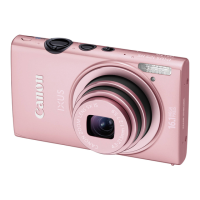
Product colorPink
Battery typeNB-6L
Battery life (CIPA standard)180 shots
Operating temperature (T-T)0 - 40 °C
Operating relative humidity (H-H)10 - 90 %
Weight and Dimensions IconWeight and Dimensions
Depth25 mm
Width100.6 mm
Height55.4 mm
Weight185 g

Related product manuals