143
You can organize images into categories. You can display the images in a
category in filtered playback (p. 123) and process all images at once by using
the functions below.
• “Viewing Slideshows” (p. 124), “Protecting Images” (p. 137), “Erasing All
Images” (p. 139), “Choosing Images for Printing (DPOF)” (p. 159)
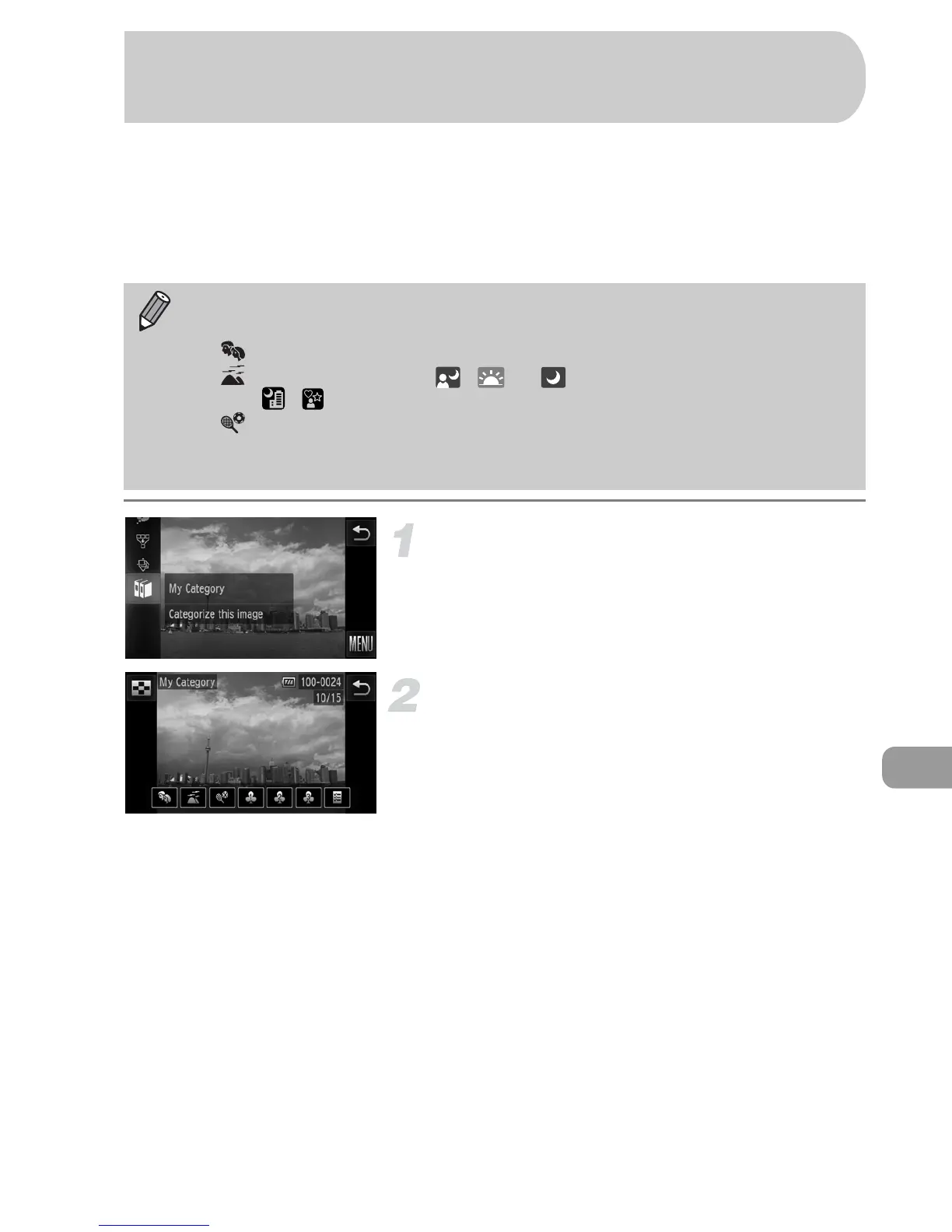
Choose ;.
z Touch ø, then drag up or down the
screen and touch ;.
Choose images.
z Drag left or right across the screen to
choose an image.
z Touch the desired category.
X The chosen category will appear in
orange.
z Touch the category again to cancel, and it
will turn white.
z To choose multiple images, repeat the
above operation.
• Images are automatically categorized by shooting condition as they are
shot.
- : Images with detected faces, or images shot in I or V.
- : Images detected as , or in A mode, or images shot in
, or O.
- : Images shot in w, P, t.
• You can also display categories by touching ø in Step 2, then
choosing the 1 tab, and [My Category].
Organizing Images by Category
(My Category)



 To Next Page