5
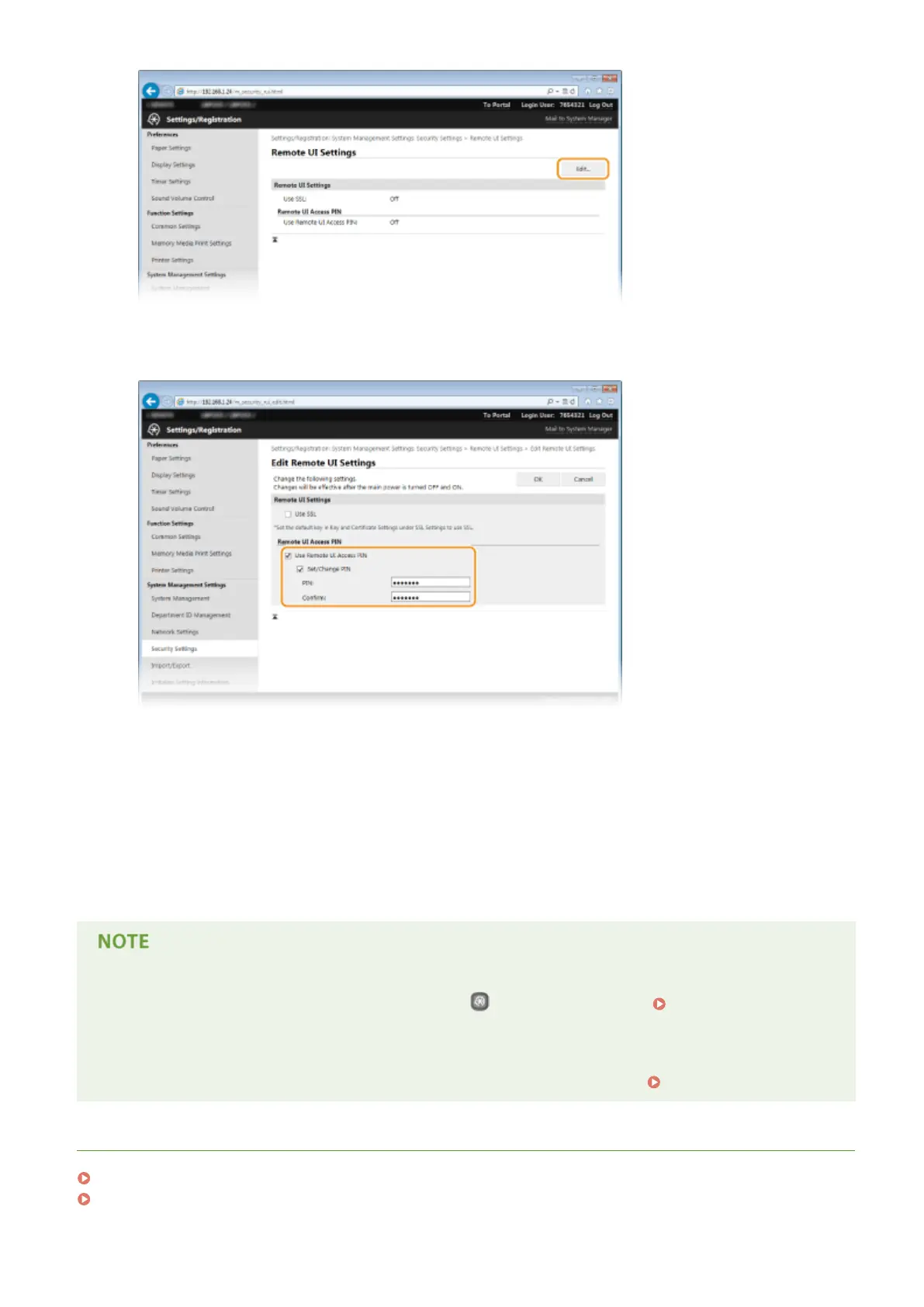
Select the [Use Remote UI Access PIN] check box and specify the PIN.
[Use Remote UI Access PIN]
If you select this check box, you must enter a PIN to access the Remote UI.
[Set/Change PIN]
To set a PIN, select the check box and enter a number of up to seven digits both in the [PIN] and [Conrm]
text boxes.
6
Click [OK].
Using the operation panel
● You can also set a Remote UI Access PIN by pressing on the operation panel. Remote UI
Settings(P. 341)
If Remote UI settings are initialized
● The Remote UI Access PIN is also initialized. After an initialization, reset the PIN. Initializing Menu(P. 423)
LINKS
Setting Access Privileges(P. 206)
Setting the System Manager ID(P. 207)
Security
217



 To Next Page