Need help?
Do you have a question about the Canon LiDE 120 and is the answer not in the manual?
Guidance on the reproduction and modification of the online manual's content.
Details on organizing and managing photos using My Image Garden software.
Information on how to connect the scanner to a computer, primarily via USB.
Essential safety information and precautions for using the scanner.
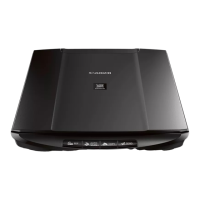
Identification and description of the scanner's key parts and features.
Instructions on how to correctly place documents and photos on the scanner.
Procedures for cleaning and maintaining the scanner to ensure optimal performance.
Guidelines for safely packing and moving the scanner.
Information on documents that may be unlawful to copy or reproduce.
Technical details and system requirements for the scanner.
Methods for scanning documents and images using a computer.
Using the scanner's physical buttons for direct scanning operations.
Introduction to ScanGear software for advanced scanning and image editing.
Steps to launch the ScanGear application.
Using ScanGear's simplified interface for easy scanning.
Utilizing ScanGear's detailed settings for color, resolution, and image adjustments.
Scanning multiple items simultaneously using ScanGear.
Using ScanGear's tools to enhance image quality and correct colors.
Overview of ScanGear's user interface elements and tabs.
How to define scan areas using cropping frames in the Image Stitch window.
Explanation of resolution settings and recommended values for different uses.
Description of available file formats (PNG, JPEG, TIFF, PDF) for scanned images.
Solutions for common issues encountered during the scanning process.
Troubleshooting steps for installation and download failures.
 General
| Scanner Type | Flatbed |
|---|---|
| Optical Resolution | 2400 x 4800 dpi |
| Color Depth | 48-bit internal/24-bit external |
| Maximum Document Size | 8.5 x 11.7 inches |
| Interface | USB 2.0 |
| Weight | 1.6 kg |
| Grayscale Levels | 16-bit internal/8-bit external |
| Scan Area | 8.5 x 11.7 inches |
| Dimensions (W x D x H) | 250 x 370 x 40 mm |
| Scanning Element | CIS |
| Light Source | 3-color (RGB) LED |
| Power Supply | USB bus power |
| Power Consumption | Approx. 2.5W (in operation) |
| Maximum Resolution | 19200 x 19200 dpi |
| Scan Speed | Approx. 16 seconds for A4 color |
| Power Source | Powered via USB |
| Compatibility | Windows, Mac |
| Selectable Resolution | 50 - 19200 dpi |
| Scanning Speed | Approx. 10 sec (A4, color, 300 dpi) |

 To Next Page