6
Windows PC
1
b
c
Google Cloud Print
AirPrint/Google Cloud Print
a
4
5
7
8
6
2
3
USB
4
2
3
5
4
ES
EN
ES
EN
ES
EN
ES
ES
ES
EN
EN
EN
ES
EN
ES
EN
ES
EN
ES
EN
ES
EN
ES
EN
ES
EN
ES
EN
ES
EN
ES
EN
ES
EN
ES
EN
ES
EN
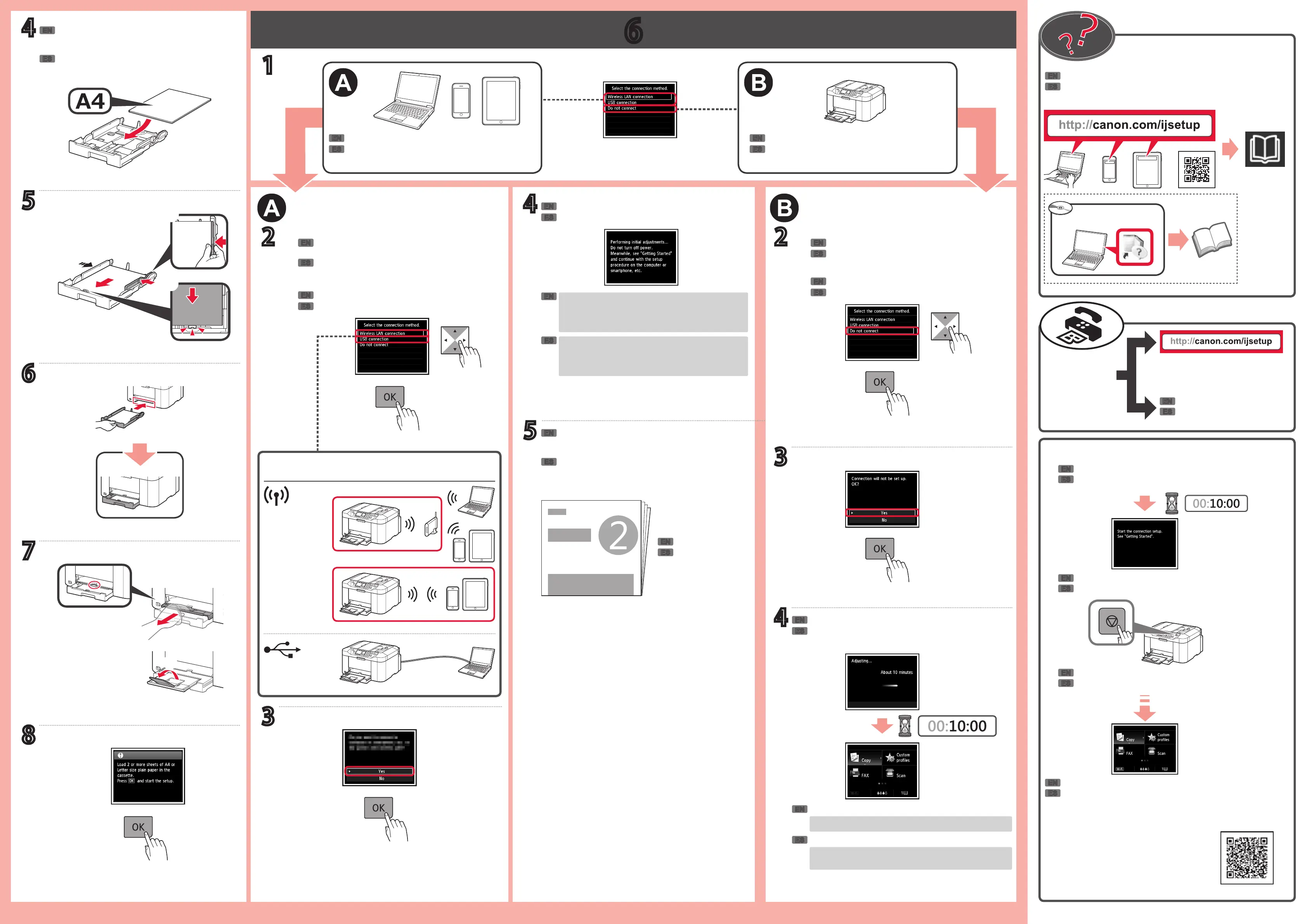
Se puede acceder al Manual en línea desde el sitio web.
Para conectar la impresora a un PC, teléfono
inteligente o tableta
Siga los pasos de la Guía de inicio 2 para realizar las
conexiones e instalar el software y después continúe
con la conguración de la impresora.
Pulse el botón Parar (Stop).
Siga las instrucciones que aparezcan en pantalla.
Si aparece la pantalla anterior, se ha completado la conguración de la
impresora.
Espere hasta que aparezca la siguiente pantalla.
Cargue varias hojas de papel normal A4 con el lado
de impresión hacia abajo.
También se puede cargar papel tamaño Carta.
Utilice la impresora sin conectar ningún otro
dispositivo
Utilice el botón { o } para seleccionar un tipo
de conexión entre los métodos que se muestran a
continuación.
LAN
inalámbrica
Método de conexión
Asegúrese de que aparezca la siguiente pantalla.
• Cuando haya finalizado los ajustes iniciales se
imprimirá una página de patrón.
• Para usar solo AirPrint o Google Cloud Print, vaya a
"AirPrint/Google Cloud Print".
La impresora se ha congurado y está lista para su uso.
Cuando haya nalizado los ajustes iniciales se imprimirá una
página de patrón.
Cómo
congurar el
FAX
Manual básico instalado
Pulse el botón OK.
Utilice los botones { o } para seleccionar No
conectar (Do not connect).
Pulse el botón OK.
Asegúrese de que la pantalla cambie como se muestra a
continuación.
Guía de inicio 2
The Online Manual is accessible from the website.
To connect the printer to a PC, smartphone or tablet
Follow the steps in the Getting Started 2 to make
connections and install software, and then continue the
printer setup.
Press the Stop button.
Follow the on-screen instructions.
If the screen above appears, the printer setup is complete.
Wait until the following screen appears.
Load several sheets of A4 plain paper with the print
side facing down.
Letter size paper can also be loaded.
Use the printer without connecting any other devices
Use the { or } button to select a connection type
from "Connection method" shown below.
Wireless LAN
Connection method
Make sure the following screen appears.
• After initial adjustments are finished, a pattern page is
printed.
• To use only AirPrint or Google Cloud Print, proceed to
"AirPrint/Google Cloud Print".
The printer is set up and ready for use.
After initial adjustments are nished, a pattern page is printed.
How to set up
the FAX
Installed Basic Manual
Press the OK button.
Use the { or } button to select Do not connect.
Press the OK button.
Make sure the screen changes as below.
Getting Started 2




 To Next Page